Set up the Microsoft 365 MCP servers
The Microsoft 365 connectors give AI agents access to Outlook email and calendar, Teams chats and channels, OneNote notebooks, and SharePoint files — all through the Microsoft Graph API. Add only the connectors you need, or package them into a single Microsoft 365 MCP. Mint manages the Azure application and OAuth credentials, so there are no client IDs or secrets to configure.
Prerequisites
- A MintMCP admin account
- A Microsoft 365 subscription with licenses for the services you plan to connect
- A Microsoft 365 Global Administrator or Cloud Application Administrator account, if you add a connector that needs admin consent (Teams, OneNote, or SharePoint)
How Mint-managed OAuth works
MintMCP brokers every Microsoft 365 request across two OAuth boundaries, so the MCP client never talks to Microsoft directly or holds a Microsoft token.
- Client to MintMCP. Your MCP client (Claude, ChatGPT, Cursor) runs OAuth against MintMCP and receives a MintMCP session — never a Microsoft token.
- MintMCP to Microsoft. On first connect, MintMCP redirects the user's browser to Microsoft Entra to sign in and consent. Microsoft returns the tokens to MintMCP, which stores them encrypted and refreshes them automatically; each tool call then reaches Graph as that user.
The user signs in to Microsoft, but MintMCP brokers the flow and keeps the token, so access is bound to the user's Microsoft 365 identity — not the client. Swapping clients or machines changes nothing.
Mint's verified multi-tenant app is the OAuth client for every tenant, so there's no app registration, client secret, or service account to create or rotate — consent installs the app into your tenant, and each user acts as themselves. That's also why even a broad scope like Sites.ReadWrite.All only reaches what that user can already access, never the whole tenant.
Add a connector
Each M365 service is a separate pre-listed connector in the MintMCP store. Every connector also requests the base scopes openid, email, profile, and offline_access on top of the service scopes below.
Pick the connector you want — each tab has how to install it, what it grants, whether it needs admin consent, and the Graph scopes it requests.
- Outlook Email
- Outlook Calendar
- Teams
- OneNote
- SharePoint
- Install: in MCP store > Manage store, find Outlook Email and install it.
- Grants: email search, reading, attachments, drafts, and sending — including shared mailbox support.
- Admin consent: not required — users self-authorize on first connect.
- Scopes:
Mail.ReadWrite,Mail.Send,Mail.ReadWrite.Shared,Mail.Send.Shared,MailboxSettings.Read
- Install: in MCP store > Manage store, find Outlook Calendar and install it.
- Grants: calendars, events, and availability checks, with support for creating events with Teams meeting links.
- Admin consent: not required — users self-authorize on first connect.
- Scopes:
Calendars.Read,Calendars.ReadWrite
- Install: in MCP store > Manage store, find Teams and install it.
- Grants: chats and channels — read messages, and send messages and replies.
- Admin consent: required — a tenant admin must grant consent for
ChannelMessage.Read.Allbefore other users can connect. - Scopes:
Chat.ReadWrite,ChannelMessage.Send,ChannelMessage.Read.All,Team.ReadBasic.All,Channel.ReadBasic.All
- Install: in MCP store > Manage store, find OneNote and install it.
- Grants: notebooks, sections, and pages — search, create, update, and delete.
- Admin consent: required — a tenant admin must grant consent for
Notes.ReadWrite.Allbefore other users can connect. - Scopes:
Notes.Read.All,Notes.ReadWrite.All
- Install: in MCP store > Manage store, find SharePoint and install it.
- Grants: sites, drives, and files, with support for search and file management.
- Admin consent: required — a tenant admin must grant consent for
Sites.Read.All,Sites.ReadWrite.All, andGroupMember.Read.Allbefore other users can connect. - Scopes:
Sites.Read.All,Sites.ReadWrite.All,Files.Read.All,Files.ReadWrite.All,GroupMember.Read.All
Grant admin consent
Teams, OneNote, and SharePoint include Graph scopes that need org-wide admin consent before non-admin users can authorize them (each tab flags which). The other connectors let users self-authorize.
The simplest path is to have a Global Administrator or Cloud Application Administrator connect first and check Consent on behalf of your organization on the Microsoft consent screen — that grants org-wide consent so everyone else connects without a prompt. Otherwise, users hit an "Approval required" screen and can request approval, which reaches admins by email and in the Entra admin center under Enterprise applications > Admin consent requests.
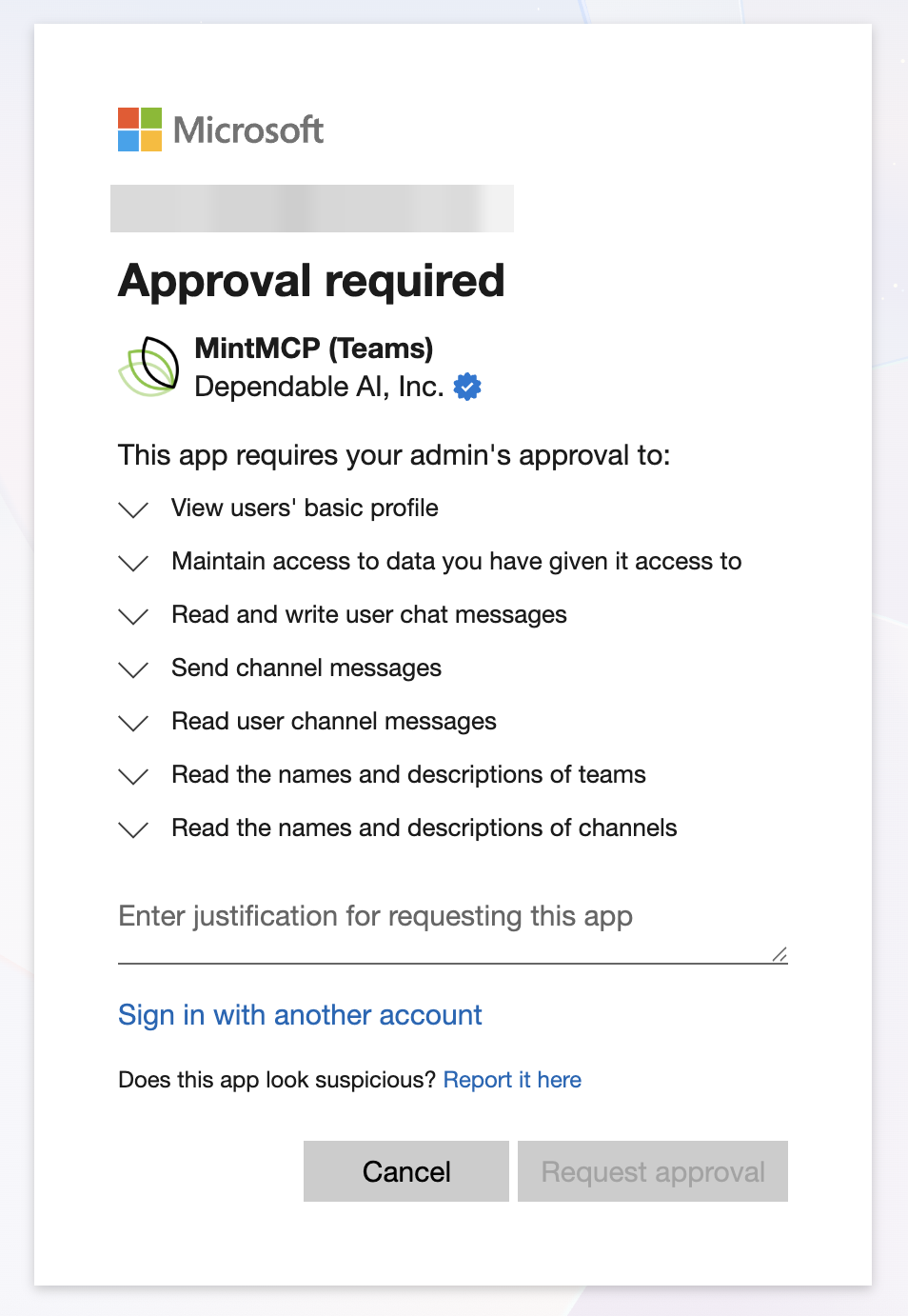
To review or revoke consent later, open the MintMCP app in the Entra admin center under Enterprise applications > All applications and use its Permissions page.
Bundle the connectors into one Microsoft 365 MCP
Installed individually, each connector is a separate endpoint users have to add one by one. Package them into a single Virtual MCP — a role-based MCP bundle — so your organization connects to one Microsoft 365 endpoint that exposes email, calendar, Teams, OneNote, and SharePoint together, with access and audit managed centrally.
- Install the connectors you want in the bundle using the tabs above.
- In MintMCP, choose Create a role-based MCP bundle.
- Name the bundle — for example, Microsoft 365.
- Under Select MCPs, check Outlook Email, Outlook Calendar, Teams, OneNote, and SharePoint.
- Click Create combined MCP.
Users authenticate once against the bundle and each connector's per-user OAuth still applies, so every Graph call runs as the signed-in user with each user's own Microsoft 365 permissions.
Security considerations
- All connectors use per-user OAuth, so every action is tied to the authenticated user's Microsoft 365 identity and existing permissions.
ChannelMessage.Read.All,Notes.ReadWrite.All,Sites.Read.All,Sites.ReadWrite.All, andGroupMember.Read.Allare admin-consent-level Graph scopes — they reach broadly across whatever each user can already access, so install only the connectors your organization needs.- Users can revoke their individual consent at any time from myapps.microsoft.com.
- Mint runs a Microsoft-verified, multi-tenant Azure application, so it can authenticate users from any Microsoft 365 organization whose admin has granted org-wide consent or whose tenant policy allows user self-consent. Its verified-publisher status shows on the Microsoft consent screen, and once a user or admin consents the application appears in your own Microsoft Entra tenant under Enterprise applications, where admins can review or revoke its permissions at any time.
Next steps
- Tool customization — Control which Microsoft 365 tools are exposed to users
- MCP gateway administration — Manage access and permissions