Set up the Google Ads MCP server
The Google Ads MCP server provides read-only access to Google Ads campaigns, ad groups, keywords, ads, and performance metrics through the Google Ads Query Language (GAQL). This guide covers getting a developer token, creating OAuth credentials in Google Cloud, and connecting the server to MintMCP.
Prerequisites
- A MintMCP admin account
- A Google Ads Manager account (MCC) — required for the developer token. If you don't have one, create it at ads.google.com → Manager accounts.
- A Google Cloud project with permission to enable APIs and create OAuth credentials
Get a Google Ads developer token
The developer token identifies your application to the Google Ads API. It's a 22-character string issued from a Manager account (MCC) — not from individual advertiser accounts — and sent on every API request. MintMCP stores it as the connector's GOOGLE_ADS_DEVELOPER_TOKEN environment variable.
- Sign in to your Google Ads Manager account (MCC) at ads.google.com.
- Go to Tools & Settings → Setup → API Center.
- Complete the API access form — company name and a working website URL, an API contact email, and accept the terms.
- Copy the Developer token.
A new token starts with Test Account access and can only query test accounts. To query production accounts, apply for Basic Access from the same API Center. The application is reviewed manually and can take a few days, and Google may email your API contact for clarification. Until it's approved, calls against production accounts return DEVELOPER_TOKEN_NOT_APPROVED.
| Access level | What it unlocks |
|---|---|
| Test Account | Test accounts only (default for a new token) |
| Basic Access | Production accounts, capped daily operations |
| Standard Access | Higher quotas, granted on further review |
See Google's developer token policy for the full application requirements.
Enable the Google Ads API
- Go to console.cloud.google.com and select or create a project.
- Go to APIs & Services → Library, search for Google Ads API, and click Enable.
Create the OAuth client
The OAuth client gives MintMCP a Client ID and secret to broker each user's Google sign-in. Create one Web application client and point its redirect URI at MintMCP's callback.
-
Go to console.cloud.google.com/auth/clients and click Create client.
-
Set Application type to Web application and give it a name (for example,
MintMCP OAuth). The name only identifies the client in the console.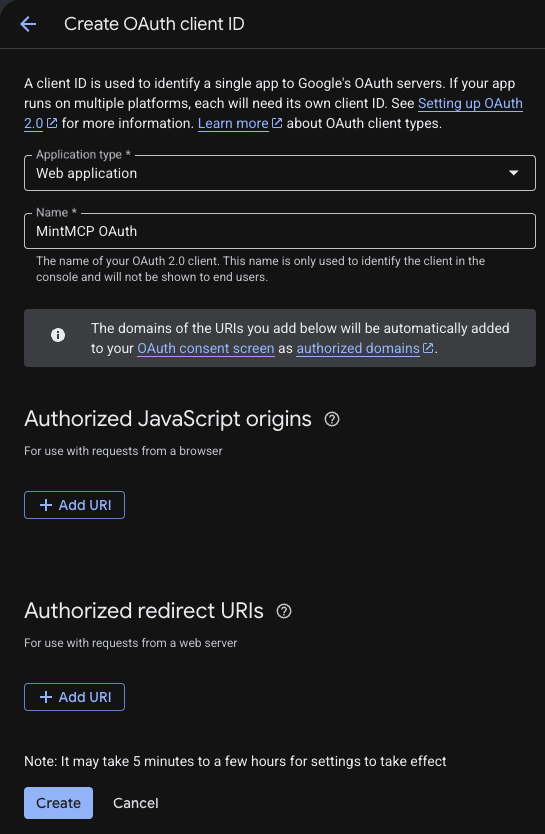
-
Under Authorized redirect URIs, click Add URI and enter MintMCP's callback URL:
https://app.mintmcp.com/oauth/callbackLeave Authorized JavaScript origins empty. This URI must match the Redirect URL in the connector's OAuth settings exactly, or sign-in fails with
redirect_uri_mismatch, and changes can take a few minutes to take effect.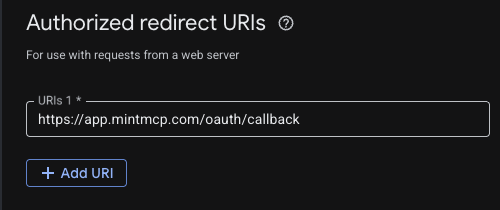
-
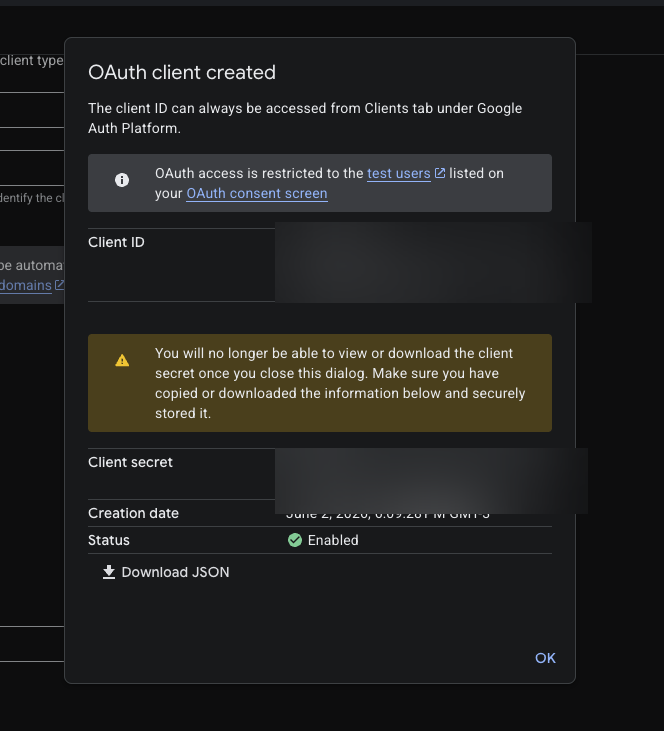
Click Create. Google shows the Client ID and Client secret once — copy both now, because you can't view the secret again after closing the dialog.
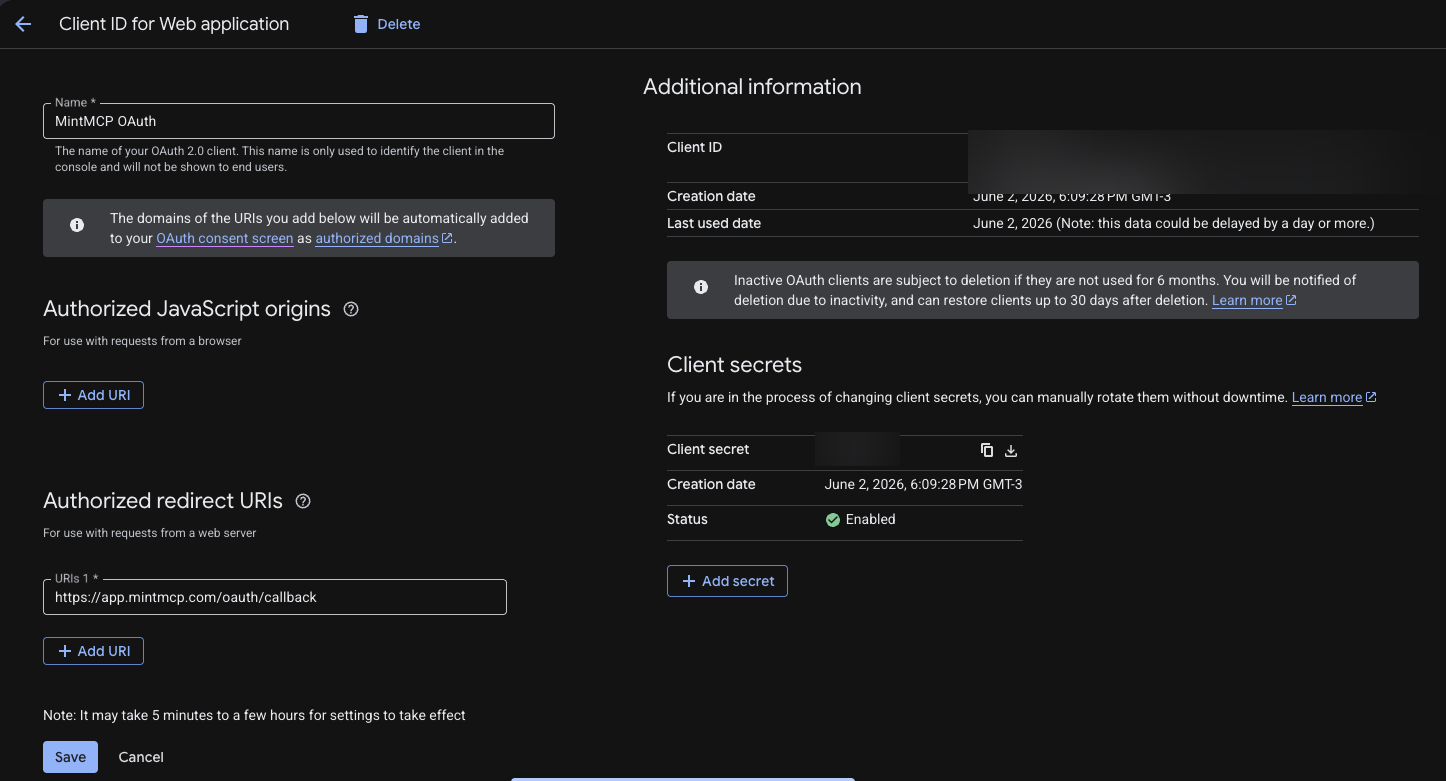
Reopen the client anytime from the Clients list to edit its redirect URIs or rotate the secret.
Add Google Ads to MintMCP
-
In MintMCP, go to MCP store → Manage store.
-
Find the Google Ads connector and click to install it.
-
When prompted, set the
GOOGLE_ADS_DEVELOPER_TOKENenvironment variable to the developer token from the API Center. -
Open the connector's OAuth settings and enter:
Setting Value Authorization URL https://accounts.google.com/o/oauth2/v2/authToken URL https://oauth2.googleapis.com/tokenScope https://www.googleapis.com/auth/adwordsClient ID Client ID from the OAuth client you created Client Secret Client Secret from the OAuth client you created -
Confirm the Redirect URL shown in the connector's OAuth settings matches the URI you added to the OAuth client (
https://app.mintmcp.com/oauth/callback). They must be identical, or sign-in fails withredirect_uri_mismatch. -
Click Save.
The first time a user calls a tool, MintMCP directs them to sign in with Google and consent to the adwords scope. MintMCP stores and refreshes their token automatically on every subsequent call.
Security considerations
- Each user authenticates individually through OAuth, so tool calls run against that user's own Google Ads access — limited by their existing Google Ads permissions.
- The server provides read-only access; it builds GAQL queries from structured arguments and does not create or modify campaigns.
- The
adwordsscope grants broad Google Ads API access; read-only behavior is enforced by the server's tool surface, not by the scope. - The developer token is a shared, org-level credential — keep it out of version control and restrict who can view it in MintMCP.
Troubleshooting
- Sign-in fails with
redirect_uri_mismatch. The redirect URI on the Google Cloud OAuth client doesn't match the connector's Redirect URL. Open the OAuth client, confirm Authorized redirect URIs containshttps://app.mintmcp.com/oauth/callbackexactly, and save — changes can take a few minutes to take effect. - Sign-in is blocked with "access denied" before the consent screen appears. The OAuth consent screen is still in Testing publishing status, so only Google accounts added as test users can authorize it. Add each user as a test user, or publish the app (move its audience to In production) so anyone in your organization can sign in.
- Tool calls return
DEVELOPER_TOKEN_NOT_APPROVED. The developer token isn't approved to query the production account you're targeting. Apply for the access level you need from the API Center, or point queries at a test account until the application is approved. - Tool calls return
USER_PERMISSION_DENIEDor no accounts. The signed-in Google account doesn't have access to the Google Ads account being queried, because each user's tool calls run against their own Google Ads permissions. Confirm the user can open that account in Google Ads — accounts under a manager account are reached through the manager.
Next steps
- Tool customization — Control which Google Ads tools are exposed to users
- MCP gateway administration — Manage access and permissions