Set up the BigQuery MCP server
Google's BigQuery MCP server lets AI agents list datasets and tables, read schema metadata, and run SQL queries against BigQuery. This guide walks through enabling the BigQuery API, granting IAM roles to users, creating an OAuth client in Google Cloud, and connecting the server to Mintive.
Prerequisites
- A Mintive admin account
- A Google Cloud project with billing enabled (or a BigQuery sandbox project)
Enable the BigQuery API
- Go to console.cloud.google.com/apis/enableflow?apiid=bigquery.googleapis.com and select your project.
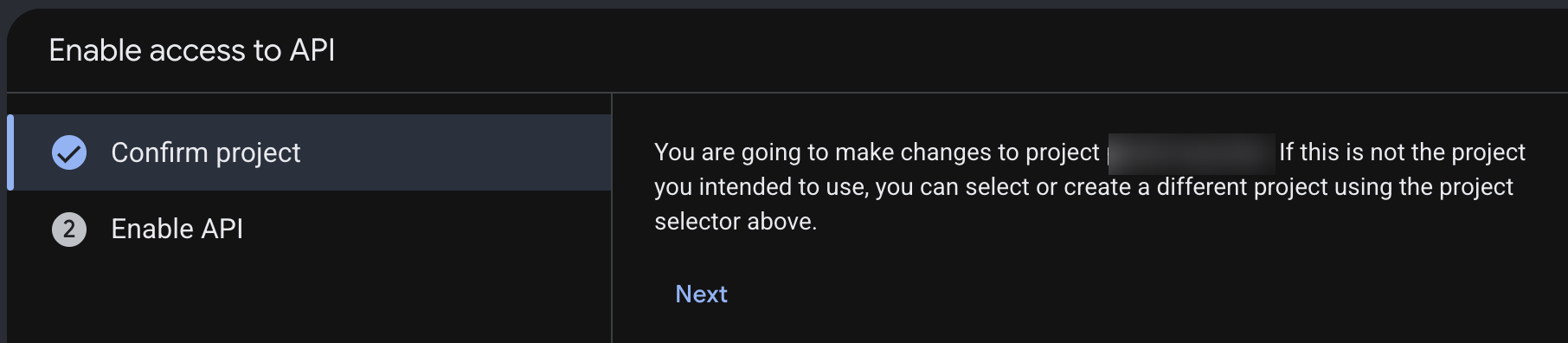
- On Confirm project, check that the correct project is selected and click Next.
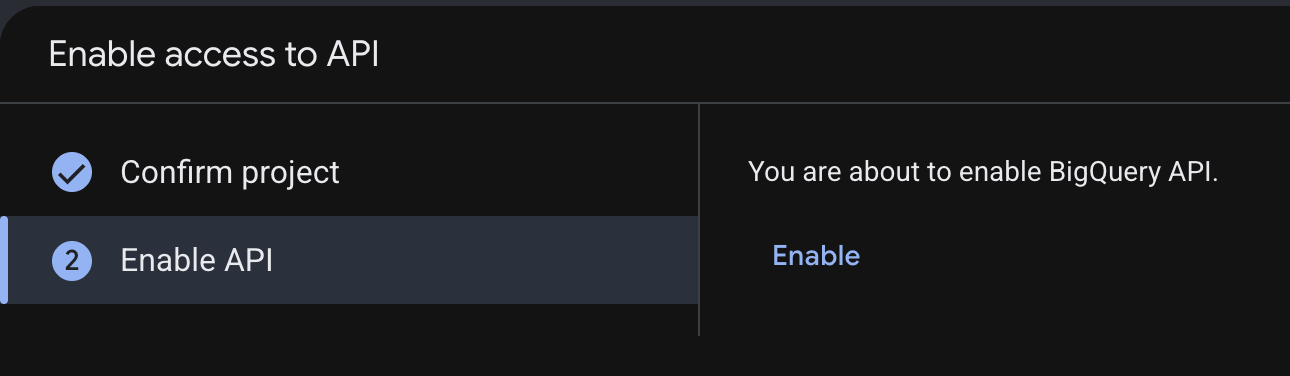
- On Enable API, click Enable.
Grant IAM roles
Each user who connects to BigQuery through Mintive needs three IAM roles on the Google Cloud project.
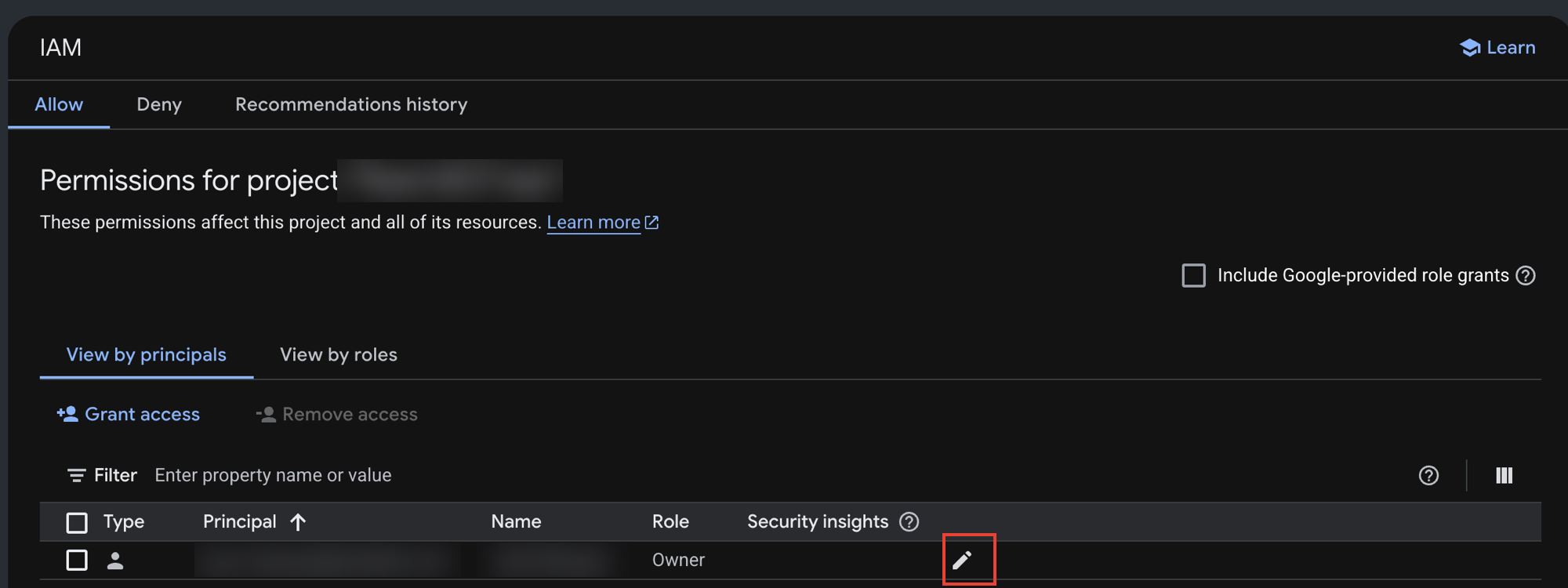
- Go to console.cloud.google.com/iam-admin/iam and select your project.
- To add roles to a user already listed, click the edit (pencil) icon on their row. To add a new user, click Grant access and enter their email address or a Google Group.
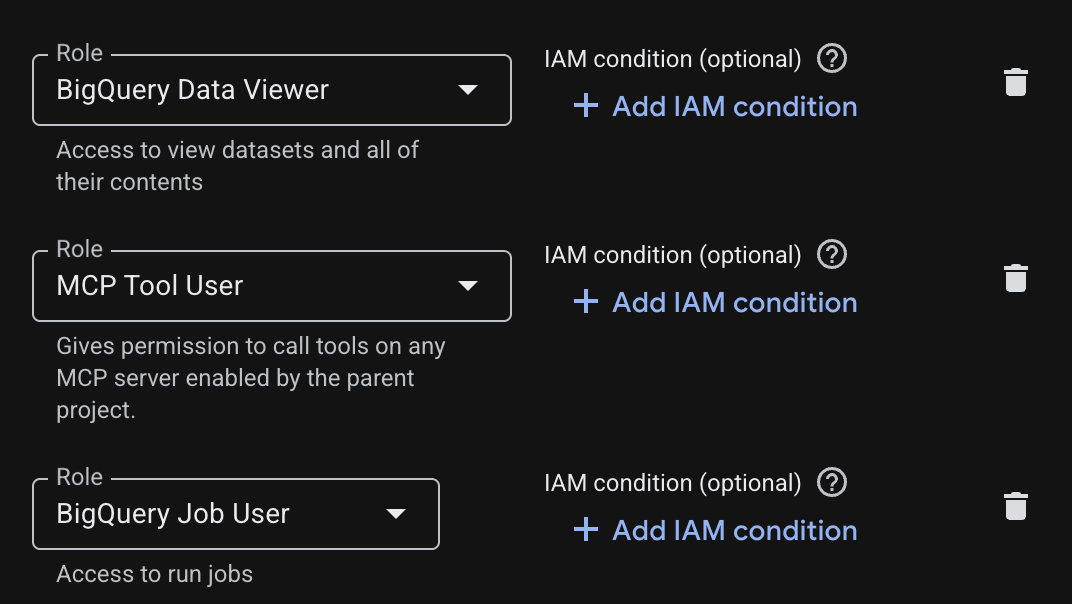
- Add all three roles, clicking + Add another role for each:
- BigQuery Data Viewer (
roles/bigquery.dataViewer) to read BigQuery data - MCP Tool User (
roles/mcp.toolUser) to make MCP tool calls - BigQuery Job User (
roles/bigquery.jobUser) to run BigQuery jobs
- BigQuery Data Viewer (
- Click Save.
For more granular access control, grant roles/bigquery.dataViewer at the dataset or table level rather than the project level.
Create an OAuth client
The OAuth client gives Mintive a Client ID and secret to broker each user's Google sign-in. Create one Web application client and point its redirect URI at Mintive's callback.
-
Go to console.cloud.google.com/auth/clients and select your project.
-
If prompted to configure the OAuth consent screen, set the user type to Internal (Google Workspace organizations only). This restricts access to users in your org and skips Google app verification, which is otherwise required for the
bigqueryscope. -
Click Create client.
-
Set Application type to Web application and give it a name (for example,
Mintive OAuth).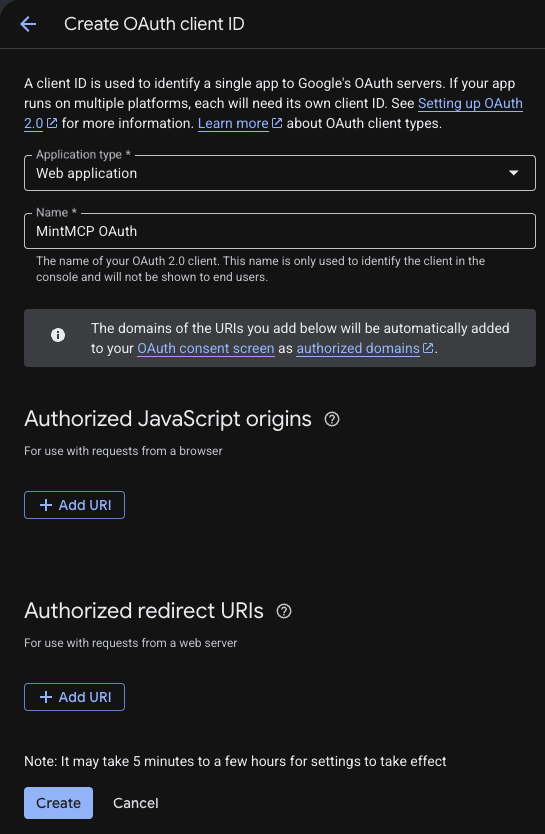
-
Under Authorized redirect URIs, click Add URI and enter the callback for your Mintive region:
Mintive region Redirect URI US ( app.mintmcp.com)https://app.mintmcp.com/oauth/callbackEU ( eu.mintmcp.com)https://eu.mintmcp.com/oauth/callbackThe install panel in Mintive shows the callback for your organization.
Leave Authorized JavaScript origins empty. This URI must match the Redirect URL in the connector's OAuth settings exactly, or sign-in fails with
redirect_uri_mismatch.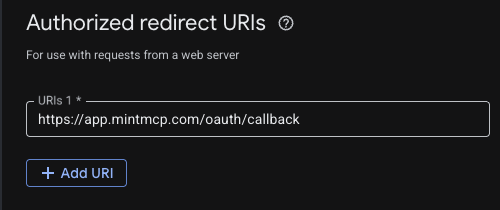
-
Click Create. Google shows the Client ID and Client secret once — copy both now, because you can't view the secret again after closing the dialog.
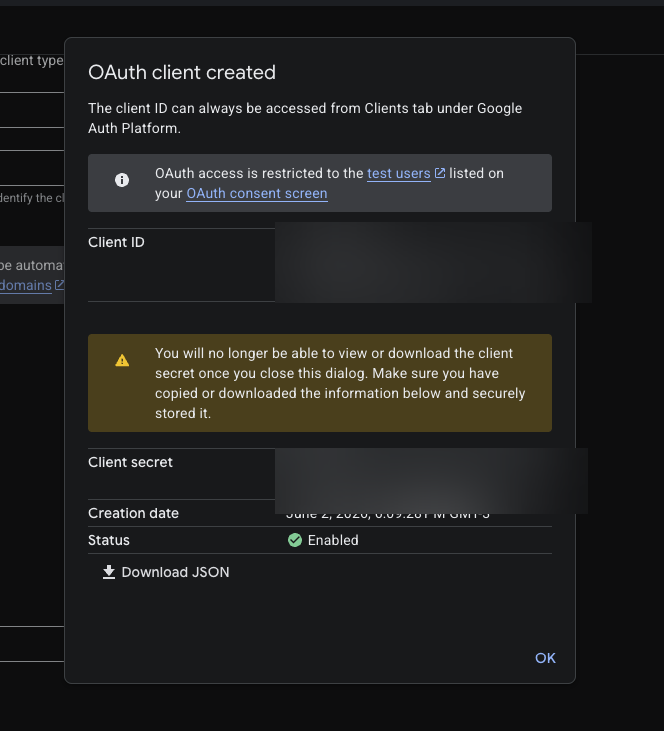
Reopen the client anytime from the Clients list to edit its redirect URIs or rotate the secret.
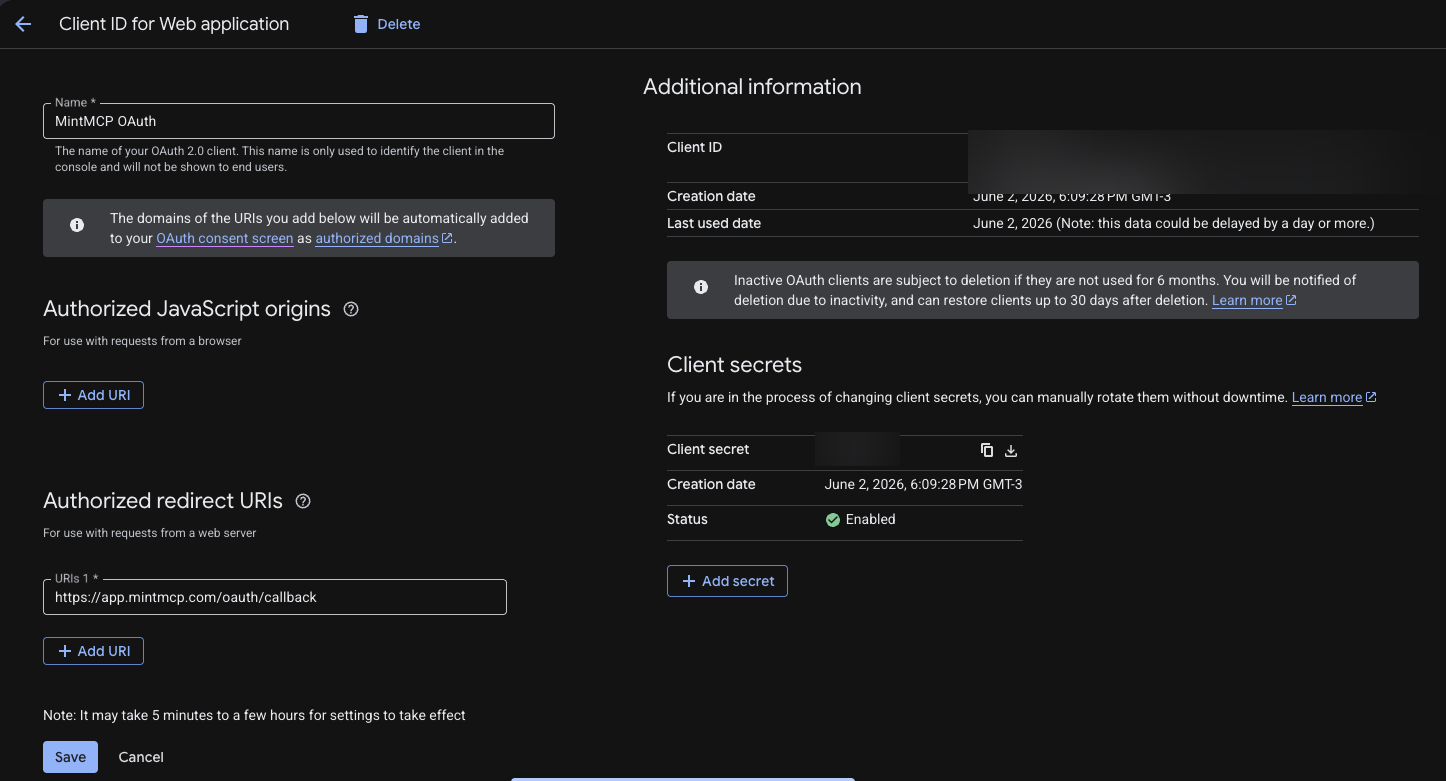
Add BigQuery to Mintive
-
In Mintive, go to MCP store → Manage store.
-
Find the BigQuery connector and click to install it.
-
Open the connector's OAuth settings and enter the Client ID and Client secret from the OAuth client you created. The catalog connector pre-fills the authorization URL, token URL, and scope.
-
Confirm the Redirect URL shown in the connector's OAuth settings matches the URI you added to the OAuth client, which is the callback for your region (
https://app.mintmcp.com/oauth/callbackorhttps://eu.mintmcp.com/oauth/callback). They must be identical, or sign-in fails withredirect_uri_mismatch. -
Click Save.
The first time a user calls a tool, Mintive directs them to sign in with Google and consent to the bigquery scope. Mintive stores and refreshes their token automatically on every subsequent call.
Security considerations
- Access is controlled by Google Cloud IAM — users without the required roles receive an authorization error when connecting.
- Each user authenticates individually with their own Google account, so all queries run under their identity and appear in BigQuery audit logs.
- Grant
roles/bigquery.dataViewerat the dataset or table level rather than project level to restrict which data users can query. - BigQuery logs all MCP operations through Cloud Audit Logs. Enable Data Access audit logs on the BigQuery API to capture read operations.
- To block write operations (DML/DDL), use IAM deny policies on the
execute_sqltool — see Control MCP use with IAM. - Query results are capped at 3,000 rows and queries time out after 3 minutes. Results exceeding the row cap are truncated without an error.
Next steps
- Control MCP use with IAM — Restrict which tools users can call with deny policies
- Tool customization — Control which BigQuery tools are exposed to users
- MCP gateway administration — Manage access and permissions