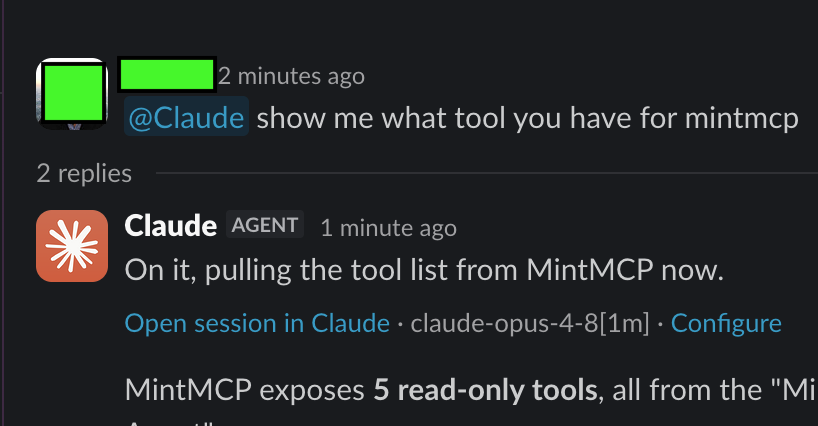
Connect Claude Tag to MintMCP
Claude Tag lets your team call Claude from a Slack channel with @Claude. Connect it to MintMCP so Claude Tag can use your MCP tools, authenticated with an API key from an agent identity MCP — a shared service account the whole channel uses.
Claude Tag is currently in beta. We'll update this guide as the setup changes.
Prerequisites
- MintMCP admin access
- Owner or admin access to your Claude organization — access bundles live in Claude's organization settings
- Claude Tag (Beta) enabled for your Slack workspace
Create an agent identity MCP in MintMCP
An agent identity MCP acts as a service account: its API key is shared across the team rather than tied to an individual user.
- In MintMCP, go to Agent Identities in the sidebar
- Click + Add Agent Identity
- Give it a name (for example, "Mint Read") and click Create
Restrict tools
By default the agent identity MCP exposes every available tool. Narrow the set to what the channel needs, since fewer tools improve Claude's tool selection and reduce risk.
- Open the new MCP and go to the Tools tab
- Enable only the tools the channel should use, and disable the rest
Create an API key and copy the server URL
- Open the Agent Setup tab of the agent identity MCP
- Under Agent API authorization, click + Create key
- Name the key (for example, "claude tag key") and create it
- Copy the secret — it is shown only once
- Copy the MCP Server URL below the key, for example
https://app.mintmcp.com/o/mintmcp/s/mint-readonly/mcp— you'll need both the secret and this URL in Claude
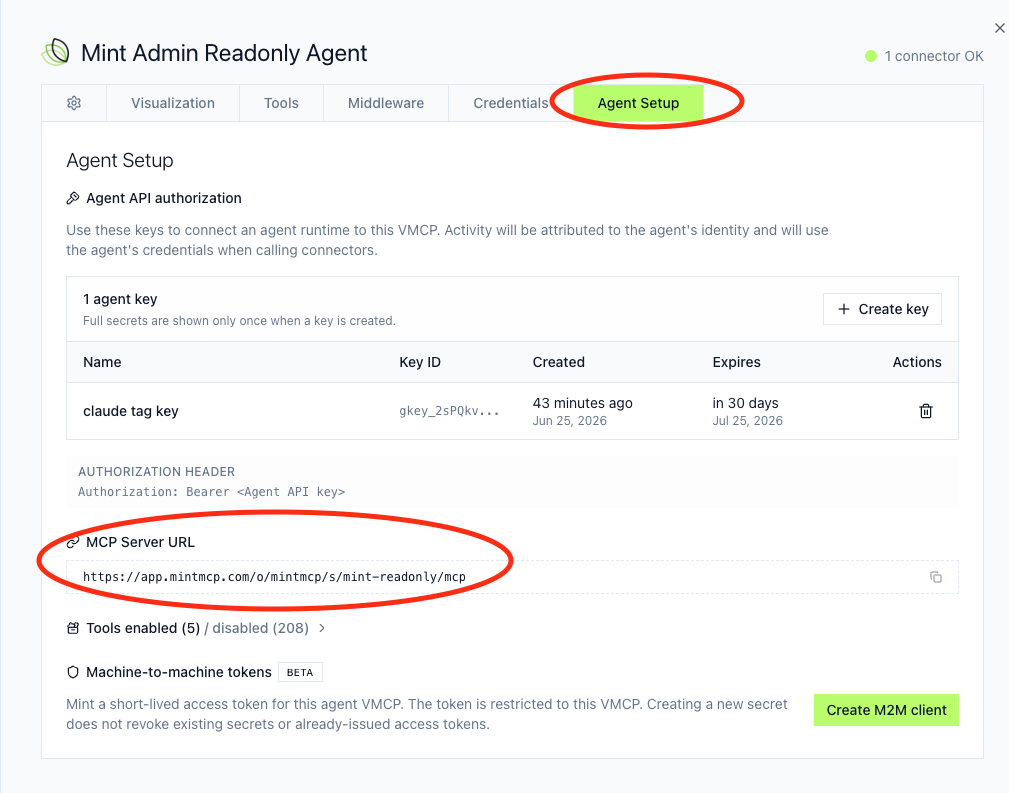
API keys expire after about 30 days. Rotate the key and update the Claude connection before it expires to avoid interruptions.
Connect MintMCP in a Claude access bundle
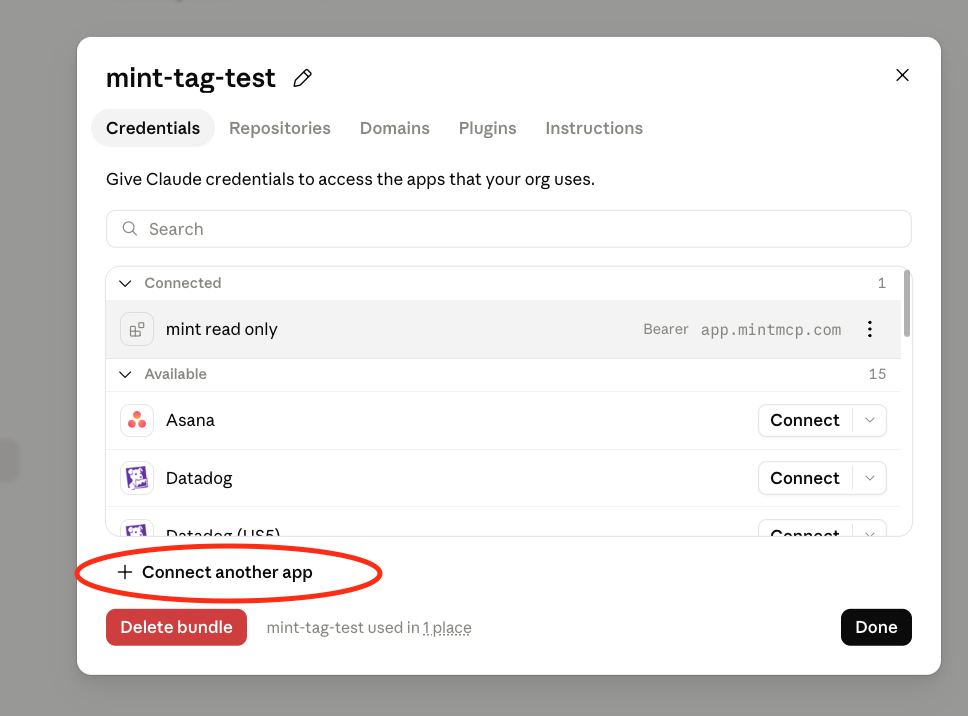
An access bundle holds the connections Claude Tag can use in a channel. Add MintMCP to the bundle as a connection.
- In Claude organization settings, go to Claude Tag → Access bundles
- Open the bundle you want to use, or create one (for example, "mint-tag-test")
- On the Credentials tab, click + Connect another app
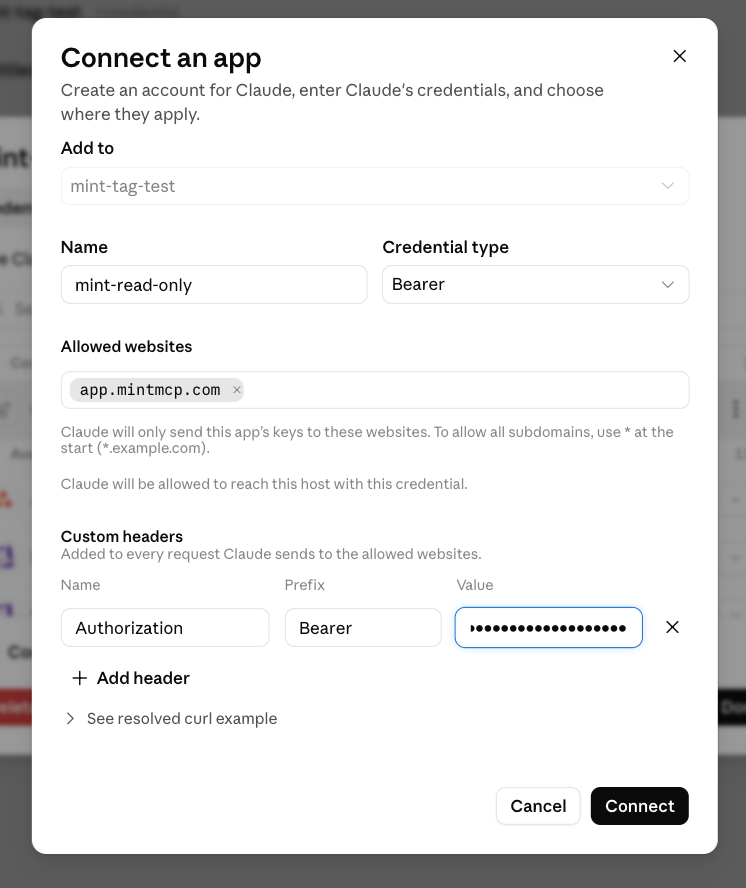
- Set Name to something recognizable, for example "mint-read-only"
- Set Credential type to Bearer
- Set Allowed websites to the host from your MCP Server URL, for example
app.mintmcp.com - Under Custom headers, add a header named
Authorizationwith prefixBearerand paste the API key as the value - Click Connect
Add the path prefix
The path prefix tells Claude which MintMCP server to reach. It appears only after the connection exists, so set it by editing the connection you just created.
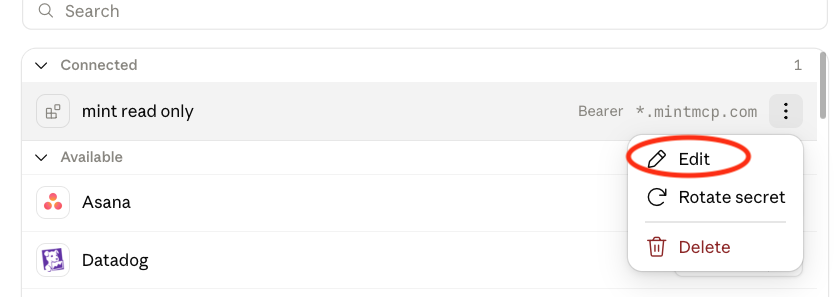
- On the connected app, click the three-dot menu (⋯) and select Edit
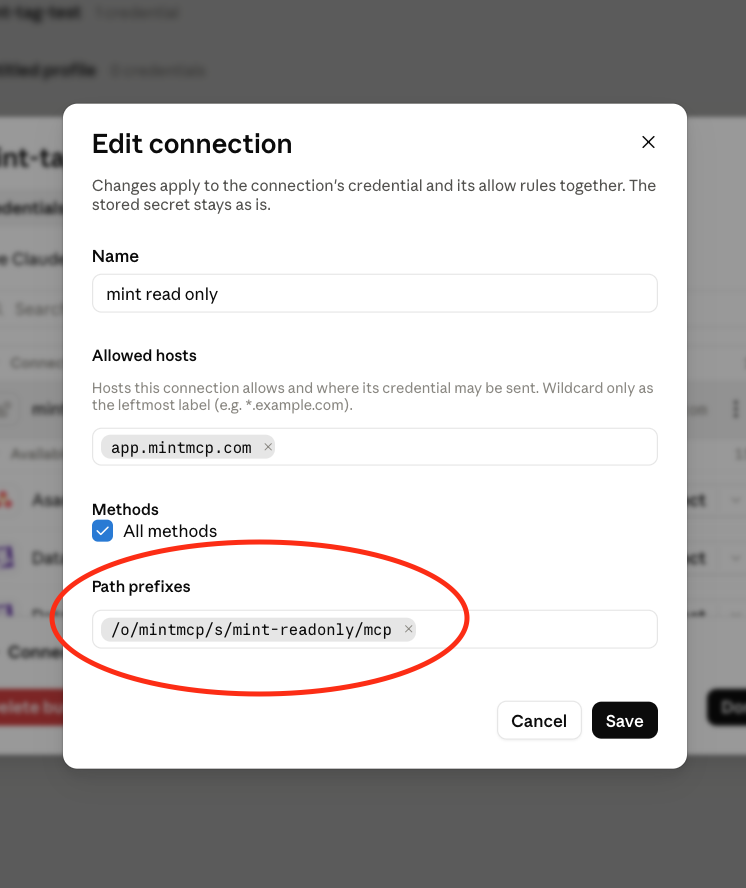
- Under Path prefixes, add the path from your MCP Server URL — everything starting at
/o/. Forhttps://app.mintmcp.com/o/mintmcp/s/mint-readonly/mcp, the prefix is/o/mintmcp/s/mint-readonly/mcp. - Click Save
Add usage instructions
Claude Tag treats MintMCP as a live MCP server rather than a registered tool, so tool search won't surface it on its own. Add instructions to the bundle telling Claude to connect to it directly and what the server is for, otherwise Claude may not reach for MintMCP when a question calls for it.
- On the access bundle, open the Instructions field
- Describe how to use the connection and which tasks it covers, for example:
app.mintmcp.com is a live MCP server, not a registered tool, so tool search won't find it. Connect to it directly to get the list of available tools. Use it for LinkedIn data and Linear issues.
- Save the bundle
Match the task list to the tools you enabled on the agent identity MCP so Claude reaches for MintMCP on the right questions.
Attach the bundle to a Slack channel
Claude Tag applies access per channel, so attach the bundle to the channel where your team will use it.
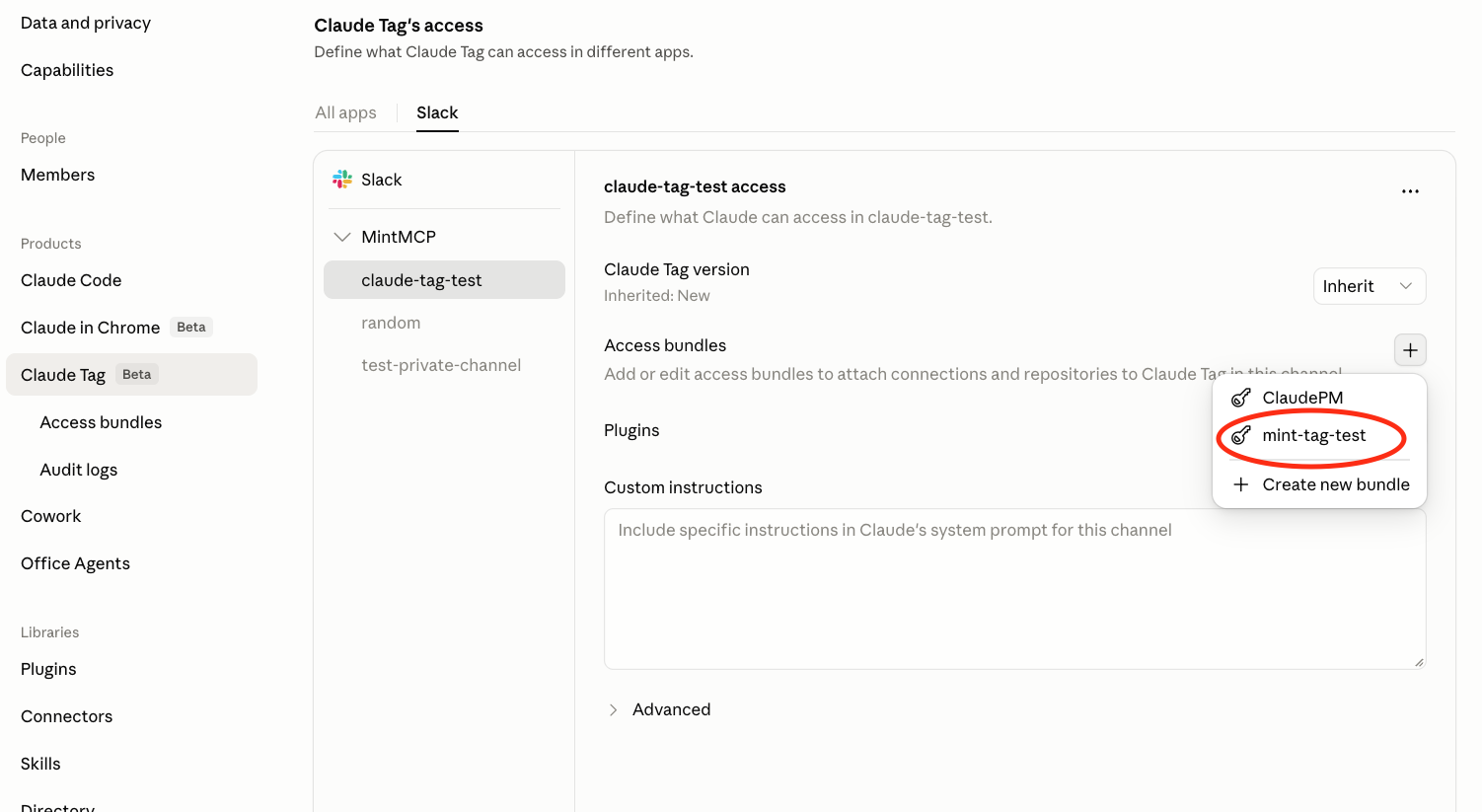
- In Claude organization settings, go to Claude Tag → Slack and select the channel
- Under Access bundles, click + and choose your bundle (for example, "mint-tag-test")
Use it in Slack
In the channel, mention @Claude and ask it to use a MintMCP tool. Claude authenticates with the API key and calls the tools enabled on the agent identity MCP.