Set up the Smartsheet MCP server
Smartsheet's MCP server lets AI agents read, write, update, and delete data across sheets, rows, reports, dashboards, discussions, and workspaces. This guide covers connecting Smartsheet's generally available server from MintMCP's recommended servers, where each user authenticates with their own Smartsheet access token.
Prerequisites
- A MintMCP admin account
- A Smartsheet account on a Business, Enterprise, or Advanced Work Management plan (required for API access)
- Each user needs their own access token before connecting — see Generate a Smartsheet access token
Add Smartsheet to MintMCP
-
In MintMCP, go to MCP store and open the Recommended servers tab.
-
Select Smartsheet (marked Official) to open the Configure Smartsheet panel.
-
In Server URL, enter the endpoint for your account's data region:
Region Server URL US https://mcp.smartsheet.comEU https://mcp.smartsheet.euAU https://mcp.smartsheet.au -
Set Authorization Method to Bearer Token.
-
Set Connection Type to Per-user credentials.
-
Click Install.
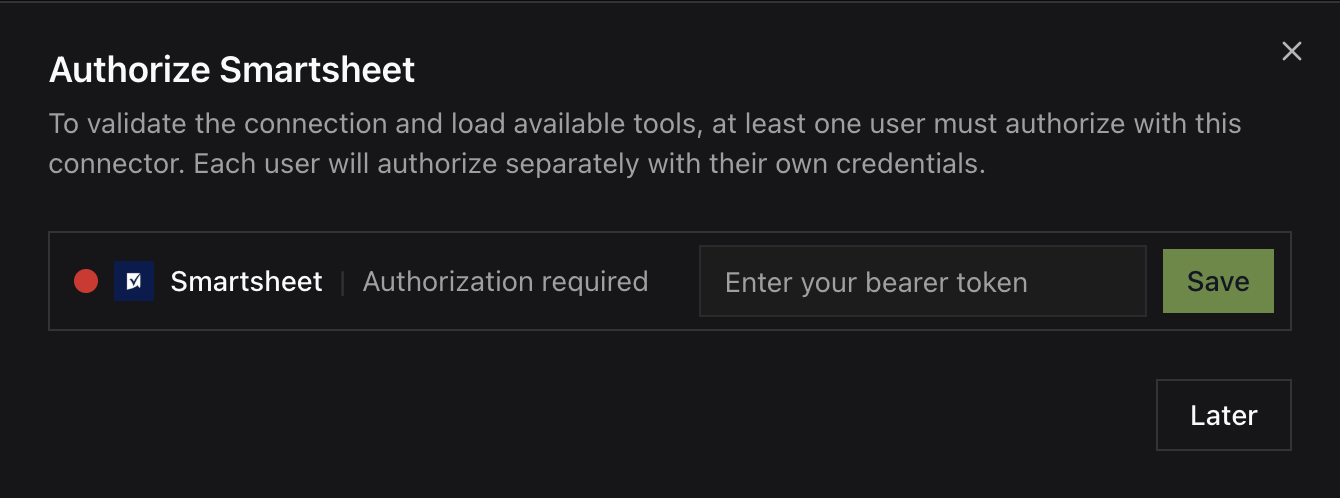
Each user then generates their own access token and supplies it when MintMCP prompts for a bearer token on first connect.
Generate a Smartsheet access token
Each user who wants to access Smartsheet through MintMCP must generate their own personal access token:
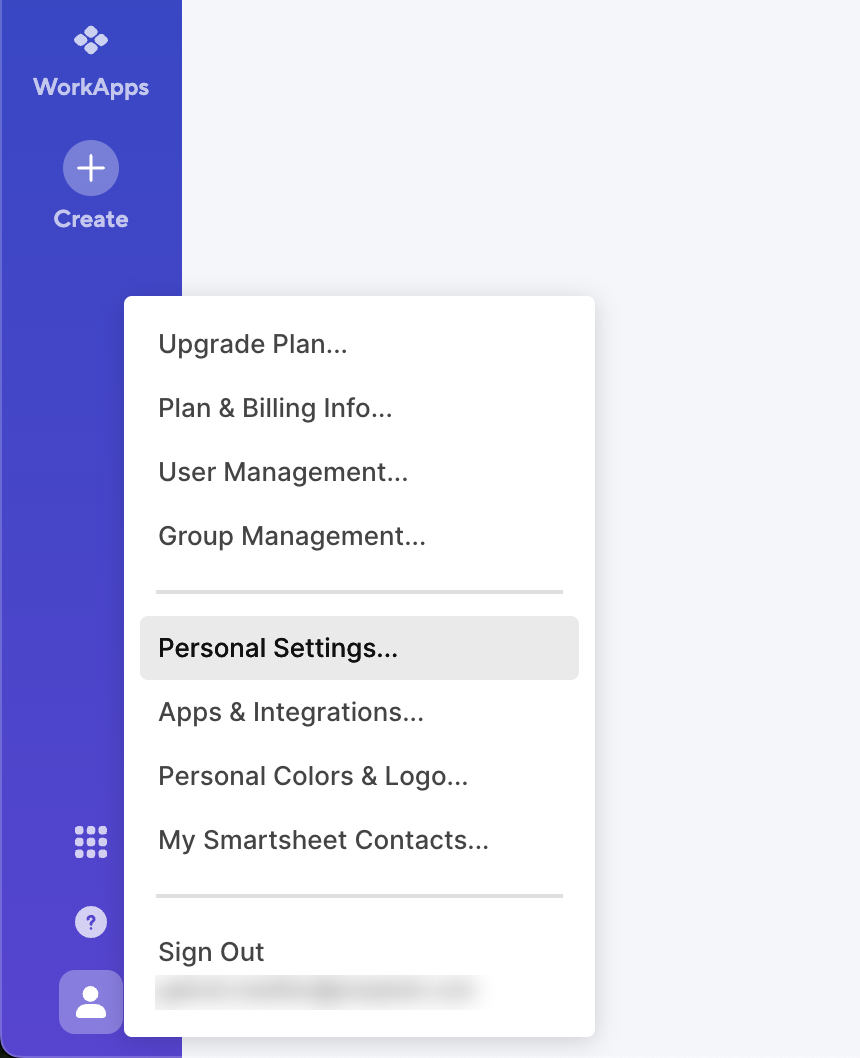
- In Smartsheet, click your profile icon in the bottom-left navigation bar and select Personal Settings.
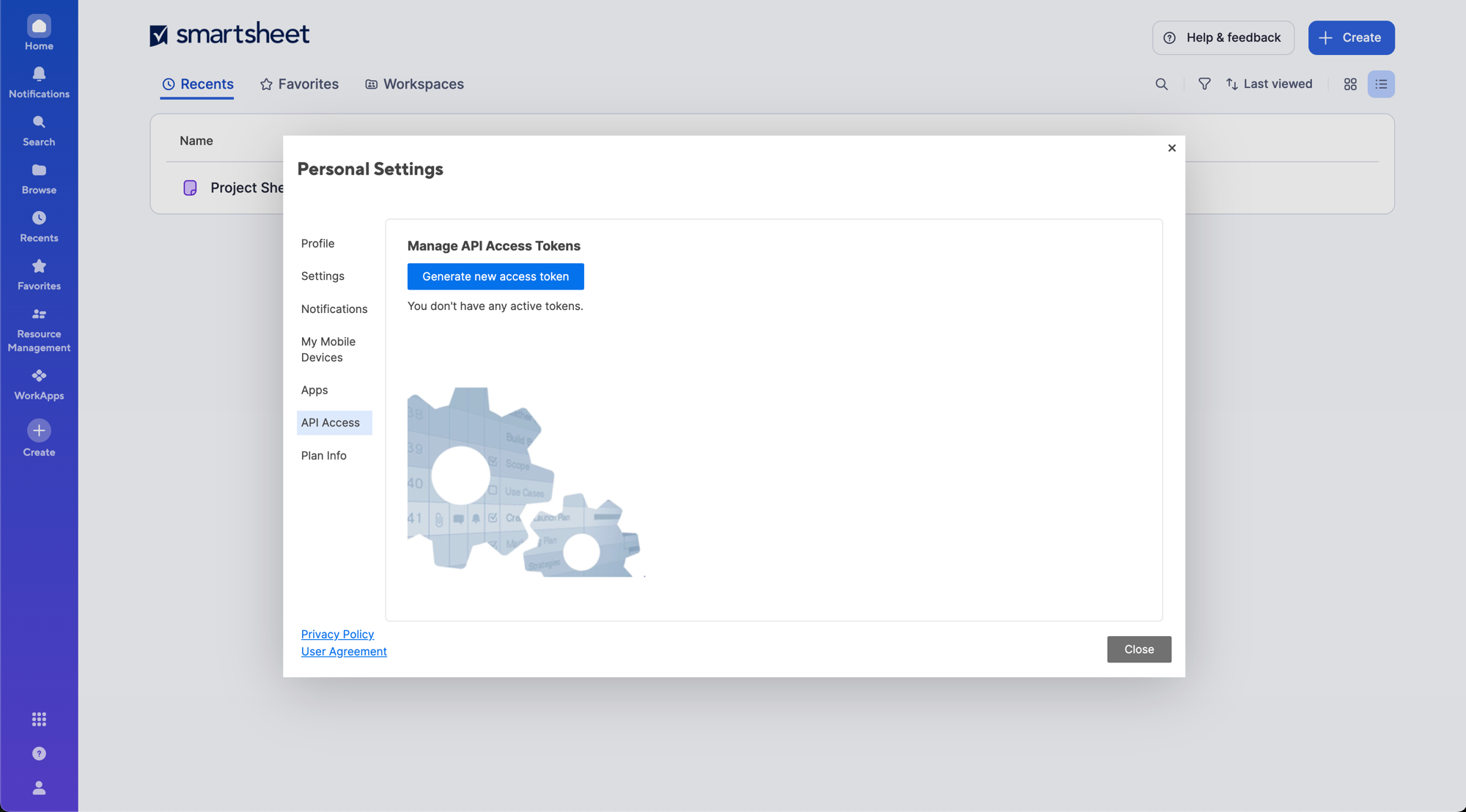
- Click the API Access tab.
- Click Generate new access token.
- Enter a name for the token — something like "MintMCP" — and click OK.
- Copy the token value immediately. It's only shown once.
Enter this token when MintMCP prompts for a bearer token.
Tool capabilities reference
The server exposes read, write, and delete tools across Smartsheet's main objects:
| Capability | What it covers | Access |
|---|---|---|
| Sheets | Read and search sheet data, create sheets | Read, write |
| Rows | Add, update, and delete rows; view cell history | Read, write, delete |
| Columns | Read, add, update, and delete columns | Read, write, delete |
| Discussions & comments | Read threads, start discussions, add/update/delete comments | Read, write, delete |
| Attachments | List and retrieve attachments, attach URLs, delete attachments | Read, write, delete |
| Reports | List, read, and create reports | Read, write |
| Dashboards | List and read dashboards | Read |
| Workspaces & folders | Browse and list, create workspaces and folders | Read, write |
| Discovery | Search assets, manage favorites and shares | Read, write |
A Smartsheet access token carries the generating user's full account permissions and has no per-tool scopes, so these capabilities are bounded by what that user can already do in Smartsheet.
Security considerations
- Per-user identity comes from the Per-user credentials connection type, so every tool call runs under the individual user's Smartsheet identity and is bounded by their permissions and roles — not an organization-wide identity.
- A personal access token inherits the user's full permissions and has no granular scopes, which means an agent can do anything the token's owner can, including destructive writes like
delete_rows,delete_column,delete_attachment,delete_comment, anddelete_discussion. Review what agents do with write access. - Smartsheet's MCP server processes untrusted cell data, which can carry prompt injection, so be deliberate about granting write access.
- Tokens are shown only once. Store them securely and rotate from Personal Settings → API Access if one is exposed.
Troubleshooting
- 401 or authentication errors — the access token is wrong, expired, or revoked. Generate a new one under Personal Settings → API Access and reconnect.
- Connection fails or returns no data — the Server URL must match the account's data region (
.com,.eu, or.au). - Tools missing or write tools fail — the connecting user lacks access to the target sheet or workspace. A token never grants more than the user already has in Smartsheet.
Next steps
- Add a remote MCP — Learn more about the Remote MCP deployment model
- Tool customization — Control which Smartsheet tools are exposed to your users