Set up the GitHub MCP server
The GitHub MCP server gives AI agents access to GitHub repositories, issues, pull requests, Actions workflows, code security findings, and more. This guide walks through creating a GitHub App, copying credentials, and connecting the server to MintMCP as a remote MCP.
Prerequisites
- A MintMCP admin account
- A GitHub account with permission to create GitHub Apps
- Permission to install GitHub Apps on the account that owns the repositories your agents will use (organization owners have this by default)
Create a GitHub App
-
Go to
github.com/organizations/YOUR-ORG/settings/apps/new(replaceYOUR-ORGwith your organization name). If you're registering under a personal account instead, go to github.com/settings/apps/new. -
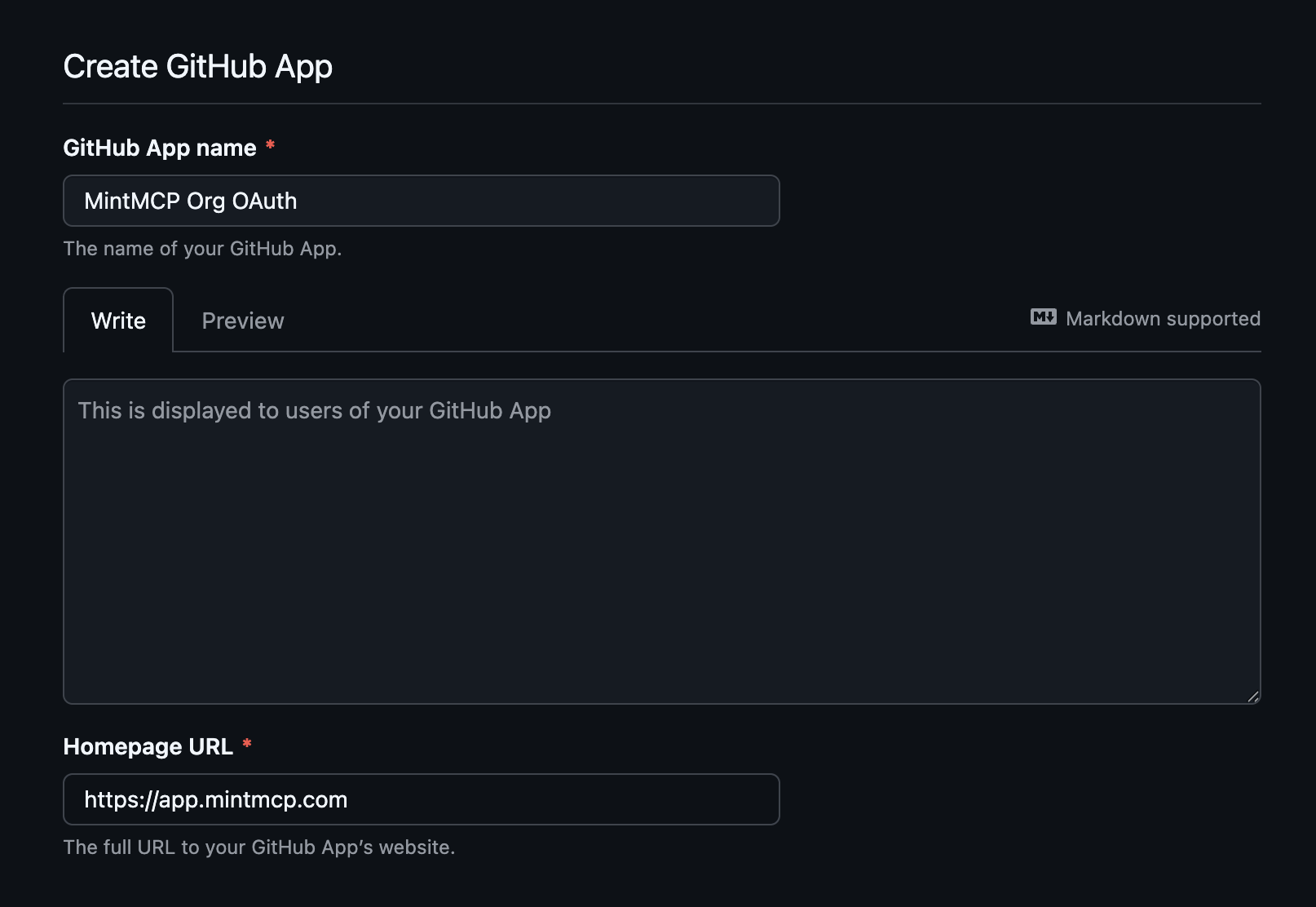
Enter the app name and homepage URL:
- GitHub App name —
MintMCP Org OAuth(or any name your team will recognize). - Homepage URL —
https://app.mintmcp.com.
- GitHub App name —
-
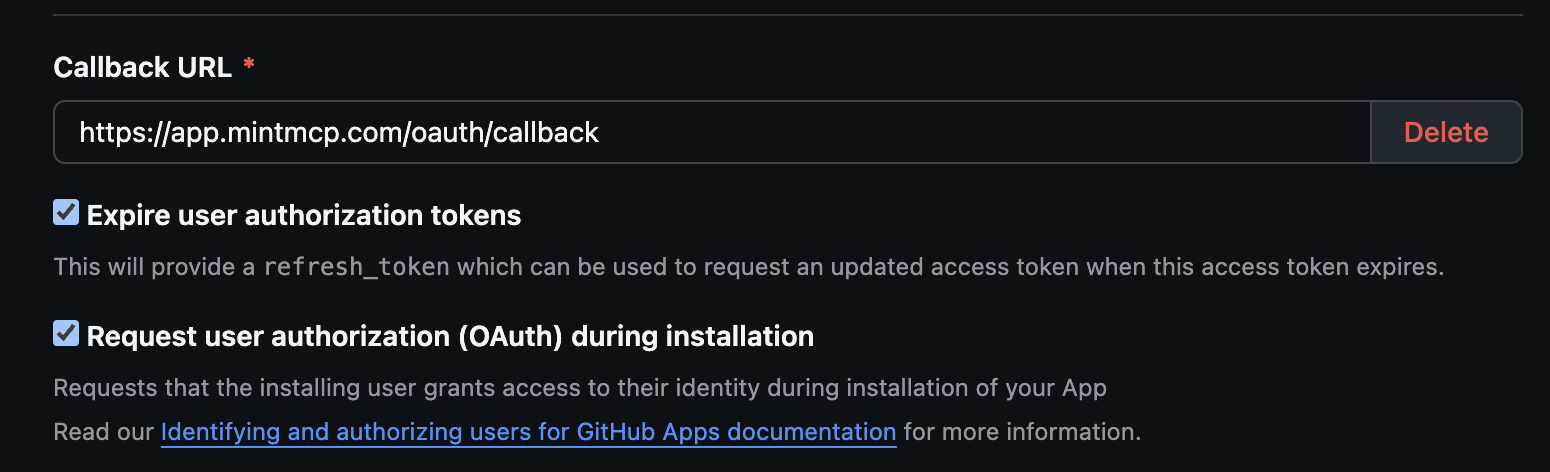
Set the Callback URL to
https://app.mintmcp.com/oauth/callback. -
Enable user authorization so members sign in with their own GitHub identity:
- Check Expire user authorization tokens to issue refresh tokens.
- Check Request user authorization (OAuth) during installation so GitHub runs the OAuth flow when a user installs the app.
-
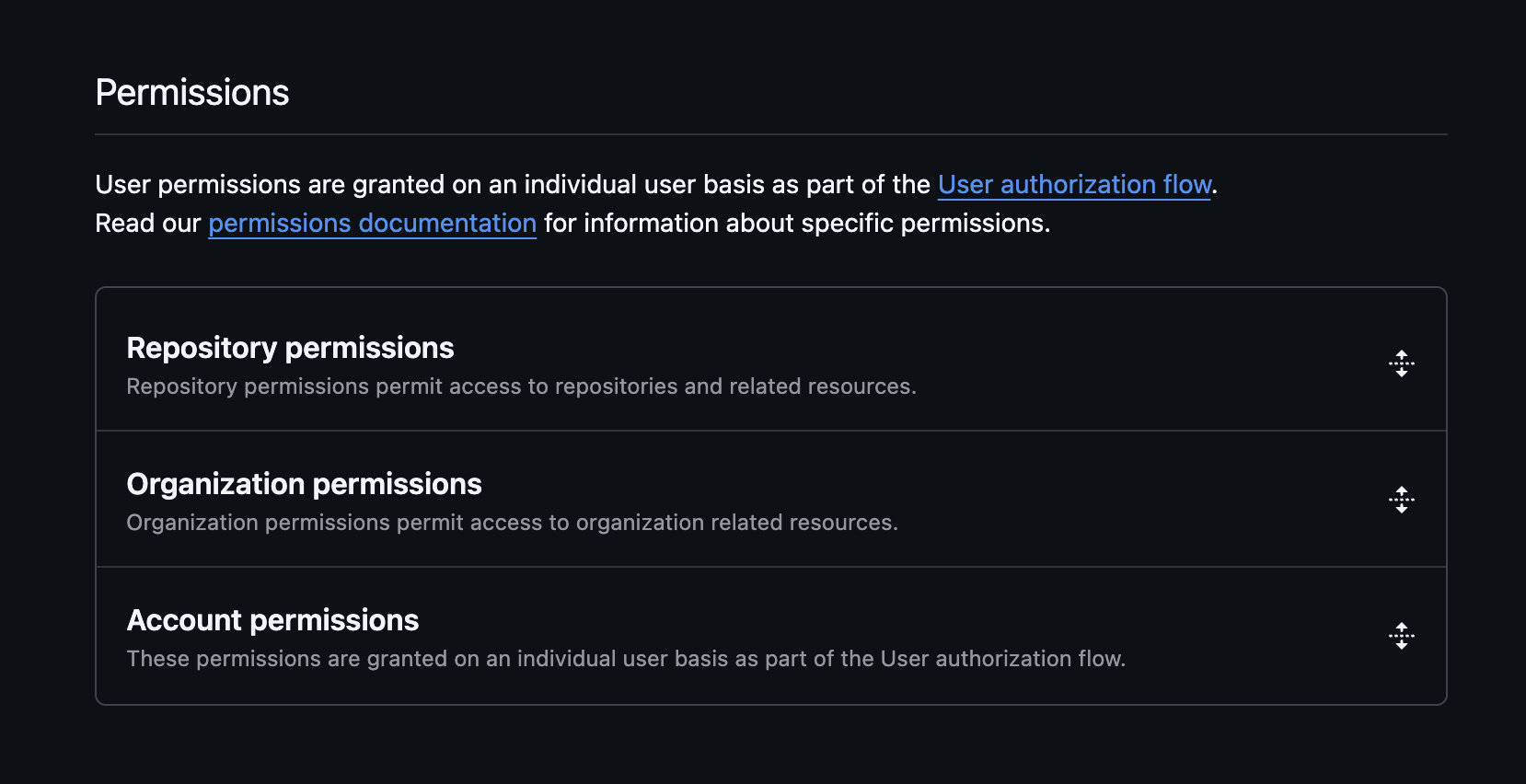
Set the app's permissions to read-only access for the resources agents need:
- Administration — Read-only.
- Contents — Read-only.


-
Under Where can this GitHub App be installed?, choose who can install the app. "This account" means whichever account you registered the app under in step 1: your organization if you used the org URL, or your personal account if you used the personal one.
Option What it means Choose it when Only on this account The app is private and can only be installed on the account that owns it. The repositories your agents need belong to the account that owns the app. Any account The app is public, so any GitHub user or organization can install it. You registered the app under a personal account but the repositories live in an organization, or you're rolling MintMCP out to more than one organization. The two settings interact: if the app is registered under your personal account and you select Only on this account, your organization never appears as an install target, so the install step below can only install onto your personal account.
You can switch a private app to public later from the app's Advanced settings. Switching a public app back to private only works while no other account has it installed.
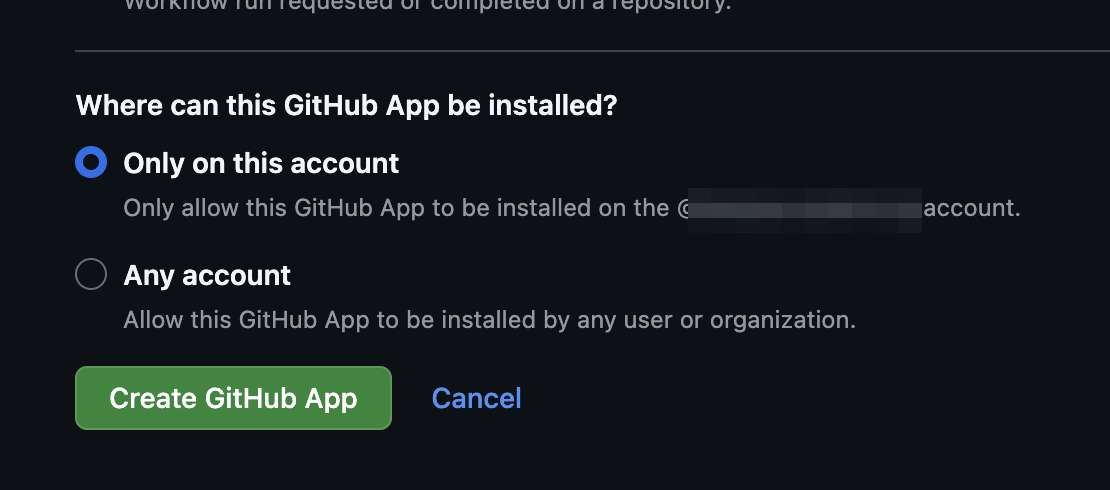
-
Click Create GitHub App.
Copy the client ID and client secret
-
On the app's settings page, copy the Client ID.
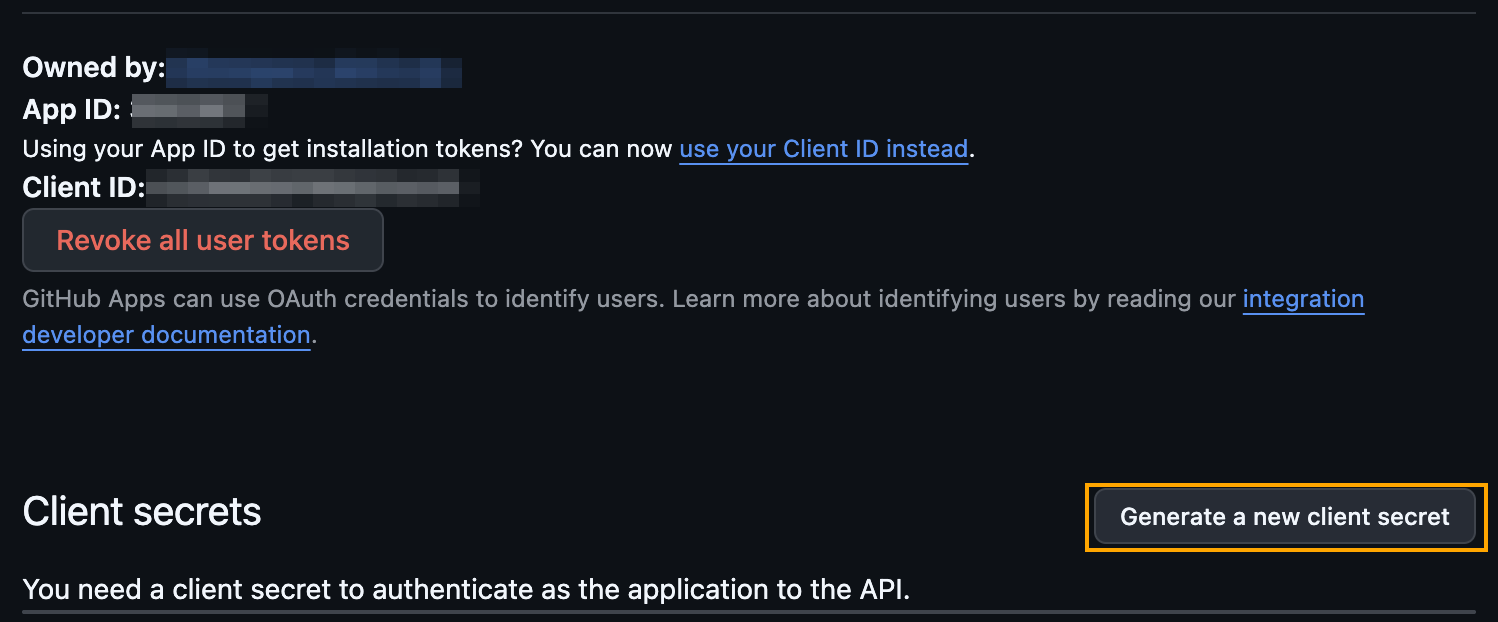
-
Click Generate a new client secret (highlighted above), then copy the secret immediately — you can't view it again after leaving this page.
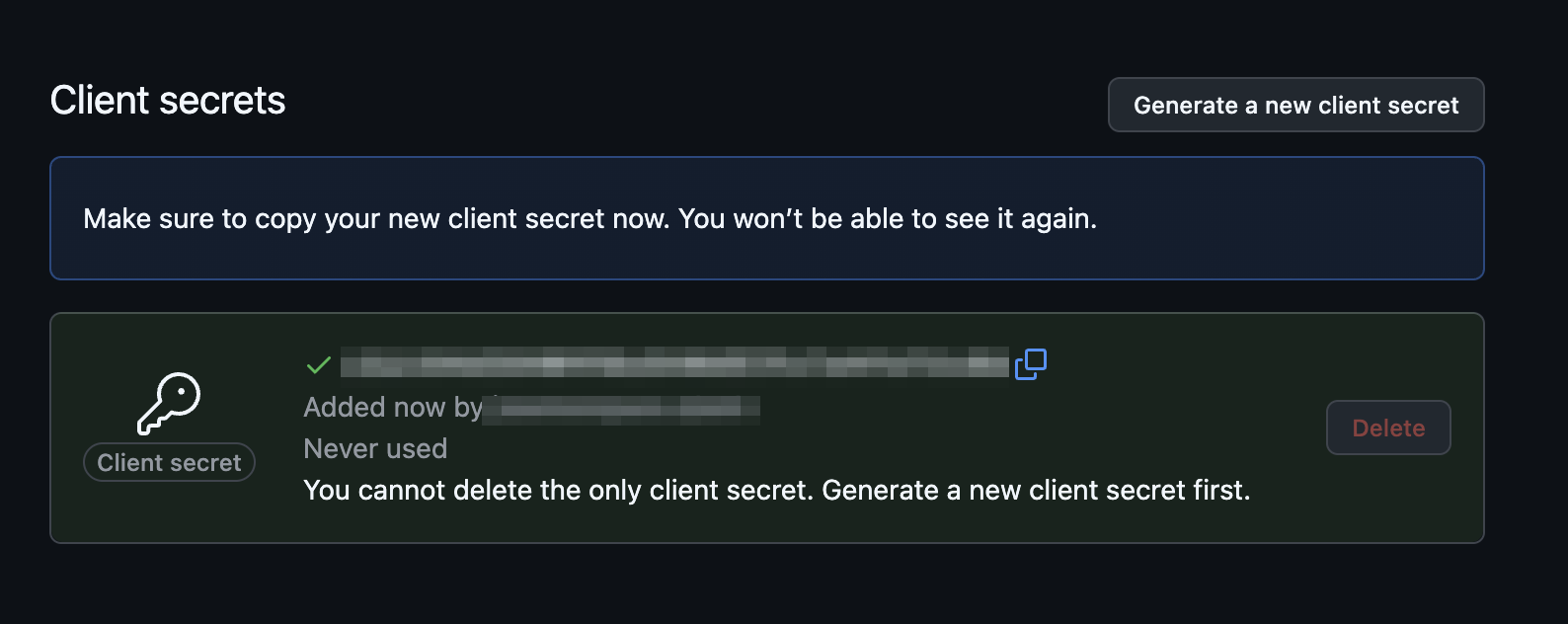
Install the app
Installing the app grants it access to the repositories agents will work with.
-
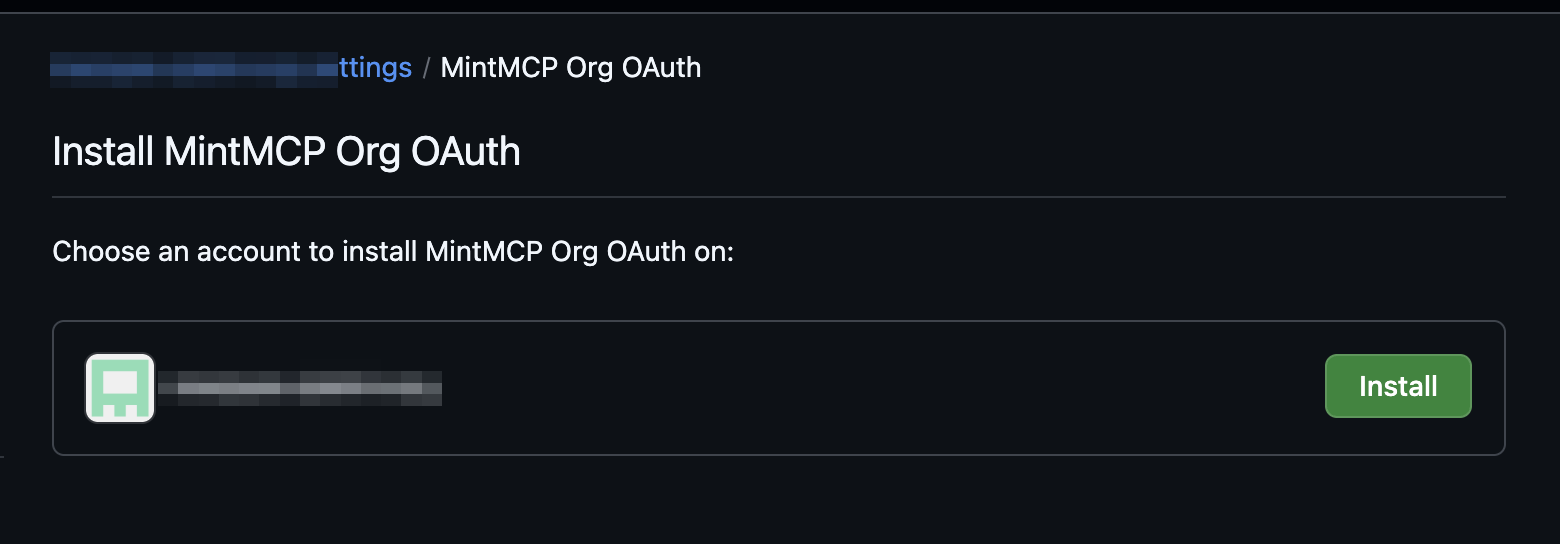
In the app's left sidebar, click Install App.
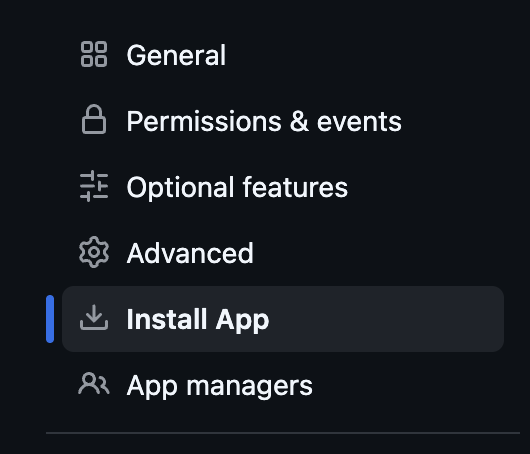
-
Next to the account you want the app installed on, click Install. A private app lists only the account that owns it, while a public app lists every account you can install on.
Installing on an organization takes organization owner permission. Members without it can still select the organization, which sends an install request to the owners instead of completing the install.
-
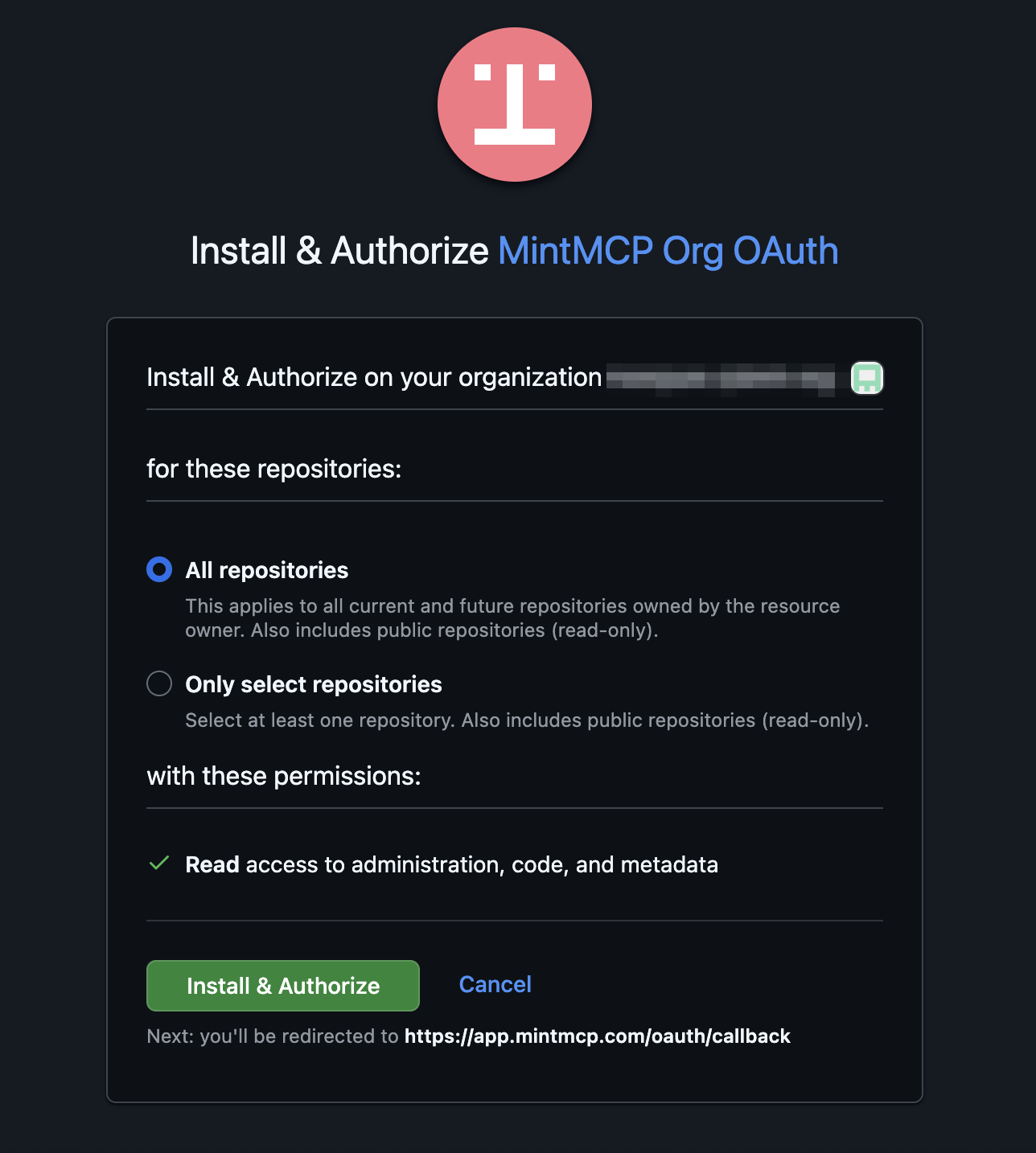
Under for these repositories, choose what the app can reach:
Option What the app gets Choose it when All repositories Every current and future repository owned by the account, so repositories created later are covered without another change. Agents work across the whole account and you don't want to revisit this setting as repositories are added. Only select repositories Just the repositories you pick, and adding a repository later means coming back to this screen. Agent access should stay inside a defined set of repositories. Either way the app also gets read-only access to public repositories on GitHub, so narrowing the selection still leaves tools that read public repos working.
Repository access is editable after the fact under Settings → GitHub Apps → Configure on the account that owns the installation, so the choice here isn't locked in.
-
Click Install & Authorize.
Add GitHub to MintMCP
GitHub is a recommended server, so you install it from the connector list instead of pasting a URL.
- In MintMCP, go to MCP store → Manage store.
- Find GitHub in the recommended servers and click to install it.
- Open the connector's OAuth settings and paste the Client ID and Client Secret from your GitHub App.
- Confirm the Redirect URL shown in the connector's OAuth settings matches
https://app.mintmcp.com/oauth/callback. - Click Install.
Each team member authorizes with their own GitHub account on first use, so tool calls are tied to their individual GitHub identity and permissions.
Limit toolsets (optional)
By default, the server enables five toolsets: context, repos, issues, pull_requests, and users. To enable additional toolsets or restrict to a subset, append the toolset path to the server URL in the connector's settings:
| Goal | URL |
|---|---|
| Default toolsets | https://api.githubcopilot.com/mcp/ |
| Enable all toolsets | https://api.githubcopilot.com/mcp/x/all |
| Specific toolsets | https://api.githubcopilot.com/mcp/x/repos,issues,actions |
| Read-only mode | https://api.githubcopilot.com/mcp/readonly |
Available additional toolsets: actions, code_quality, code_security, copilot, dependabot, discussions, gists, git, labels, notifications, orgs, projects, secret_protection, security_advisories, and stargazers. Two more are remote-only: copilot_spaces and github_support_docs_search.
GitHub Enterprise
For GitHub Enterprise Cloud with data residency (ghe.com), use a different server URL when adding the remote MCP:
https://copilot-api.{subdomain}.ghe.com/mcp
Replace {subdomain} with your organization's subdomain (for example, octocorp for octocorp.ghe.com).
GitHub Enterprise Server does not support the remote MCP server — use the Hosted Connector deployment with the Docker image ghcr.io/github/github-mcp-server and a service account PAT instead.
Security considerations
- The OAuth client secret authorizes MintMCP to initiate GitHub's OAuth flow on your behalf — keep it secure and regenerate it if compromised.
- Installation scope and repository selection bound what every tool call can reach, so an app installed on select repositories stays limited there no matter which toolsets you enable.
- Each user authenticates with their own GitHub account, so tool calls are scoped to that user's repository access and permissions.
- Read-only mode prevents the server from making any write operations — use the
/readonlyURL suffix when agents should only query data. It acts as a strict filter that overrides any other toolset configuration. - Content sanitization is on by default, so the server strips invisible Unicode characters and unsafe HTML to reduce the risk of prompt injection through repository content.
- Lockdown mode restricts content from untrusted public-repository contributors — users without push access — which limits the attack surface when agents read public repos.
- For shared service accounts or GitHub Enterprise Server, use a fine-grained PAT with minimum required scopes (
repo,read:org) instead of OAuth.
Troubleshooting
redirect_uri_mismatchduring sign-in — the GitHub App's Callback URL must be exactlyhttps://app.mintmcp.com/oauth/callback, matching the Redirect URL shown in the connector's OAuth settings.- Write tools fail or don't appear — the GitHub App's permissions are read-only, or the server is in read-only mode. Grant the App write access to the resources agents need, and drop the
/readonlysuffix from the server URL. - A tool is missing — its toolset isn't enabled. Add the toolset to the server URL (for example
/x/repos,issues,actions) or switch to/x/all.
Next steps
- Tool customization — Control which GitHub tools are exposed to users
- MCP gateway administration — Manage access and permissions