Set up the Freshservice MCP server
The Freshservice MCP server lets AI agents read and manage IT service desk resources — tickets, assets, users, service catalog items, and knowledge base articles in your Freshservice instance. This guide covers enrolling in the Early Access Program, creating a Freshworks OAuth app, and adding the server to MintMCP.
Prerequisites
- A MintMCP admin account
- Freshservice Enterprise plan
- Administrator or agent access in Freshservice
- Early Access Program (EAP) enrollment — contact your technical account manager or email support@freshservice.com
- A Freshworks Developer account at freshworks.dev (required for OAuth)
Add Freshservice to MintMCP
Freshservice hosts its MCP server at your organization's subdomain:
https://<your-domain>.freshservice.com/mcp
Replace <your-domain> with your Freshservice subdomain — the part before .freshservice.com in your Freshservice URL.
Freshservice is available as a recommended server in the MintMCP MCP store. The per-user OAuth flow installs it from the Recommended servers list; the API key alternative is added manually by URL.
- Per-user OAuth (recommended)
- API key
Per-user OAuth lets each team member authenticate with their own Freshservice account, so actions are attributed to that user and respect their existing permissions.
Create a Freshworks OAuth app
-
Go to freshworks.dev and log in with your Freshworks Developer account.
-
Click the Settings icon (top-right corner).
-
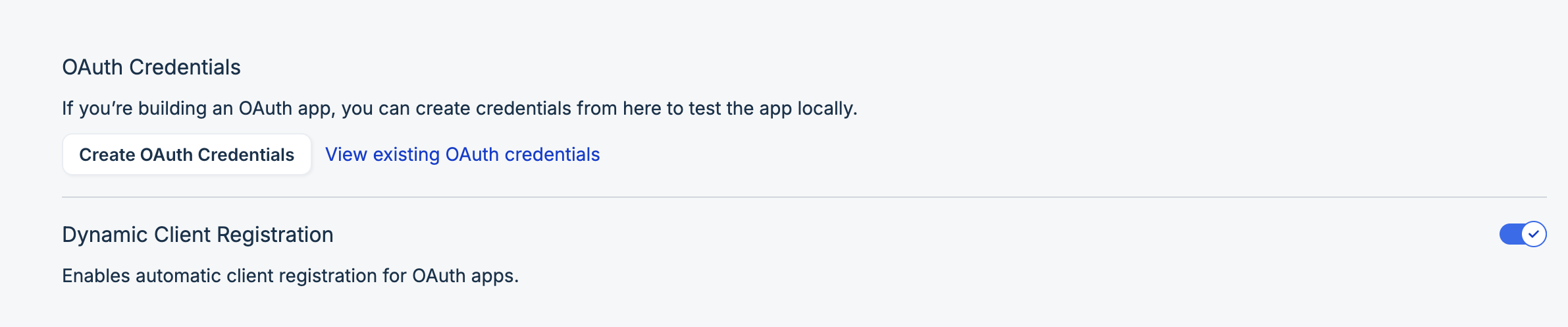
In the OAuth Credentials section, click Create OAuth Credentials.
-
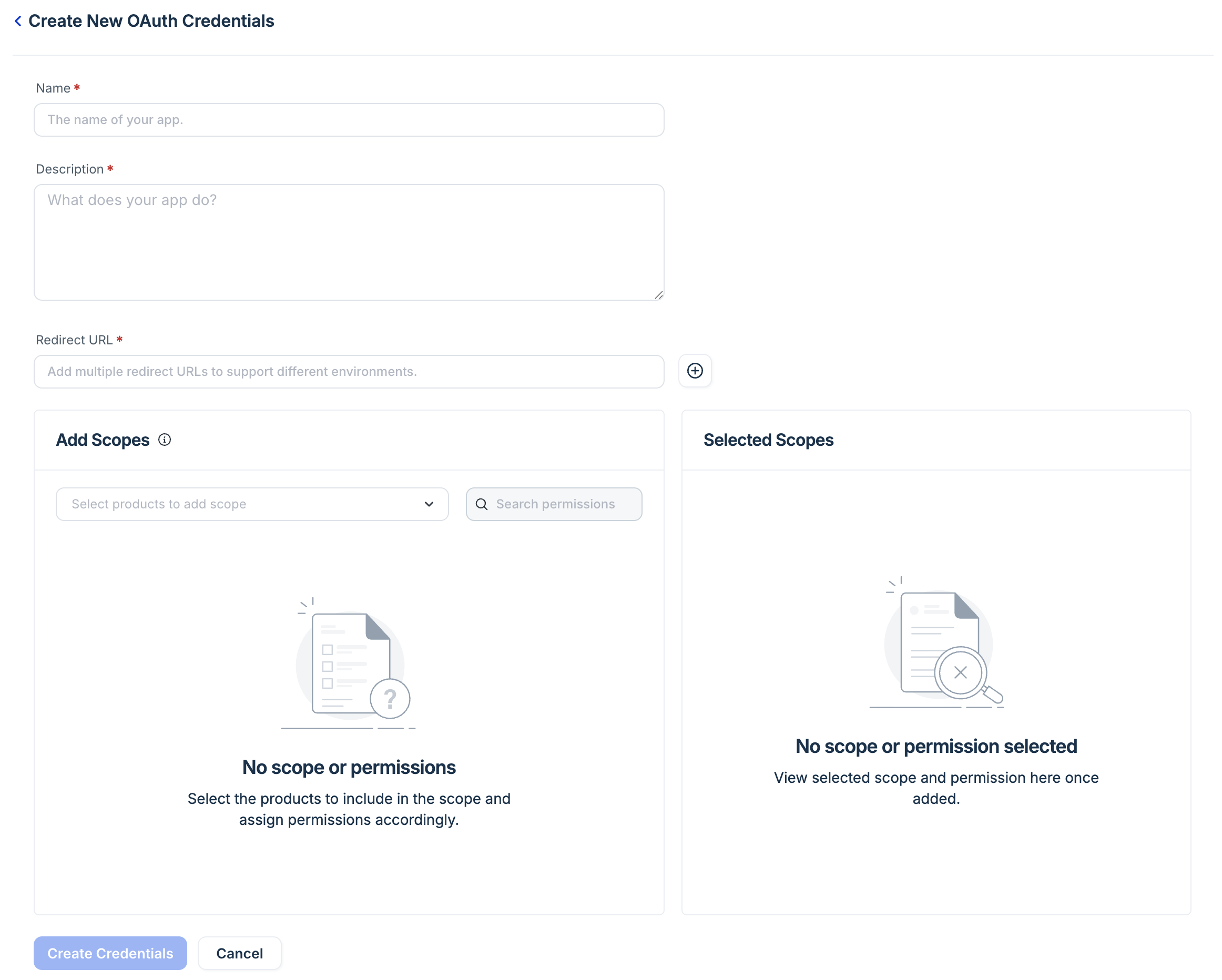
On the Create New OAuth Credentials form, enter a Name (for example, MintMCP) and a Description.
-
In the Redirect URL field, add
https://app.mintmcp.com/oauth/callback. Use the + button to add more URLs if you need them. -
In the Add Scopes panel, open the Select products to add scope dropdown and choose Freshservice.
-
Use the Search permissions box to select the Freshservice scopes your agents need — tickets, assets, agents, requesters, service catalog, and solutions cover the full set of MCP tools. Selected scopes appear in the Selected Scopes panel.
-
Click Create Credentials.
-
Copy the Client ID and Client Secret from the credentials page.
Configure in MintMCP
- In MintMCP, go to MCP store > Manage store.
- Find Freshservice under Recommended servers and click to install it.
- In the setup dialog, set the server URL to
https://<your-domain>.freshservice.com/mcp, replacing<your-domain>with your Freshservice subdomain. - Paste the Client ID and Client Secret from the Freshworks OAuth app you created. The recommended server uses the OAuth metadata Freshservice advertises, so you don't set an Authorization URL or Token URL — setting them manually points at an endpoint that returns not found, and the connection fails.
- Click Save.
Freshservice API keys are personal tokens tied to each user's account. Each team member uses their own key, so access and actions reflect their own Freshservice permissions.
Find your Freshservice API key
- Log in to Freshservice.
- Click your profile avatar (top-right) → Profile settings.
- Complete the security verification if prompted.
- Copy the API key shown on the profile settings page.
Configure in MintMCP
- In MintMCP, go to MCP store > Manage store.
- Click + Add an MCP to your registry → Connect to an MCP by URL.
- Enter
https://<your-domain>.freshservice.com/mcpas the server URL. - Set Connection type to Per-user credentials.
- Set Authorization method to Bearer Token.
- Open Bearer Token Advanced Settings and clear the Authorization Header Prefix field — delete the default
Bearervalue and leave it empty, since Freshservice expects the token directly in the Authorization header without a prefix. - Click Create.
Each user is prompted to enter their own Freshservice API key when they first connect through MintMCP.
Security considerations
- Keep the OAuth Client Secret secure — anyone with it can request authorization on behalf of your Freshservice users.
- Freshservice OAuth access tokens expire after 30 minutes; refresh tokens are valid for 365 days. MintMCP handles token refresh automatically.
- During the EAP, the MCP endpoint is rate-limited to 100 calls per minute and 5,000 calls per month.
- Each user's API key grants access to all Freshservice resources they can access — treat it as a credential.
- Revoke OAuth access at any time in Freshservice under Profile settings > Manage third-party apps.
Troubleshooting
"Authorization failed" with HTTP 403 after the consent screen. OAuth completed and a token was issued, but Freshservice rejected the MCP connection — this is an account permission, not a MintMCP misconfiguration. The UI labels it "Authorization failed," though the authorization itself succeeded. Confirm that:
- EAP is provisioned for your instance, not just requested — enrollment and activation are separate steps. Check with your technical account manager or support@freshservice.com.
- The instance is on the Enterprise plan and the authenticating user is an agent, not a requester.
Next steps
- Tool customization — Control which Freshservice tools are exposed to users
- MCP gateway administration — Manage access and permissions for the server