Add a remote MCP
Connect to an MCP server that already runs in your infrastructure or is hosted by a vendor. MintMCP applies gateway-level authentication, authorization, and logging while treating the remote endpoint as the source of truth.
When to use remote MCPs
- SaaS providers that publish their own MCP endpoints (e.g., a vendor's official MCP)
- Internal services your organization already hosts outside MintMCP
- Partner-provided MCP endpoints
Adding a remote MCP
- Navigate to MCP store in the MCP gateway sidebar
- Click + Add an MCP to your registry
- Select Connect to an MCP by URL
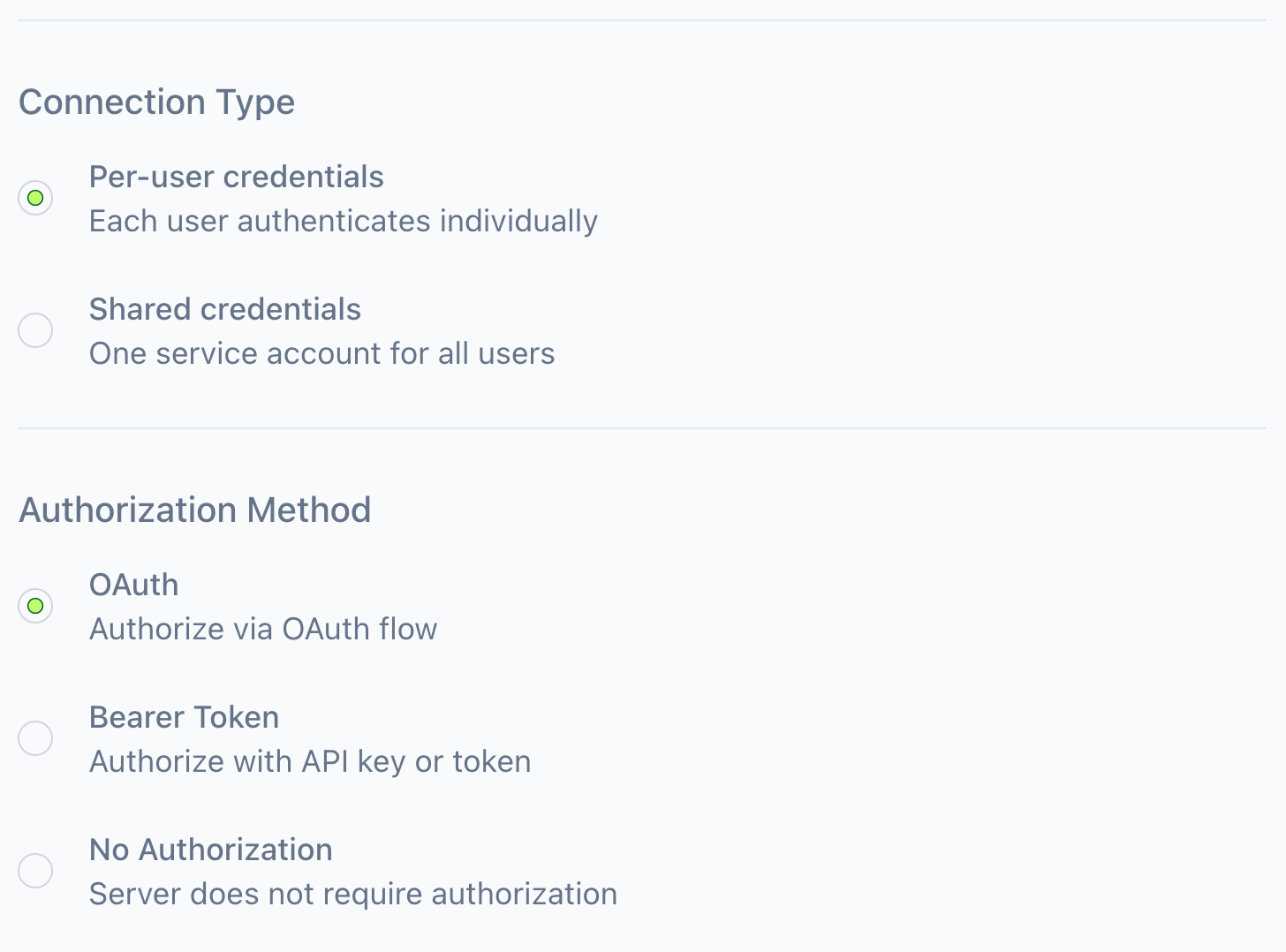
You'll configure two settings:
Private network access
For an MCP endpoint that is only reachable inside your infrastructure, set up a Private Network, then choose Private Network under Network path and select its Ready remote MCP route.
Connection type
Determines how credentials flow to the MCP server:
| Type | Description | Use when |
|---|---|---|
| Per-user credentials | Each user authenticates individually with the remote service | Users need personal access (email, calendars, documents, or any service with user-specific permissions) |
| Shared credentials | One service account for all users | Read-only data sources, shared knowledge bases, or internal systems without per-user auth |
Authorization method
Specifies how the MCP server authenticates requests:
| Method | Description |
|---|---|
| OAuth | Authorize via OAuth flow (most common for per-user credentials) |
| Bearer Token | Authorize with API key or token |
| No Authorization | Server does not require authorization |
Enterprise organizations using Okta can also authorize connectors through cross app access (XAA), where the IdP governs access instead of a per-connector OAuth consent flow.
OAuth
For most OAuth servers, no extra configuration is needed. MintMCP reads the server's advertised OAuth metadata and registers a client automatically when the server supports dynamic client registration, so users just complete the OAuth flow when they connect.
To use your own pre-registered OAuth app instead, expand OAuth Client Advanced Settings and enter the Client ID and Client Secret (optional). Set the callback URL in your OAuth provider to https://<your MintMCP domain>/oauth/callback. When a server's OAuth metadata does not advertise dynamic client registration, the form marks these fields as recommended because dynamic registration will not work there.
If your organization has OAuth endpoint overrides enabled, the advanced settings also include an Override OAuth endpoints checkbox for servers whose advertised OAuth metadata is missing or wrong. It uses fixed endpoints instead:
- Authorization URL and Token URL (required)
- Scopes: comma-separated scopes sent on the authorization request
- Token Endpoint Auth Method:
client_secret_postorclient_secret_basic, depending on how the provider's token endpoint expects client credentials
Leave the client secret blank to configure a public (PKCE) client, or provide one for a confidential client.
Some pre-vetted connectors in the MCP store ship a Mint-managed OAuth app. When you approve one, the form shows an OAuth client choice: Use the Mint-managed app (recommended, no setup needed) or Use your own OAuth app with a pre-registered client ID and secret.
Bearer token
With shared credentials, enter the token once in the Bearer Token section. With per-user credentials, each user provides their own token when they connect.
By default the gateway sends the token as Authorization: Bearer <token>. Some servers expect a different header or prefix, so click Advanced in the Bearer Token section to edit the header line the gateway sends:
- Header name: defaults to
Authorization - Prefix: prepended to the token, defaults to
Bearer(include a trailing space if needed) - No prefix: sends the token exactly as entered
For per-user connectors the same settings live in a collapsed Token header & prefix block, since each user supplies the token value themselves.
On enterprise plans, shared bearer tokens can also load from AWS Secrets Manager through the Source selector instead of being entered manually, with GCP Secret Manager and Azure Key Vault available by request. See Secret providers.
How credentials work
MintMCP stores credentials securely and brokers them to the remote server, so members authenticate once with MintMCP (using OAuth) and get per-user attribution for all tool invocations.
For per-user credentials:
- User connects to the MCP server through MintMCP
- MintMCP prompts them to authenticate with the remote service
- Credentials are stored securely and used for subsequent requests
For shared credentials:
- Admin provides the service account credentials once
- All users share the same credentials when accessing the MCP server
Next steps
- Administration: Overview of managing MCP servers
- Tool customization: Configure which tools are exposed