Set up the Firebase Crashlytics MCP server
The Firebase Crashlytics MCP server gives AI agents access to your app's crash data — issues, stack traces, crash events, and numerical reports — directly from Firebase Crashlytics. This guide covers creating a GCP service account with the required Crashlytics roles, downloading the JSON key, and connecting it to MintMCP.
Prerequisites
- A MintMCP admin account
- A Firebase project with Crashlytics enabled and at least one app reporting crashes
- A Google Cloud account with permission to create service accounts in the GCP project backing your Firebase project
Create a service account
The Firebase project and its GCP project share the same project ID. Create the service account in Google Cloud Console.
-
In the top bar, open the project picker and select the GCP project that backs your Firebase project (same project ID as your Firebase project).


-
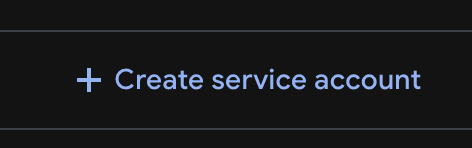
Click + Create service account.
-
Enter the name
crashlytics-mcpand click Create and continue.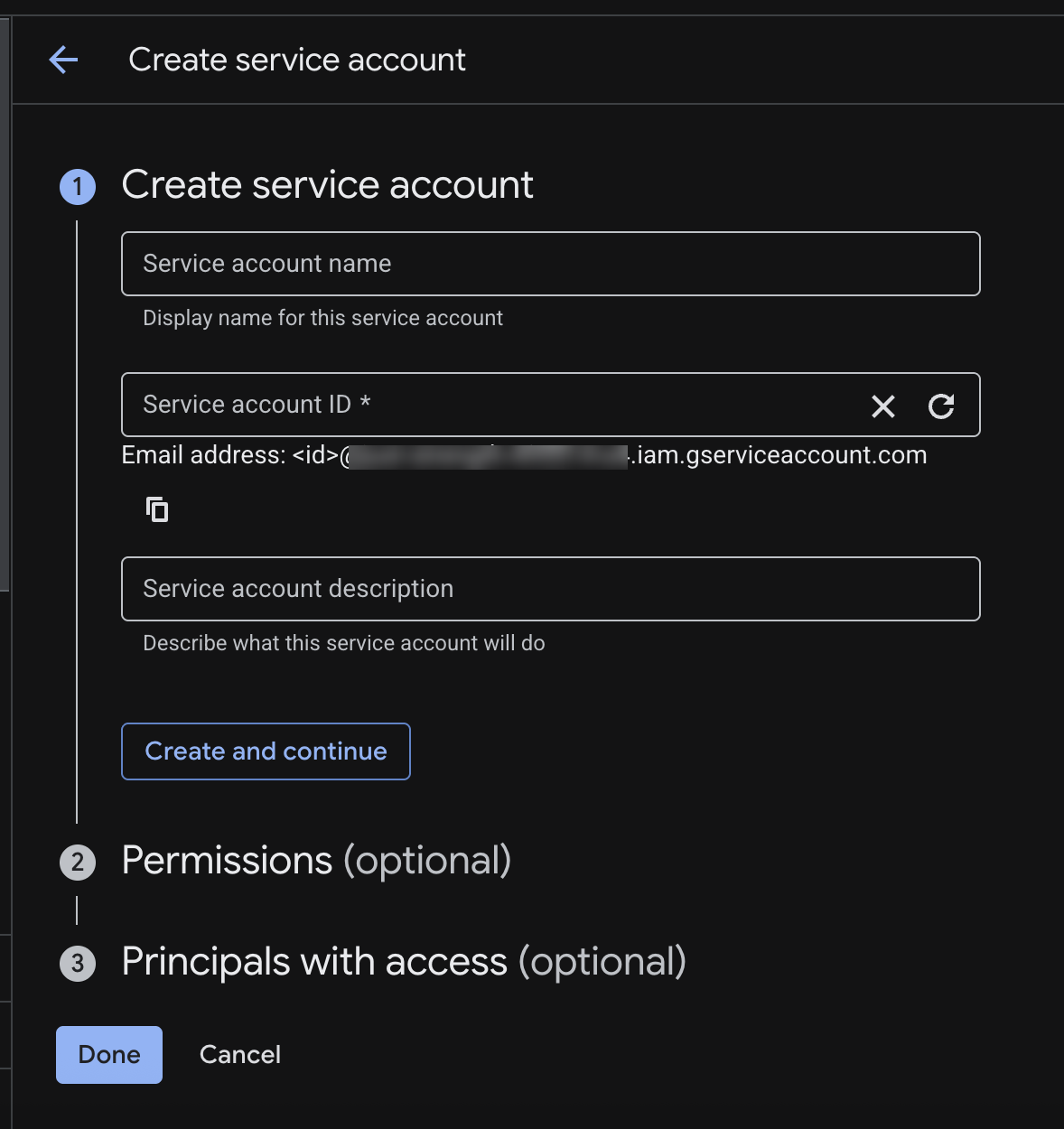
-
Grant the following roles:
Role Purpose Firebase Viewer ( roles/firebase.viewer)Read Firebase project metadata Firebase Crashlytics Viewer ( roles/firebasecrashlytics.viewer)Read crash data and issues If you want the MCP server to update issue state (for example, close or archive issues), grant Firebase Crashlytics User (
roles/firebasecrashlytics.user) instead of Viewer.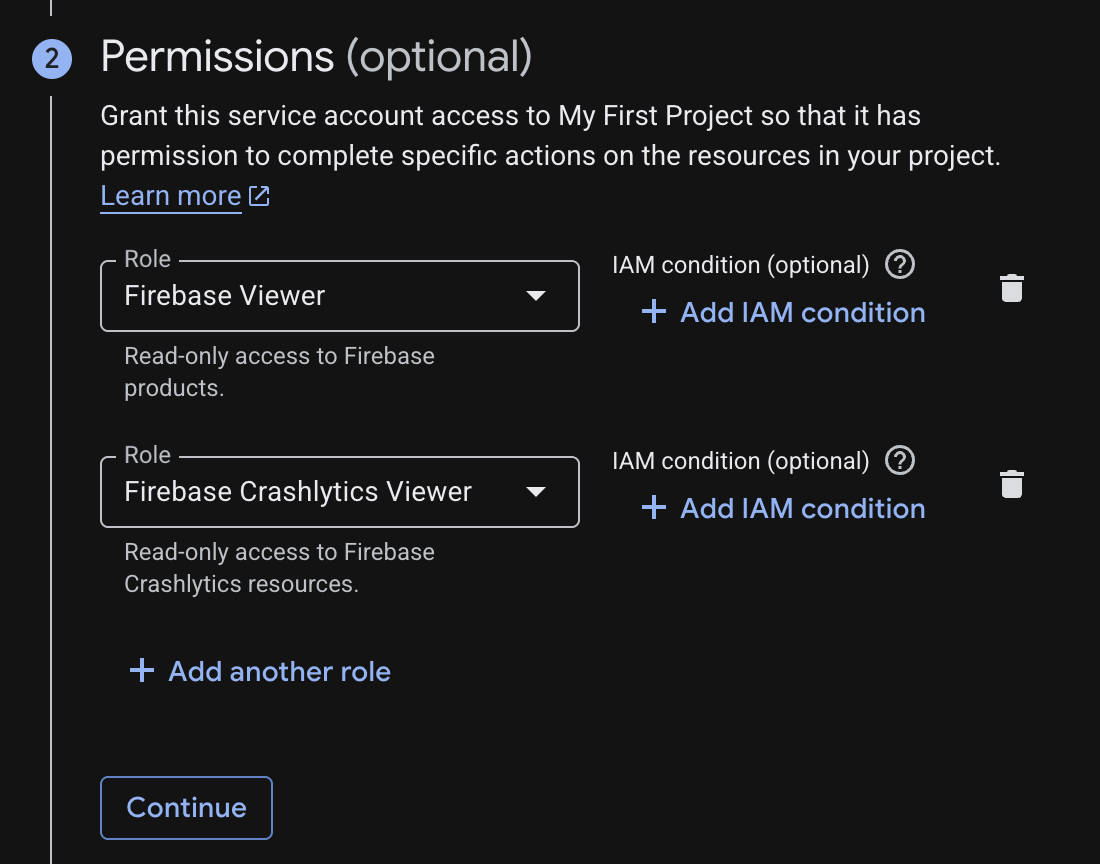
-
Click Continue, skip the Grant users access step, and click Done.
Download the JSON key
- From the service accounts list, click the
crashlytics-mcpservice account. - Click the Keys tab.
- Click Add Key → Create new key.
- Select JSON and click Create.
- The browser downloads a file named
your-project-xxxx.json. Keep this file — you'll paste its contents into MintMCP in the final step.
Find your Firebase project ID
Use either method below to find your Firebase project ID. You'll paste it into the MintMCP connector in the final step.
Option 1 — Firebase Console
-
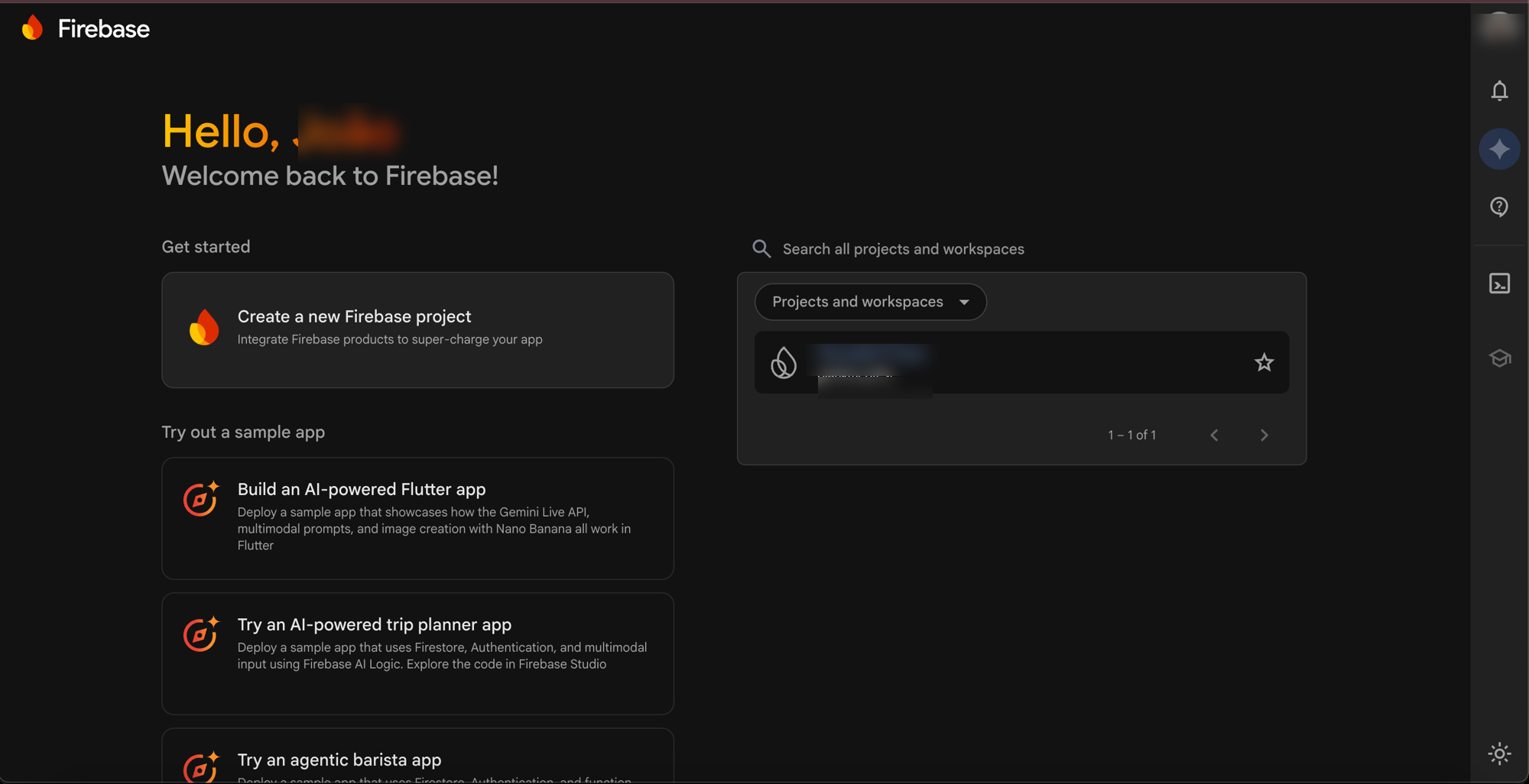
Go to console.firebase.google.com and select your project.
-
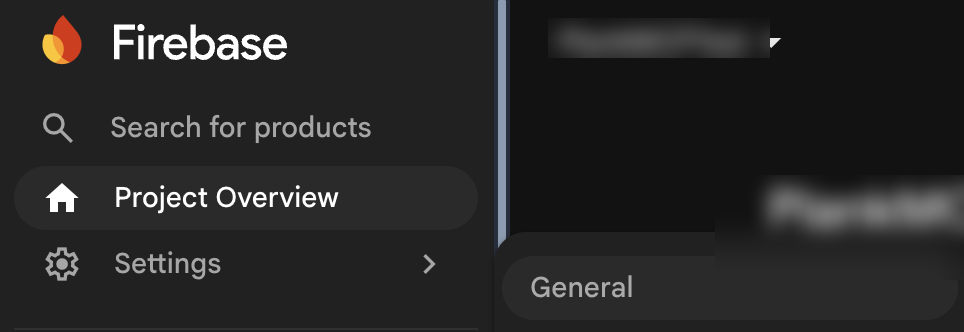
Click the gear icon (top left) > Project settings.
-
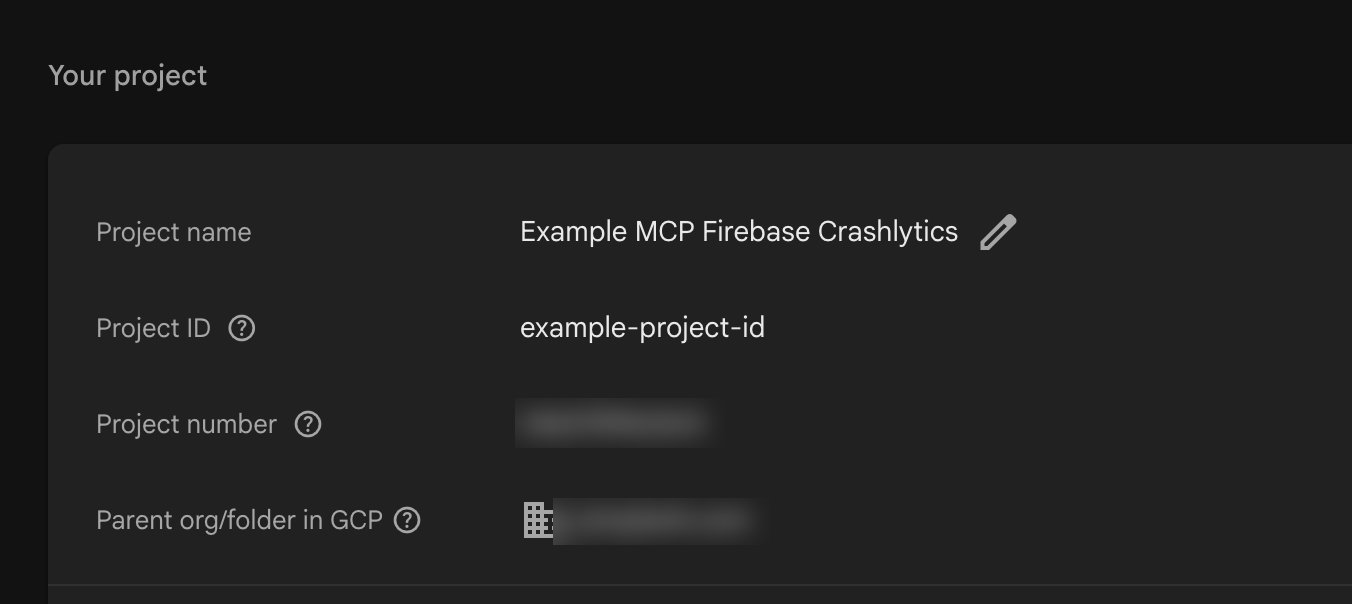
Under the General tab, look for Project ID in the right column.
Option 2 — Service account JSON
Open the service account JSON file you downloaded and copy the project_id value:
{
  "type": "service_account",
  "project_id": "my-app-prod",
  ...
}
Add Firebase Crashlytics to MintMCP
- Go to app.mintmcp.com/vmcps?tab=manage-store.
- Find Firebase Crashlytics in the list and click to install it.
- In the setup dialog:
- Paste the entire contents of the downloaded JSON key file into the Service Account Json field.
- Paste your Firebase project ID into the FIREBASE_PROJECT field.
- Click Save (or Install).
Security considerations
- The service account JSON key grants API access with the assigned roles — treat it like a password and do not commit it to source control.
- Use
roles/firebasecrashlytics.viewerunless the MCP server needs to modify issue state; minimal permissions reduce the blast radius of a compromised key. - To revoke access, delete the service account key from the Google Cloud Console — this immediately disconnects the MintMCP Crashlytics server for all users.
- Only one service account key is needed regardless of how many users access Crashlytics through MintMCP.
Next steps
- Tool customization — Control which Crashlytics tools are exposed to users
- MCP gateway administration — Manage access and permissions