Set up the Amazon EKS MCP server
The Amazon EKS MCP server gives AI agents access to your Kubernetes clusters — listing clusters, inspecting nodegroups, and querying workload state. This guide covers connecting it to MintMCP using either access keys or AWS SSO (IAM Identity Center). Authorizing the principal on each cluster is an AWS-side prerequisite — see below.
Prerequisites
- A MintMCP admin account
- One or more EKS clusters
- An IAM principal (user or role) already set up for EKS access on the AWS side:
- It has the IAM permissions the connector requires (see IAM permissions below).
- It is mapped on each target cluster via an EKS access entry to a Kubernetes access policy (read-only
AmazonEKSViewPolicyis typical) — see AWS: Create an access entry using an access policy.
EKS authorization has two layers. The connector authenticates with your AWS credentials and generates the Kubernetes API token automatically (no kubeconfig needed) — but cluster calls return Unauthorized unless that principal is also mapped on each cluster via an EKS access entry. Set up the access entry before connecting.
IAM permissions
The principal you connect needs the IAM permissions the connector uses for its AWS API calls — these are documented for the Amazon EKS MCP server. The connector runs read-only by default.
Read-only operations
Attach this policy to the principal you connect:
{
  "Version": "2012-10-17",
  "Statement": [
    {
      "Effect": "Allow",
      "Action": [
        "eks:DescribeCluster",
        "eks:DescribeInsight",
        "eks:ListInsights",
        "ec2:DescribeVpcs",
        "ec2:DescribeSubnets",
        "ec2:DescribeRouteTables",
        "cloudformation:DescribeStacks",
        "cloudwatch:GetMetricData",
        "logs:StartQuery",
        "logs:GetQueryResults",
        "iam:GetRole",
        "iam:GetRolePolicy",
        "iam:ListRolePolicies",
        "iam:ListAttachedRolePolicies",
        "iam:GetPolicy",
        "iam:GetPolicyVersion",
        "eks-mcpserver:QueryKnowledgeBase"
      ],
      "Resource": "*"
    }
  ]
}
AWS's IAM policy editor may flag eks-mcpserver:QueryKnowledgeBase as unrecognized ("the service ... does not exist"). That's a validation lag for the newer eks-mcpserver namespace, not an error in the policy — the action gates the connector's EKS troubleshooting knowledge-base tool (search_eks_troubleshoot_guide). If the editor lets you save through the warning, keep it. If it blocks you, remove that one line — only the troubleshooting-guide tool is affected, and you can add it back later.
To attach this policy to an IAM user (the Access keys path), add it as an inline policy:
-
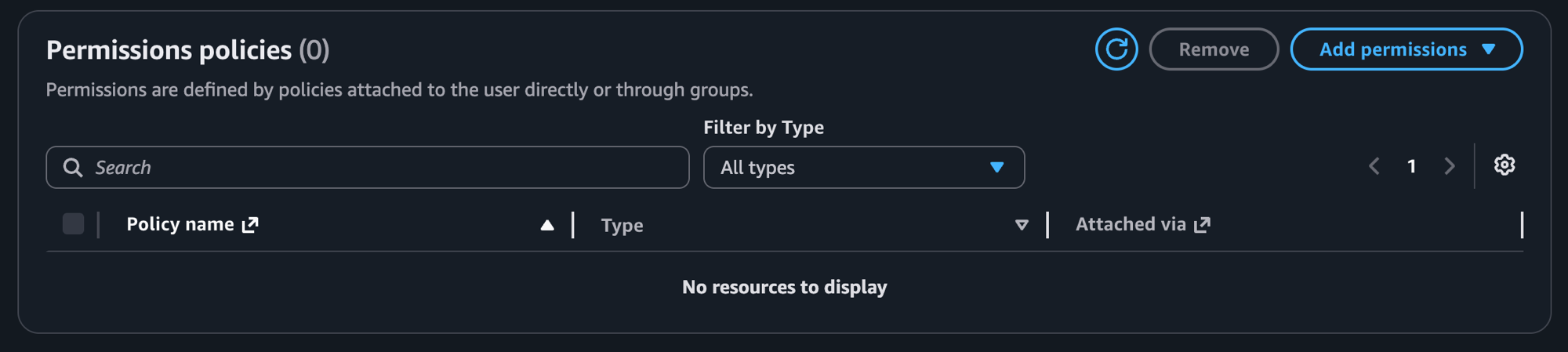
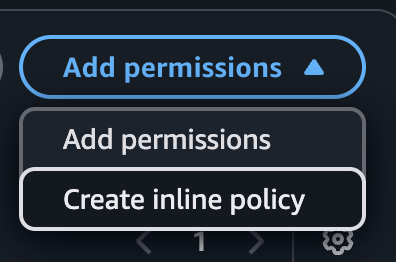
Open the user's Permissions tab and choose Add permissions > Create inline policy
-
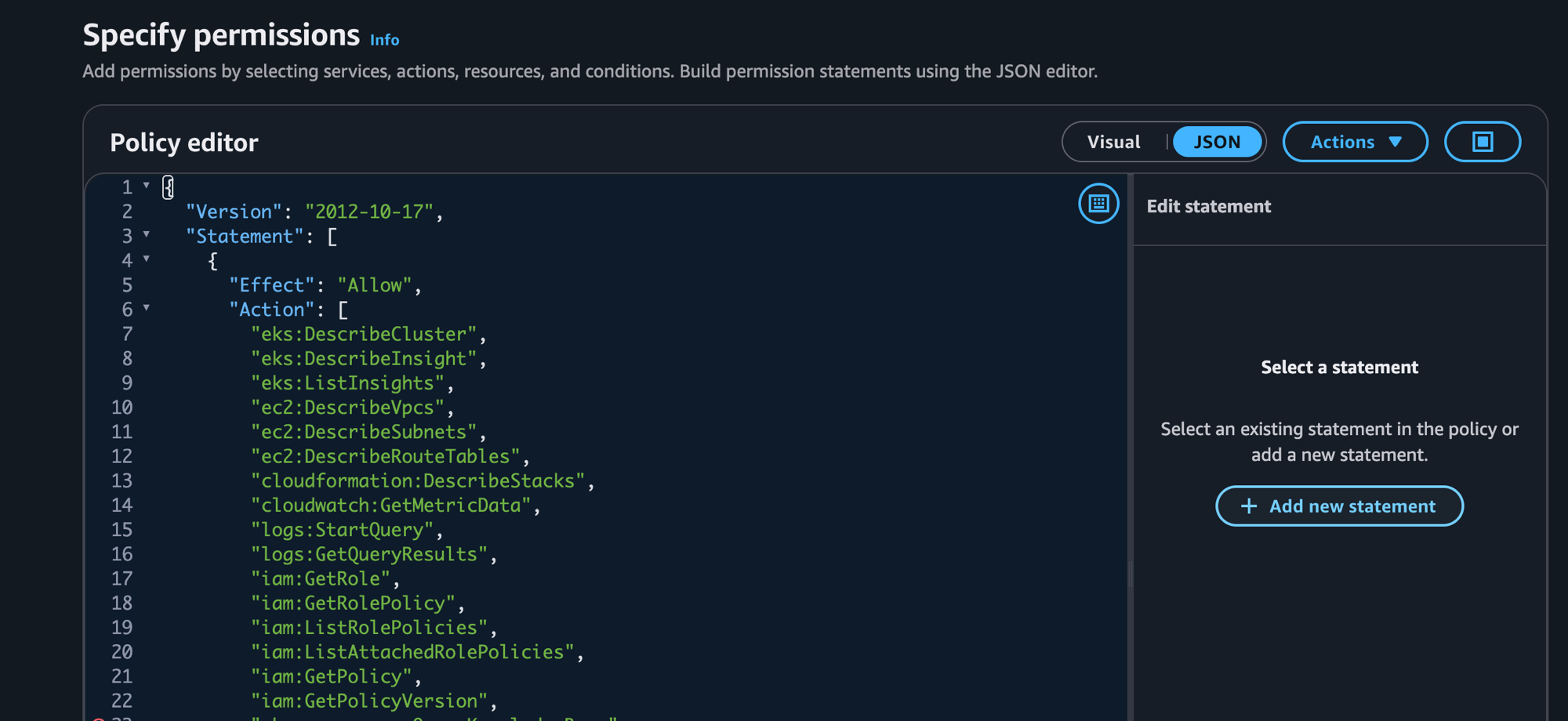
Switch the editor to JSON, paste the policy above, then review and create it
For the AWS SSO path, add these permissions to your permission set instead (see the AWS SSO tab below).
Write operations
Write tools (such as apply_yaml and manage_k8s_resource) are disabled by default. If you enable them, the principal needs broader access — the following AWS managed policies are recommended:
IAMFullAccess— create and manage IAM roles and policiesAmazonVPCFullAccess— create and configure VPC resourcesAWSCloudFormationFullAccess— create, update, and delete CloudFormation stacks
Grant write permissions only if your team needs them; the read-only policy above is sufficient for inspecting clusters and workloads.
These IAM permissions cover the connector's AWS API calls only — cluster-level authorization is separate (see the access entry in Prerequisites).
Add Amazon EKS to MintMCP
Amazon EKS is pre-listed in the MintMCP MCP store. Open the connector and choose the auth mode that matches your AWS setup.
- Access keys
- AWS SSO (IAM Identity Center)
Use this option when you have an IAM user with long-lived access keys. No IAM Identity Center required — the keys don't expire, but you must rotate them manually.
-
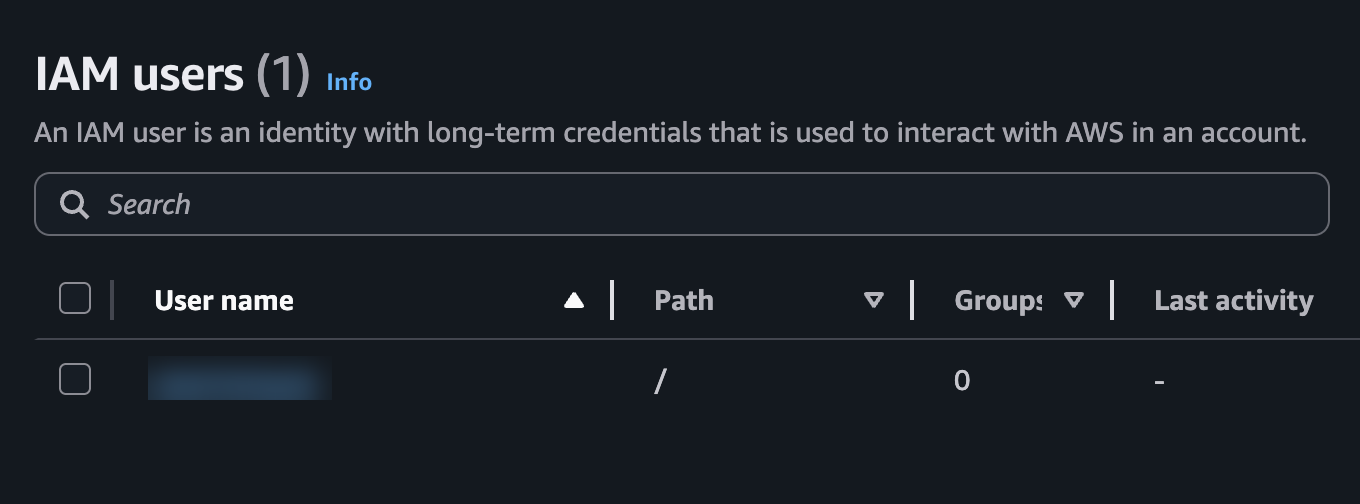
Go to the IAM console and open the user
-
Click Security credentials > Access keys > Create access key


-
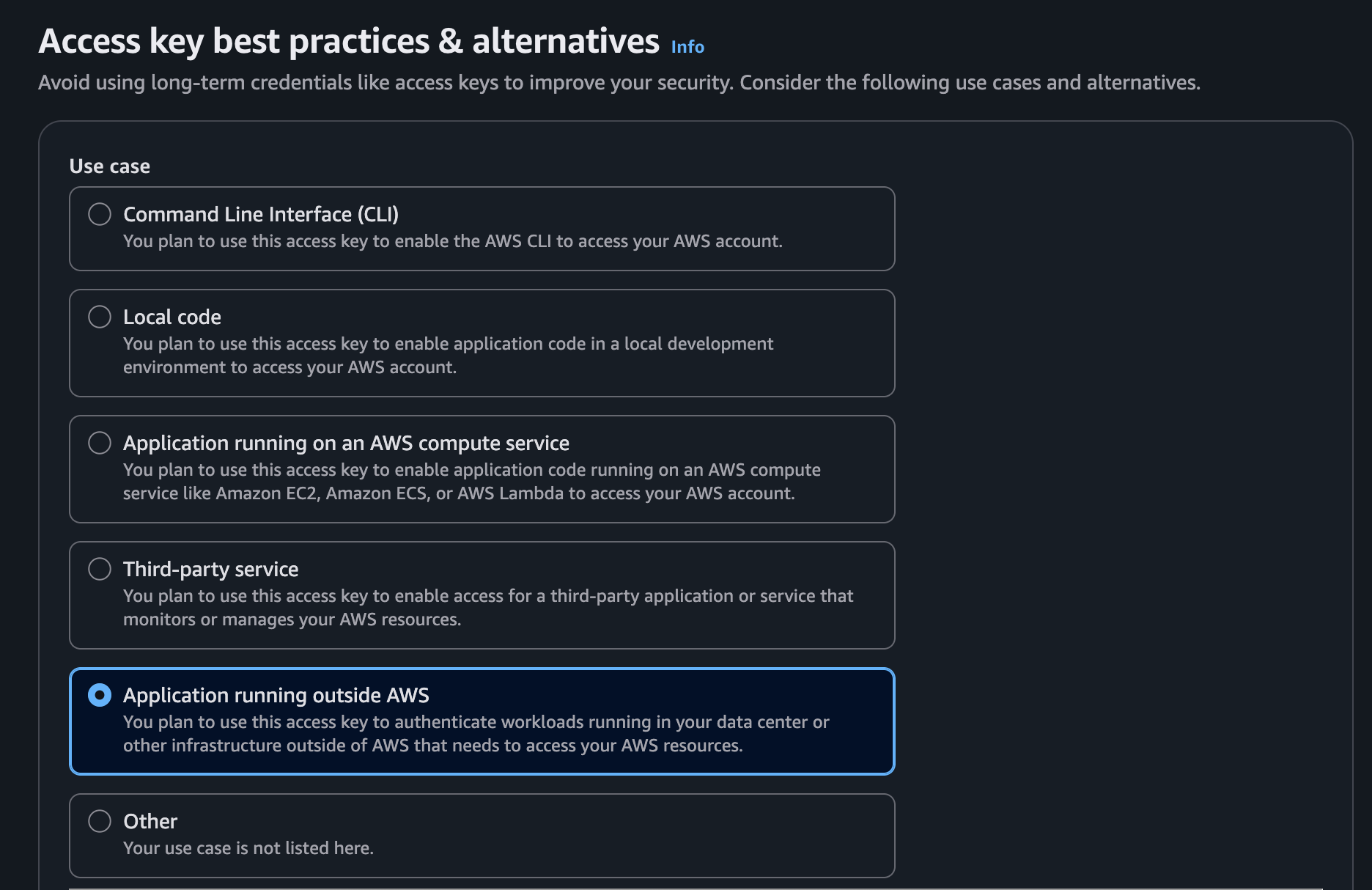
Select Application running outside AWS and click through to create the key
-
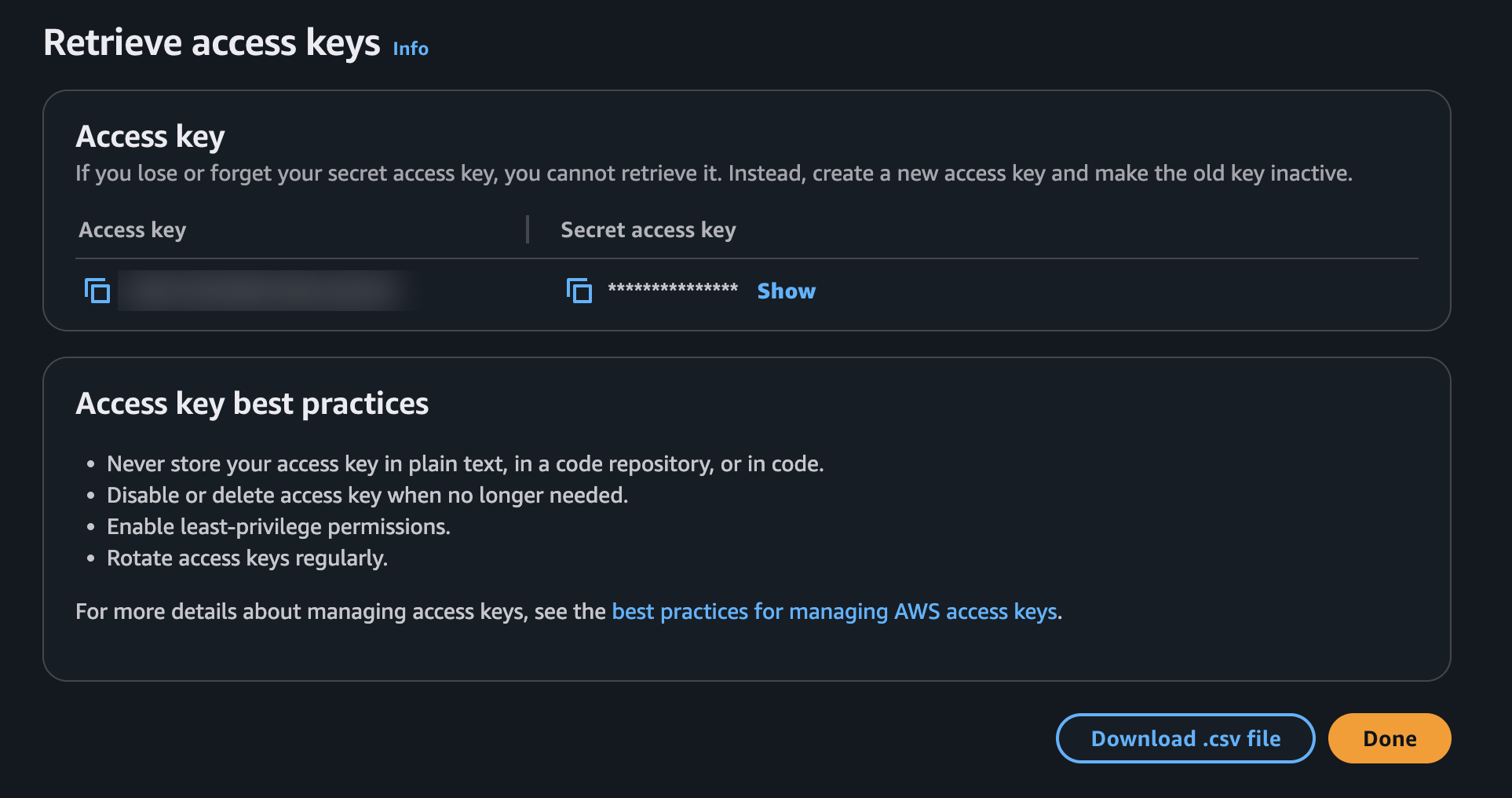
Copy the Access key ID and Secret access key — the secret is shown only once
-
Attach the read-only policy to this user as an inline policy (see IAM permissions), and make sure it has the cluster access entry from Prerequisites
Configure the connector
- In MintMCP, go to MCP store → Manage store
- Find the Amazon EKS connector and click to install it
- Set Authentication Method to Access Keys (env vars)
- Enter the following values:
| Field | Value |
|---|---|
| AWS_ACCESS_KEY_ID | The access key ID |
| AWS_SECRET_ACCESS_KEY | The secret access key |
| AWS_REGION | The AWS region where your clusters live (for example, us-east-1) |
- Click Save
Use this option when your organization runs IAM Identity Center. Users authenticate with their corporate identity, so each tool call is tied to an individual's SSO session.
This mode requires IAM Identity Center — not legacy direct SAML federation into IAM. Many organizations federate an IdP (Okta, Entra) straight into AWS IAM via SAML and assume roles directly — separate from Identity Center. The AWS SSO option uses the Identity Center sign-in flow, so on legacy federation it lands on an AWS username/password page users don't have.
To check which model your org uses: open IAM Identity Center > Settings > Identity source in the AWS console. If Identity Center isn't enabled or its identity source points to the built-in AWS managed directory on an unused default instance, the org is on legacy federation — use the Access keys option, or set up Identity Center first (expand below).
Set up IAM Identity Center (only if you're on legacy federation)
Standing up Identity Center is a one-time AWS organization project. It runs alongside your existing federation — no migration of existing roles or users. You need AWS management-account access and admin rights in your IdP.
- Enable IAM Identity Center from the management account — it can only be enabled there. Guide
- Set the identity source to your external IdP. Settings > Identity source > Change identity source > External identity provider, then download the Identity Center SAML metadata. Guide
- Establish SAML trust. Create an "AWS IAM Identity Center" app in your IdP, upload the Identity Center metadata, then load the IdP's metadata back into Identity Center. Okta example
- Enable SCIM provisioning so users and groups sync from your IdP automatically. Guide
Then continue with Create a permission set for EKS access below. Gotcha: don't take the start URL from a default Identity Center instance still on the built-in (AWS managed) directory — use the one whose Identity source shows your external IdP.
Create a permission set for EKS access
- In IAM Identity Center, go to Permission sets > Create permission set
- Select Custom permission set
- Under Inline policy, add the IAM permissions the EKS MCP server requires (see Prerequisites)
- Name the permission set (for example,
EKS-ReadOnly) and click Create - Assign the permission set to the relevant users or groups in your AWS account
Identity Center generates a role named AWSReservedSSO_<name>_<hash> for the permission set — map that role on each cluster via an EKS access entry (see Prerequisites).
Get the start URL and region
- In IAM Identity Center, go to Settings
- Copy the AWS access portal URL — it looks like
https://d-xxxxxxxxxx.awsapps.com/start - Note the Region where Identity Center is hosted
Configure the connector
- In MintMCP, go to MCP store → Manage store
- Find the Amazon EKS connector and click to install it
- Set Authentication Method to AWS SSO
- Enter the Start URL (for example,
https://d-xxxxxxxxxx.awsapps.com/start) - Enter the Region where IAM Identity Center is hosted
- Click Save
When team members use the EKS connector for the first time, MintMCP initiates the Identity Center sign-in flow and they sign in with their corporate credentials.
Security considerations
- IAM user access keys don't expire but are long-lived secrets — rotate them on a schedule and scope the IAM policy to the minimum required permissions.
- Always map the base principal ARN in EKS access entries — session ARNs (
arn:aws:sts::…:assumed-role/…/<session>) create entries that silently never match. - The connector generates Kubernetes API tokens using AWS STS — equivalent to
aws eks get-token. No kubeconfig file is stored on MintMCP's infrastructure. - AWS SSO ties each call to an individual's SSO session at the AWS level (visible in CloudTrail via the assumed-role session), giving a cleaner audit trail than shared static keys. Note that users assigned the same permission set share its IAM role, so the EKS access entry — and the in-cluster (Kubernetes) view — sees that shared role rather than the individual.
AmazonEKSViewPolicyis read-only. Grant it at cluster scope unless namespace-level isolation is required.
Next steps
- Tool customization — Control which EKS tools are exposed to users
- MCP gateway administration — Manage access and permissions