Set up the n8n MCP server
n8n serves its own MCP endpoint, so agents reach the workflows you expose without a separate server to deploy.
Prerequisites
- A MintMCP admin account
- An n8n Cloud or self-hosted instance on 2.33.0 or later
- An n8n instance owner or admin account, since only they can turn MCP on
- A self-hosted instance needs to be reachable from MintMCP, or connected through a Private Network
Enable MCP access in n8n
MCP stays off until an owner or admin turns it on, and workflows stay invisible to agents until you expose them individually.
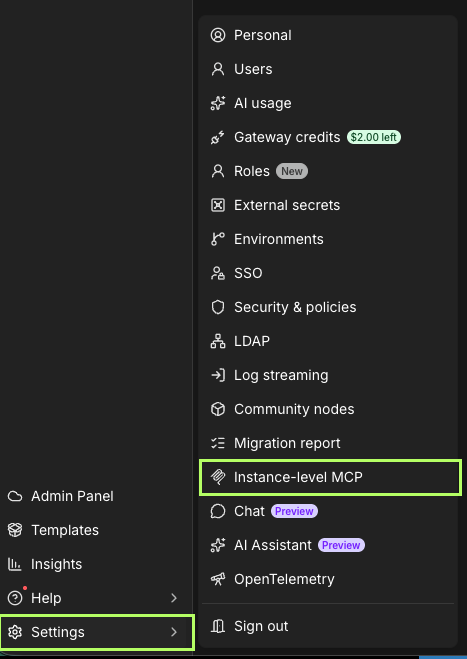
- In n8n, go to Settings > Instance-level MCP.
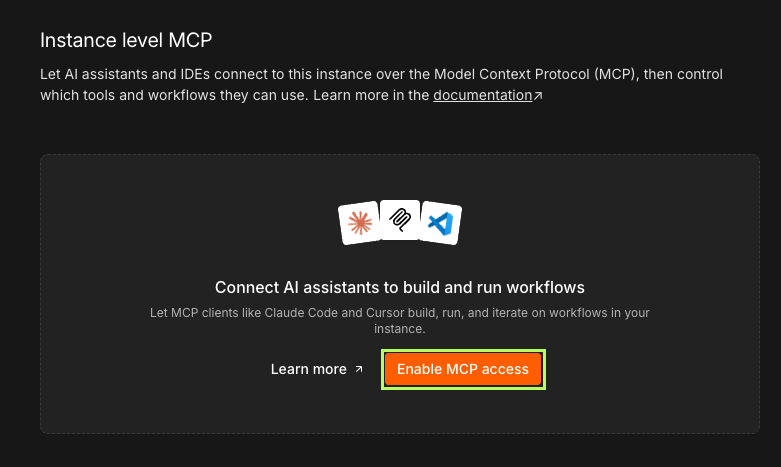
- Select Enable MCP access.
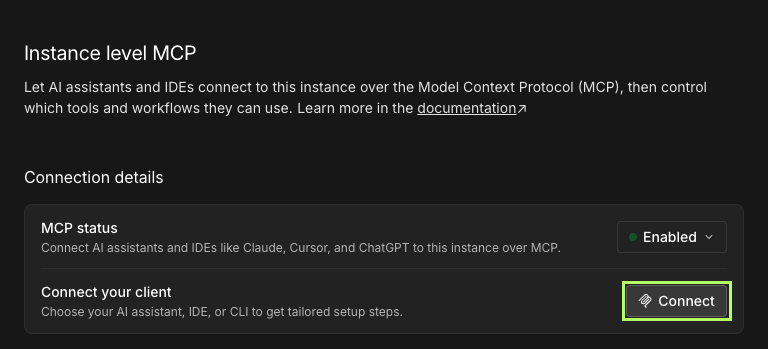
- Once MCP status shows Enabled, select Connect under Connection details.
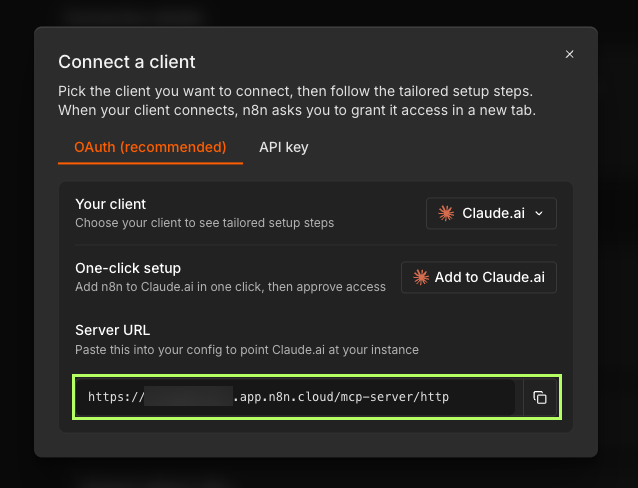
- In the Connect a client dialog, copy the Server URL. It ends in
/mcp-server/http, so it looks likehttps://your-instance.app.n8n.cloud/mcp-server/httpon n8n Cloud orhttps://n8n.example.com/mcp-server/httpwhen self-hosted. This is not the URL of your n8n editor.
- Expose the workflows agents may use, either from the workflow editor or in bulk under Access > Workflows exposed. Only published workflows with a webhook, form, schedule, or chat trigger are eligible.
Agents can preview every workflow a user can already see, but they can't read the full definition, run it, or edit it unless you exposed it.
Add n8n to MintMCP
- OAuth (recommended)
- API key
Each user signs in to n8n and approves the connection, so n8n applies that person's own permissions and lists the grant under Connected clients.
- In MintMCP, go to MCP store and open the Recommended servers tab.
- Select n8n to open its configuration panel.
- In Server URL, enter the URL you copied from n8n.
- Choose OAuth as the authentication method, then click Install.
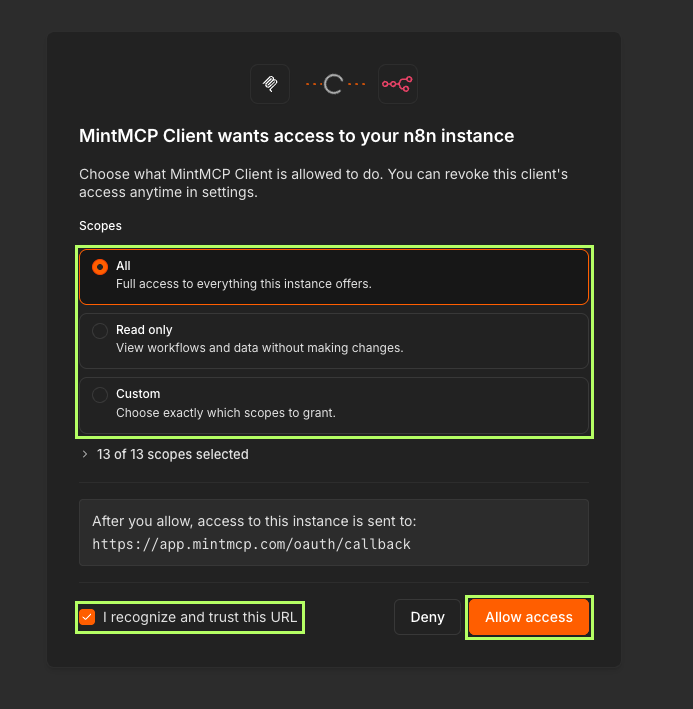
When a user connects, n8n registers MintMCP automatically and shows a consent screen for MintMCP Client. They pick the scopes to grant (All, Read only, or Custom), check I recognize and trust this URL, and click Allow access.
Use an API key for agents that can't complete an interactive sign-in. The token is tied to the n8n user who generated it and carries that user's permissions.
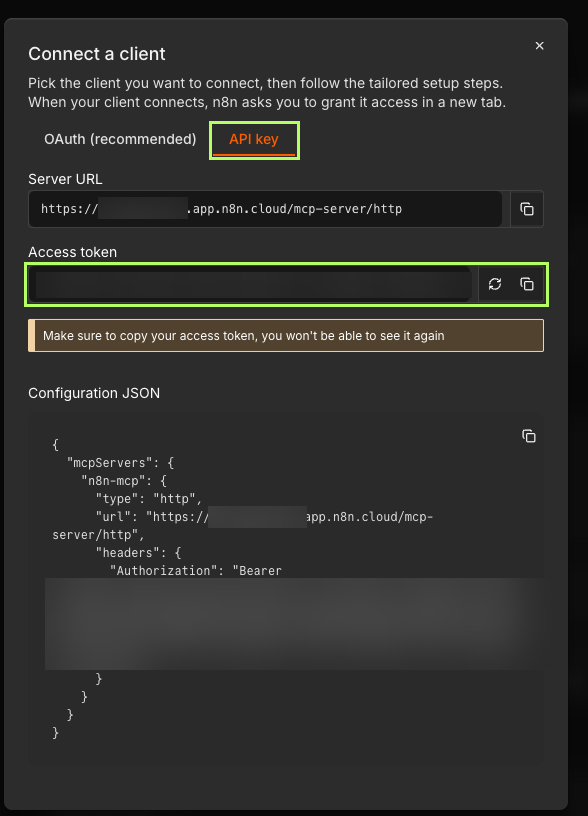
- In n8n, go to Settings > Instance-level MCP > Connect and switch to the API key tab, where n8n generates a token the first time you open it.
- Copy the Access token, because once you leave the tab n8n shows only a redacted version.
- In MintMCP, go to MCP store and open the Recommended servers tab.
- Select n8n, enter the Server URL, and choose API key as the authentication method.
- Click Install.
Each user pastes their own token when they first connect.
What agents can do
The capabilities depend on your n8n version and whether your instance has the agents feature:
- Find and inspect workflows, including previews of workflows a user can see and full definitions of the ones you exposed
- Run and test workflows, then read the execution results
- Build and edit workflows, with node lookup and config validation before anything is saved
- Publish, unpublish, and archive workflows, and compare versions
- Read and write data tables
- Build and call n8n agents on instances that have the agents feature
- List credential names so a generated workflow can reference existing credentials, without exposing the secrets themselves
Use tool customization to curate what reaches users, for example hiding the builder and agent tools so the connector can only search and run workflows you already approved.
Security considerations
- Exposure is opt-in per workflow, and previews are all an agent gets for anything you didn't expose.
- Exposure is not per client: every connected client sees the same exposed set, so use MintMCP's tool customization and access policies to differentiate between groups.
- Both auth methods are per-user, so n8n applies each person's permissions and MintMCP attributes every tool call to the user who made it.
- Review and revoke OAuth clients under Settings > Instance-level MCP > Connected clients. API keys don't appear there, so rotate one by generating a new token, which revokes the previous value.
- Running and building workflows changes state in n8n, so hide those tools if you want a read-only connector. With OAuth, users can also grant only the Read only scope on the consent screen.
Next steps
- Tool customization — Control which n8n tools are exposed to users
- MCP gateway administration — Manage access and permissions
- Private networks — Reach a self-hosted n8n instance that is not internet-facing