Set up the GKE MCP server
Google's GKE MCP server lets AI agents manage GKE clusters and node pools (list, create, update) and work with Kubernetes resources inside them: apply and patch manifests, read logs and events, and track cluster operations. This guide walks through enabling the Kubernetes Engine API, granting IAM roles to users, creating an OAuth client in Google Cloud, and connecting the server to MintMCP.
The GKE server manages clusters through Google Cloud APIs, so it needs no kubeconfig and works only with GKE. For clusters on other platforms, or kubeconfig-based access with Helm and other optional toolsets, use the Kubernetes connector instead.
Prerequisites
- A MintMCP admin account
- A Google Cloud project with billing enabled and one or more GKE clusters
Enable the Kubernetes Engine API
- Go to console.cloud.google.com/apis/enableflow?apiid=container.googleapis.com and select your project.
- On Confirm project, check that the correct project is selected and click Next.
- On Enable API, click Enable. Enabling the Kubernetes Engine API also enables its MCP server.
Grant IAM roles
Each user who connects to GKE through MintMCP needs IAM roles on the Google Cloud project.
- Go to console.cloud.google.com/iam-admin/iam and select your project.
- To add roles to a user already listed, click the edit (pencil) icon on their row. To add a new user, click Grant access and enter their email address or a Google Group.
- Add the roles, clicking + Add another role for each:
- MCP Tool User (
roles/mcp.toolUser) to make MCP tool calls - Kubernetes Engine Cluster Viewer (
roles/container.clusterViewer) to list and inspect clusters - Kubernetes Engine Admin (
roles/container.admin), only for users who should create or modify clusters, node pools, and Kubernetes resources
- MCP Tool User (
- Click Save.
Operations on Kubernetes resources inside a cluster are also subject to that cluster's RBAC, so a user needs both the IAM role and the matching Kubernetes permissions.
Create an OAuth client
The OAuth client gives MintMCP a Client ID and secret to broker each user's Google sign-in. Create one Web application client and point its redirect URI at MintMCP's callback.
-
Go to console.cloud.google.com/auth/clients and select your project.
-
If prompted to configure the OAuth consent screen, set the user type to Internal (Google Workspace organizations only). This restricts access to users in your org and skips Google app verification, which is otherwise required for the GKE scopes.
-
Click Create client.
-
Set Application type to Web application and give it a name (for example,
MintMCP OAuth).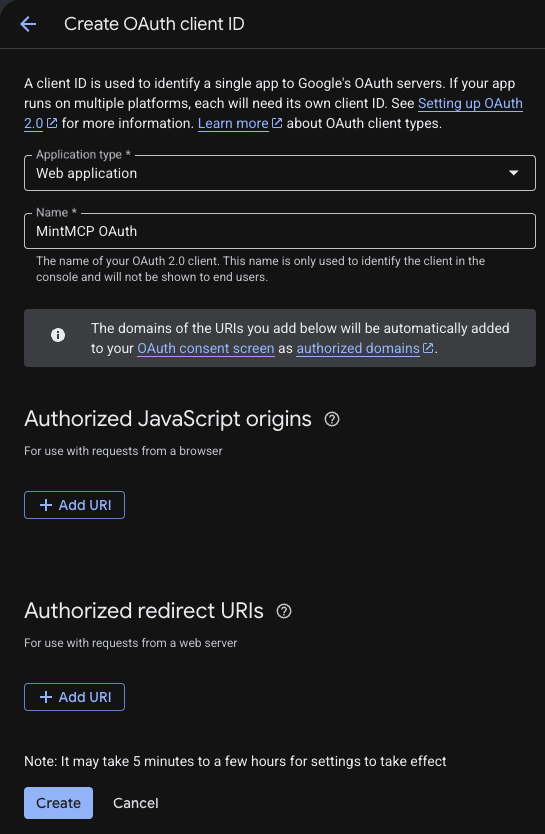
-
Under Authorized redirect URIs, click Add URI and enter:
https://app.mintmcp.com/oauth/callbackLeave Authorized JavaScript origins empty. This URI must match the Redirect URL in the connector's OAuth settings exactly, or sign-in fails with
redirect_uri_mismatch.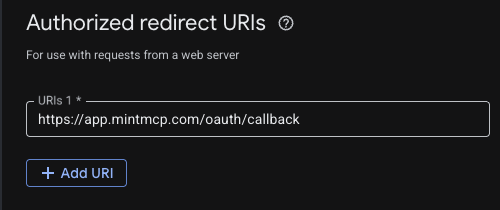
-
Click Create. Google shows the Client ID and Client secret once, so copy both now: you can't view the secret again after closing the dialog.
Reopen the client anytime from the Clients list to edit its redirect URIs or rotate the secret.
Add GKE to MintMCP
- In MintMCP, go to MCP store → Manage store.
- Find Google Kubernetes Engine in the recommended servers list and click Install.
- Open the connector's OAuth settings and enter the Client ID and Client secret from the OAuth client you created.
- Confirm the Redirect URL shown in the connector's OAuth settings matches the URI you added to the OAuth client (
https://app.mintmcp.com/oauth/callback). They must be identical, or sign-in fails withredirect_uri_mismatch. - Click Save.
The first time a user calls a tool, MintMCP directs them to sign in with Google and consent to the GKE scope. MintMCP stores and refreshes their token automatically on every subsequent call.
Security considerations
- Access is controlled by Google Cloud IAM and Kubernetes RBAC: users without the required roles receive an authorization error when they call a tool.
- Each user authenticates individually with their own Google account, so all operations run under their identity and appear in Cloud Audit Logs.
- Cluster and node pool deletion is excluded from the default endpoint, but
delete_k8s_resourceis not: the default toolset can delete Kubernetes resources inside a cluster. Install the/delete-toolsendpoint as a separate connector only if a workflow needs cluster or node pool deletion, and restrict who can use it. - Write tools (
create_cluster,update_cluster,apply_k8s_manifest,patch_k8s_resource,delete_k8s_resource) can change production workloads. Restrict them with the read-only endpoint, with tool customization in MintMCP, or with IAM deny policies, see Control MCP use with IAM. - Admin Activity audit logs are on by default for GKE. Enable Data Access audit logs on the Kubernetes Engine API to also capture read operations.
Next steps
- GKE MCP reference — Full list of tools and their descriptions
- Control MCP use with IAM — Restrict which tools users can call with deny policies
- Tool customization — Control which GKE tools are exposed to users
- MCP gateway administration — Manage access and permissions