Set up the Roark MCP server
The Roark MCP server lets agents work with Roark's voice AI analytics and testing platform by writing short scripts against the Roark SDK, so one tool covers calls, transcripts, metrics, agents, personas, and simulations. MintMCP runs the server as a hosted connector that authenticates with either a key per user or one key shared by the whole organization.
Prerequisites
- A MintMCP admin account
- A Roark account with access to the project you want to connect
- Permission to create API keys in that Roark project
Create a Roark API key
API keys belong to a single Roark project, so create the key in the project whose data agents should see.
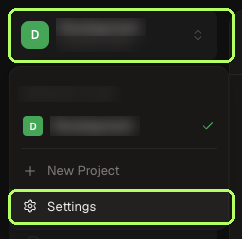
- In Roark, open the project switcher and select Settings.
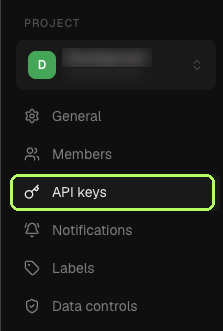
- Under Project, select API keys.
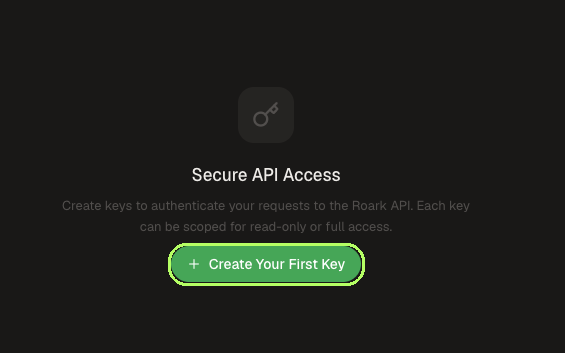
- Click Create Your First Key, or Create API key if the project already has keys.
-
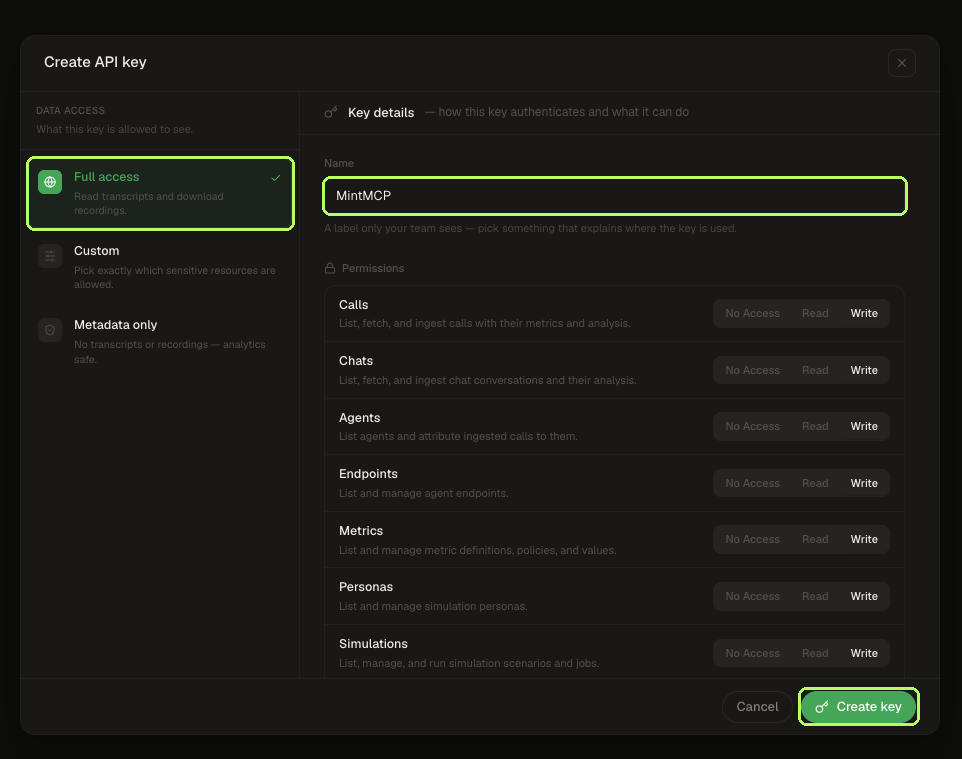
In the Create API key dialog, pick a Data access level, enter a Name that says where the key is used (e.g.,
MintMCP), adjust Permissions if needed, and click Create key.- Full access reads transcripts and downloads recordings
- Custom lets you choose exactly which sensitive resources the key can reach
- Metadata only excludes transcripts and recordings, which suits analytics-only use
Each resource (e.g., calls, agents, metrics, simulations) can be set to No Access, Read, or Write. Choose Read everywhere for a read-only connector, since agents can otherwise ingest calls, edit agents, and start simulations.
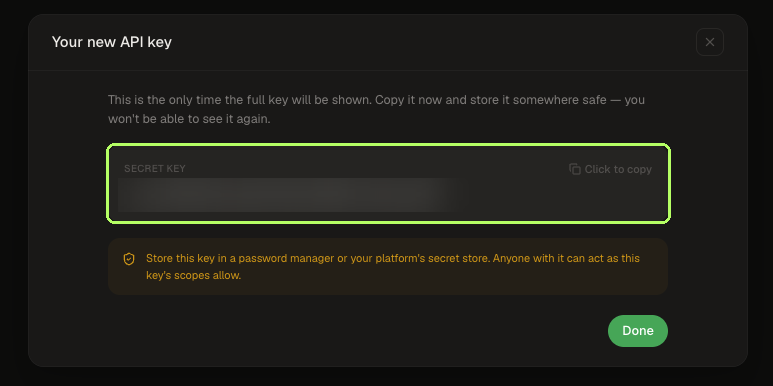
- Copy the key from Your new API key, because Roark shows it only once.
Add Roark to MintMCP
- In MintMCP, go to MCP store and open the Recommended servers tab.
- Select Roark to open its configuration panel.
- Under Authentication Method, choose how the connector gets its Roark API key:
- Per-user credentials: each user provides their own Roark API Key in MintMCP settings after the connector is installed, so Roark applies that person's key permissions to their calls.
- Shared credentials: enter one Roark API Key now, and every user acts with that key's permissions.
- Click Install.
What agents can do
The server exposes two tools:
search_docssearches the Roark SDK documentation, so the agent can find the right method before writing codeexecuteruns the TypeScript the agent writes against the Roark SDK, which covers anything the API supports (e.g., listing calls, reading transcripts and metrics, managing agents and personas, and running simulations)
Because execute can call any SDK method, the API key's permissions decide what agents can actually change.
Security considerations
- Roark enforces the data access and permissions of whichever key the connector uses. With Per-user credentials, each person's key limits their own calls, while with Shared credentials every user shares one key's permissions and Roark sees all calls as that key.
- Agent-written code runs in a Deno sandbox inside the connector that can only reach the Roark API.
- Use Metadata only or Custom keys when agents don't need transcripts or recordings, and set resources to Read to keep the connector read-only.
- To revoke access, delete the key under Settings > API keys in Roark.
Next steps
- Tool customization — Control which Roark tools are exposed to users
- MCP gateway administration — Manage access and permissions