Set up the Octopus Deploy MCP server
The Octopus Deploy MCP server gives AI agents access to your Octopus Deploy instance: inspecting projects, releases, deployments, environments, and audit data, and, when the key allows it, triggering deployments and runbook runs. This guide covers creating an API key in Octopus and installing the server from the MintMCP MCP store.
Prerequisites
- A MintMCP admin account
- An Octopus Deploy instance (Cloud or self-hosted) reachable over HTTPS
- An Octopus account that can create API keys
The Octopus instance must be reachable from MintMCP's runtime. Octopus Cloud and other public endpoints work directly. For a self-hosted instance behind a firewall or VPN, allowlist MintMCP's dedicated egress IP.
Choose a credential model
Octopus offers two kinds of API key, and the choice determines how you configure the connector in MintMCP.
| Key type | Who it represents | MintMCP authentication method |
|---|---|---|
| AI Agent | One shared identity for the agent, with write capability stripped out | Shared API key, entered once by the admin |
| User | The individual who created it, with their full permissions | Per-user API key, entered by each member when they connect |
Start with an AI Agent key. It inherits the permissions of the account it was created on minus anything that writes, so it can never do more than that account, and its activity is filterable separately in the audit log.
Create an API key in Octopus
A key on a dedicated service account gives the agent its own identity, so its permissions are scoped by team and its activity is separable in the audit log. A key on your own account is faster to set up but inherits your permissions.
- Service account (recommended)
- Your own account
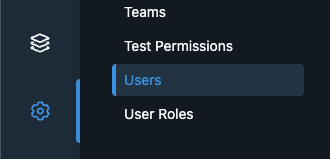
- In Octopus, go to Configuration > Users.
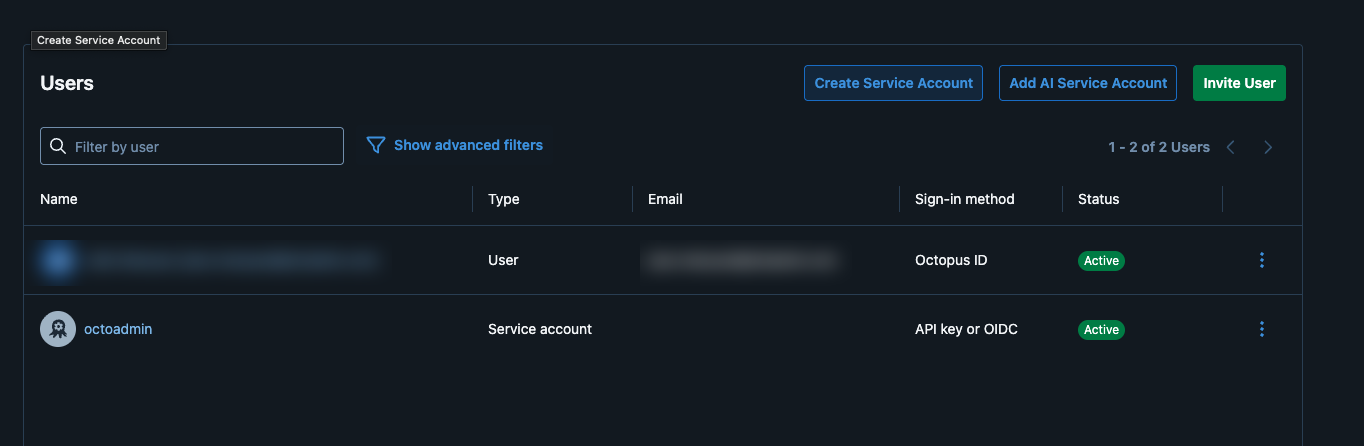
- Click Create Service Account.
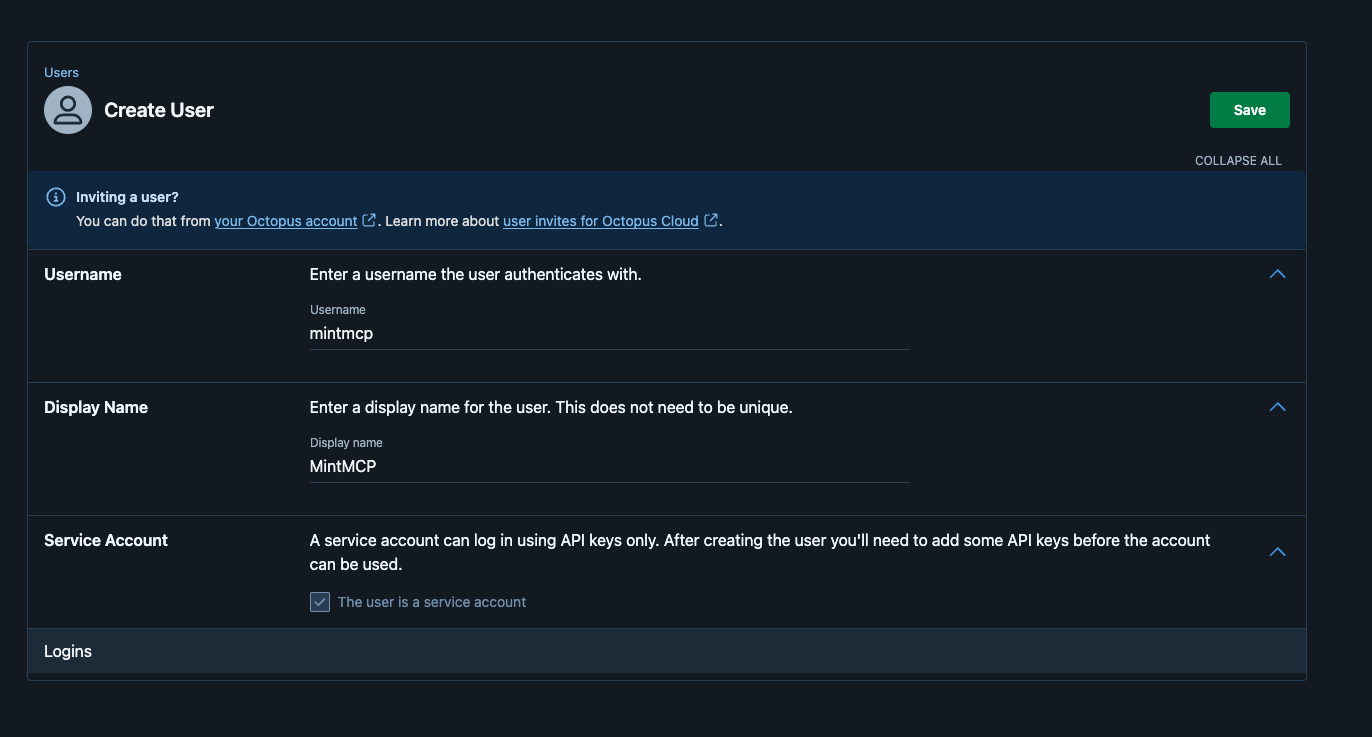
- Enter a username and display name (for example,
mintmcpandMintMCP), leave The user is a service account checked, and click Save.
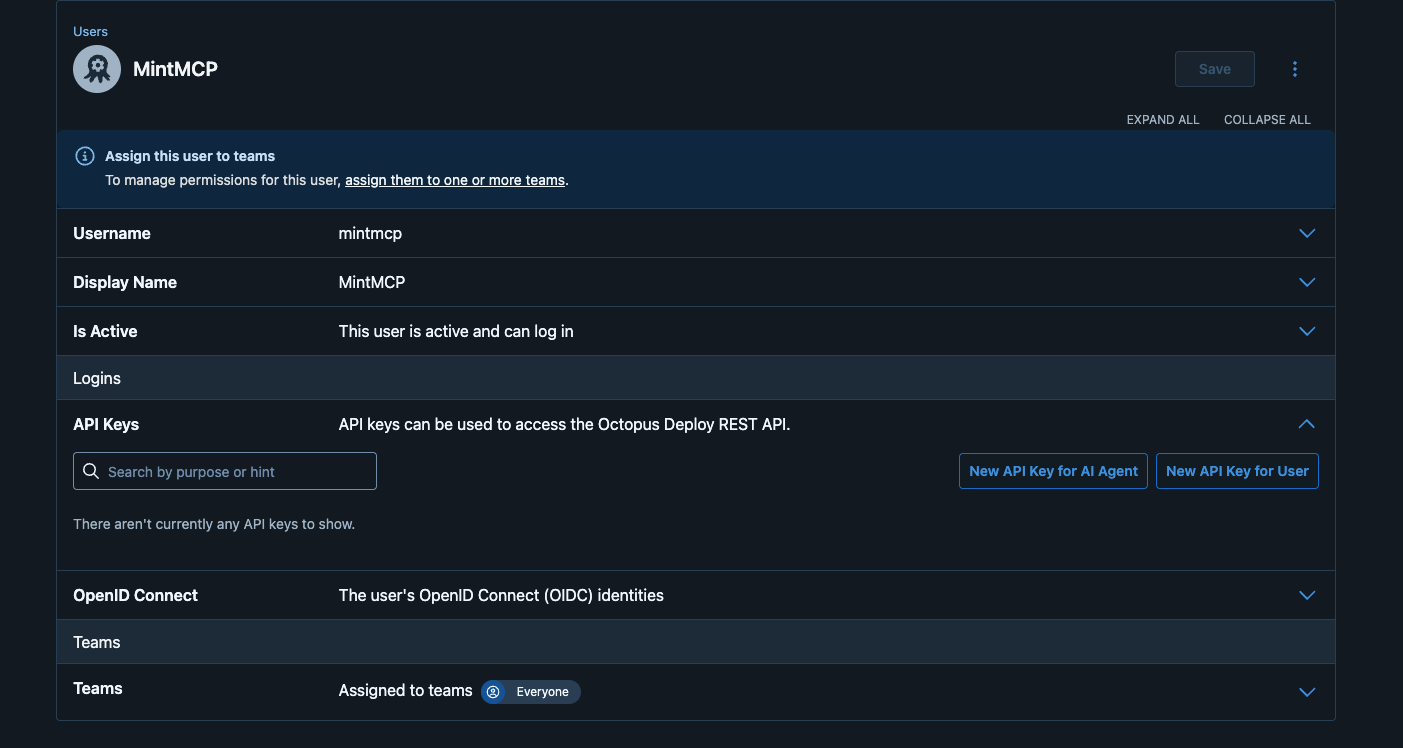
- Assign the account to one or more teams that grant the permissions the agent needs. For read-only use, a team with view permissions is enough.
- Expand API Keys and click New API Key for AI Agent.
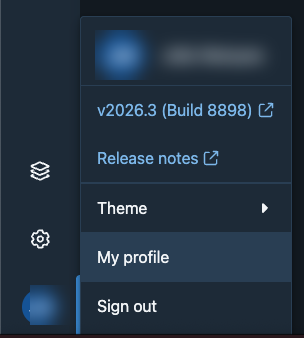
- In Octopus, click your avatar in the bottom-left corner and select My profile.
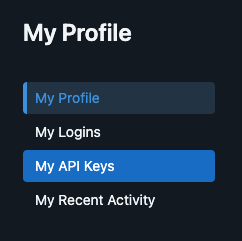
- Select My API Keys in the sidebar.
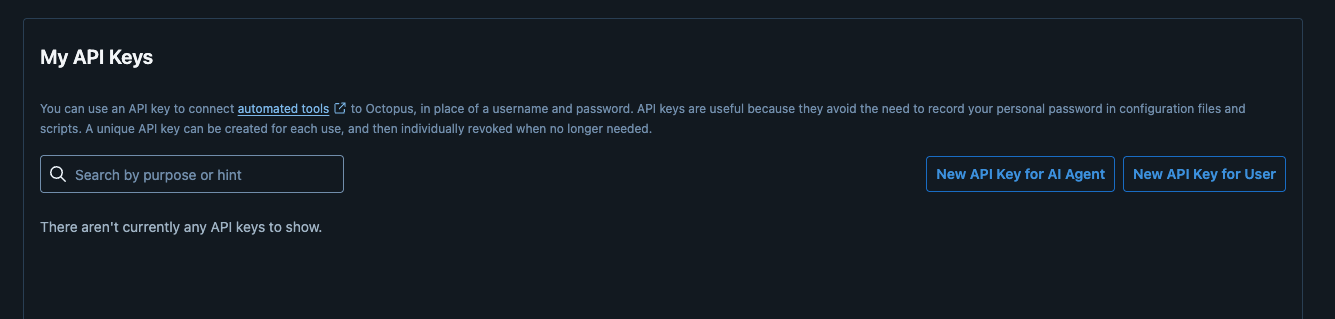
- Click New API Key for AI Agent, or New API Key for User if you chose the per-user model.
Generate the key
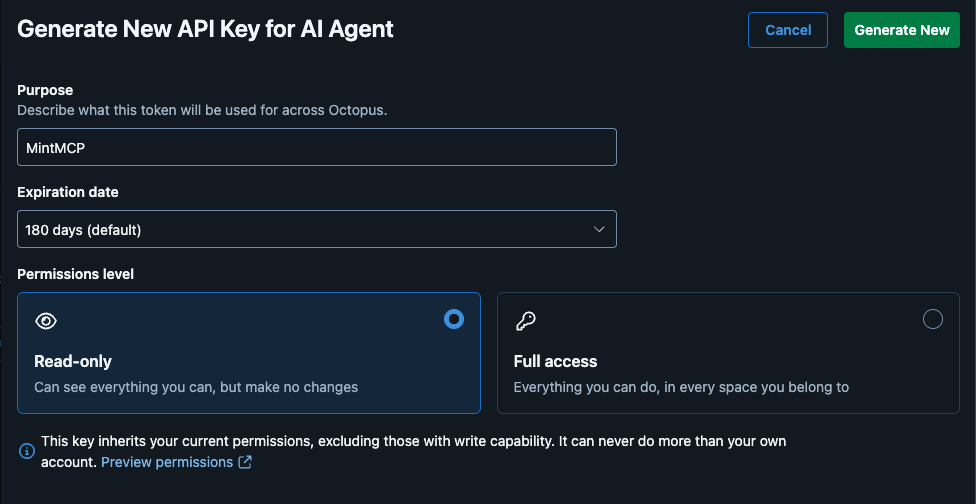
- Enter a purpose (for example,
MintMCP) and set an expiration date. - Select a permissions level, then click Generate New.
| Permissions level | Use when |
|---|---|
| Read-only | The agent only reads projects, releases, and audit data (recommended) |
| Full access | The agent also triggers deployments and runbook runs |
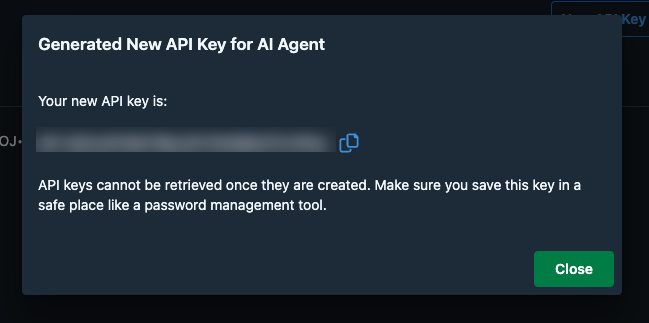
- Copy the key and store it in a secrets manager. Octopus keeps only a one-way hash and won't show it again.
Add Octopus Deploy to MintMCP
Octopus Deploy is pre-listed as a recommended server in the MintMCP MCP store, so MintMCP runs it on its own infrastructure and you only supply the URL and key.
-
In MintMCP, go to MCP store > Manage store.
-
Find Octopus Deploy in the recommended servers list and click Install.
-
Select an authentication method:
Method Behavior Shared API key You supply one service account key that every user's requests run with Per-user API key Each user supplies their own key when they connect, so their own Octopus permissions apply -
Enter the Octopus Server URL:
https://your-org.octopus.appfor Cloud, or your server address if self-hosted. -
For Shared API key, enter the Octopus API Key you copied above.
-
Click Install.
Security considerations
- An AI Agent key runs every user's tool calls as one shared identity, so Octopus audit logs attribute all activity to that account. Per-user keys tie each call back to the individual who made it.
- An AI Agent key inherits the permissions of the account it was created on, with write capability removed. On a service account, scope those permissions by assigning it only the teams the agent needs.
- The Read-only permissions level keeps the agent from changing anything in Octopus. Choose Full access only when the agent needs to trigger deployments and runbook runs.
- The key is shown only once at creation. Store it in a secrets manager, and rotate by generating a new key and updating the connector.
- Keys expire on the date set at creation. Rotate before expiry to avoid connection failures.
- The connector runs inside MintMCP's infrastructure and connects outbound to your Octopus instance only. No deployment data is stored in MintMCP beyond what individual tool calls return.
Next steps
- Tool customization: Control which Octopus tools are exposed to users
- Add a hosted connector: Reference documentation for hosting open-source MCP servers