Set up the OneDrive MCP server
The OneDrive connector gives AI agents access to each user's OneDrive for Business and to the files other people shared with them, including files in colleagues' OneDrive and in Teams and SharePoint libraries. Agents can search, read (with the text of PDF and Office files), create, rename, move, copy, delete, and share files with named people.
The connector runs as a hosted connector in MintMCP and uses delegated OAuth through your organization's own Microsoft Entra app, so each user signs in with their Microsoft 365 account and every tool call runs with that user's existing permissions on each file. This guide covers registering the Entra app, installing the connector in MintMCP, and limiting it to read-only access.
Prerequisites
- A MintMCP admin account
- Microsoft 365 work or school accounts with a license that includes OneDrive. Personal Microsoft accounts can't connect
- A Microsoft Entra admin who can register an app and grant admin consent, such as a Global Administrator, Cloud Application Administrator, or Application Administrator
Register a Microsoft Entra app
Microsoft Entra doesn't support dynamic client registration, so an admin registers an app once and MintMCP uses its client ID and secret for every user's sign-in.
-
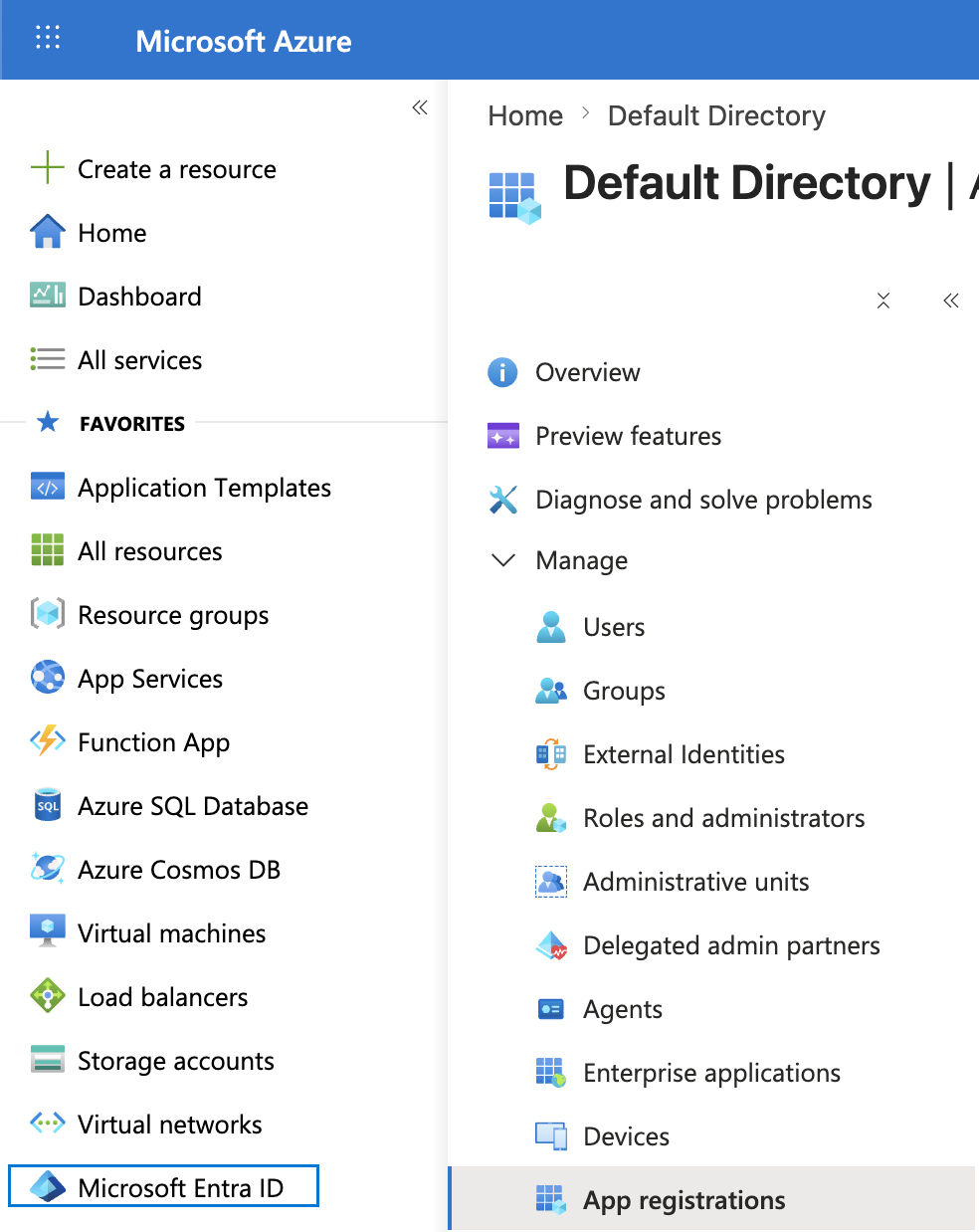
Go to portal.azure.com > Microsoft Entra ID > App registrations. Confirm the directory shown in the account menu is your organization's tenant.
-
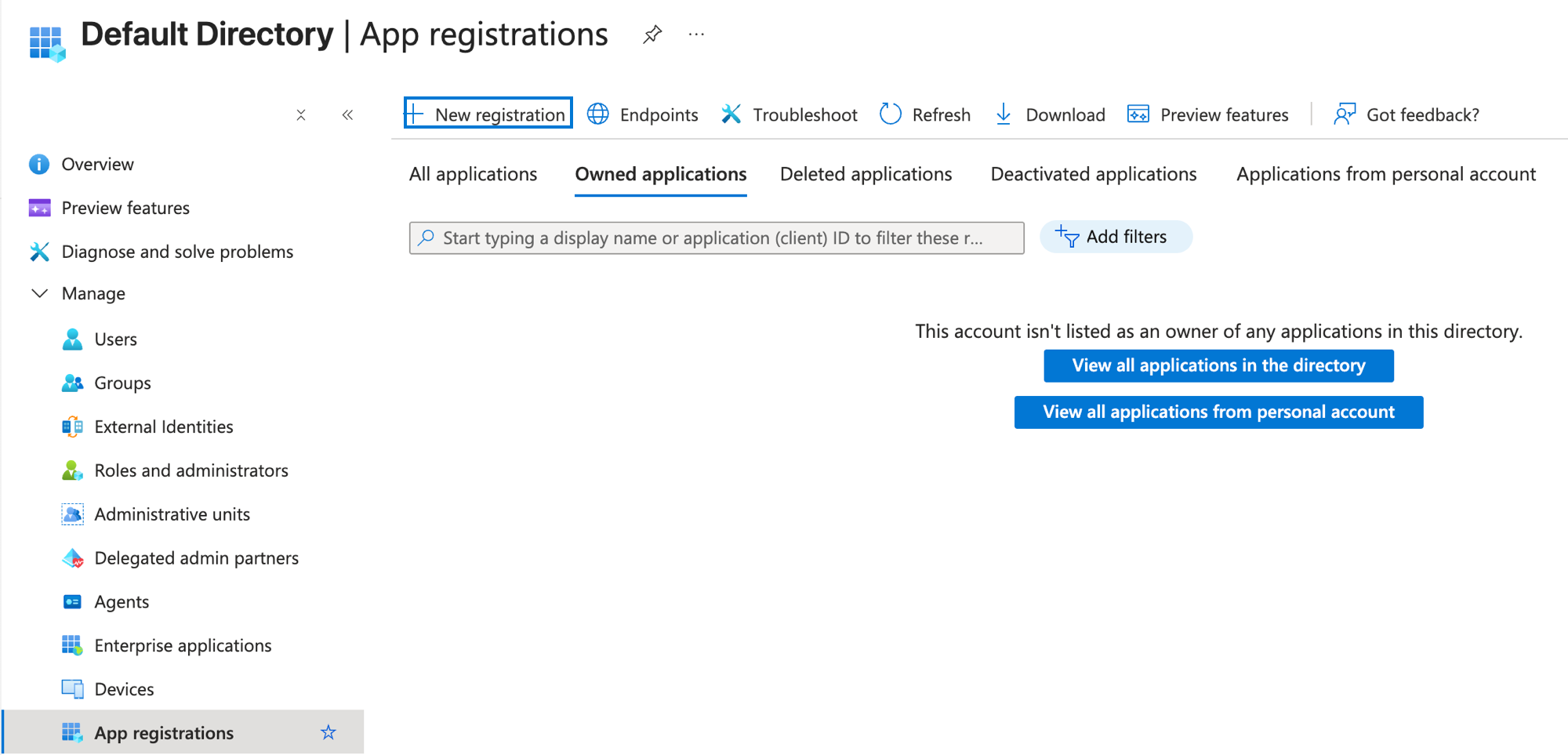
Click New registration.
-
Enter a name, for example MintMCP OneDrive.
-
Under Supported account types, keep the single-tenant option. The current form labels it Single tenant only followed by your directory name; older forms call it Accounts in this organizational directory only.
-
Under Redirect URI, select Web and enter the callback for your MintMCP region:
MintMCP region Redirect URI US ( app.mintmcp.com)https://app.mintmcp.com/oauth/callbackEU ( eu.mintmcp.com)https://eu.mintmcp.com/oauth/callbackThe install panel in MintMCP shows the callback for your organization. Microsoft compares the redirect URI character by character, so copy it from there.
-
Click Register.
-
Go to API permissions > Add a permission > Microsoft Graph > Delegated permissions, and add:
Permission Why Files.ReadWrite.AllRead and change the files the user can access, in their own OneDrive and wherever files are shared with them openid,email,profileSign the user in offline_accessLet MintMCP refresh the token without asking the user to sign in again Add only delegated permissions. The connector always acts as the signed-in user, so it needs no application permissions and no
Sites.*permission. -
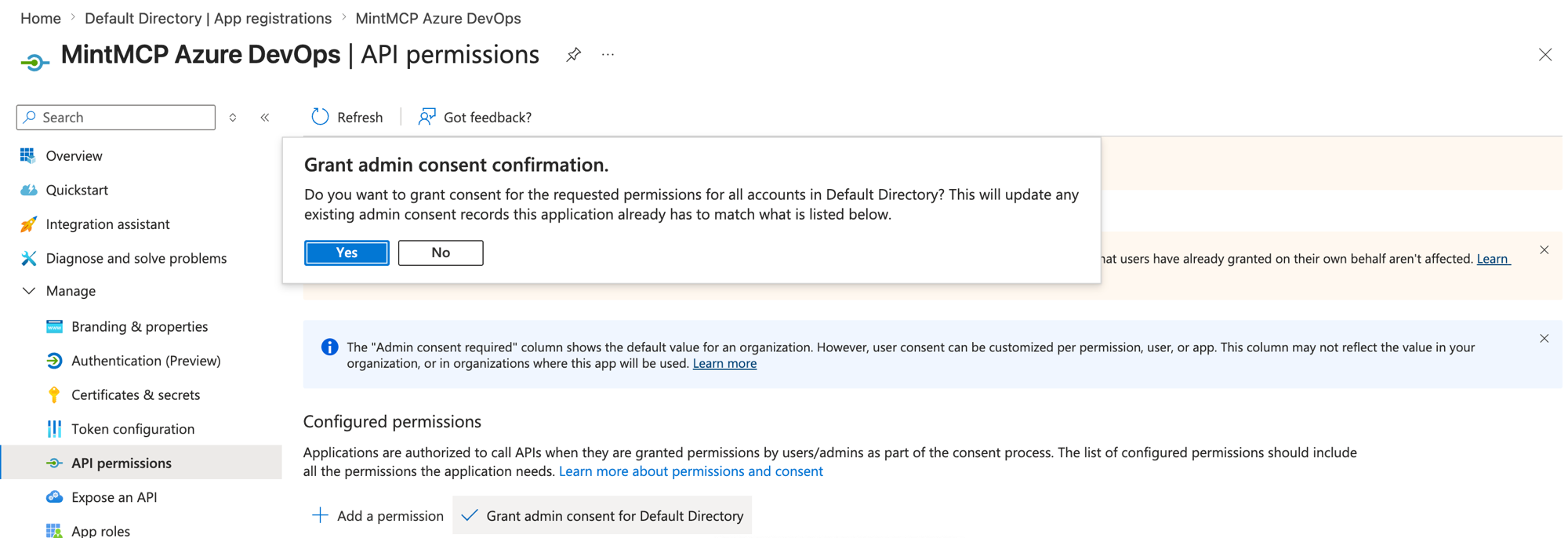
Click Grant admin consent for [your organization] and confirm, so users aren't prompted to consent individually and tenants that block user consent still work.
-
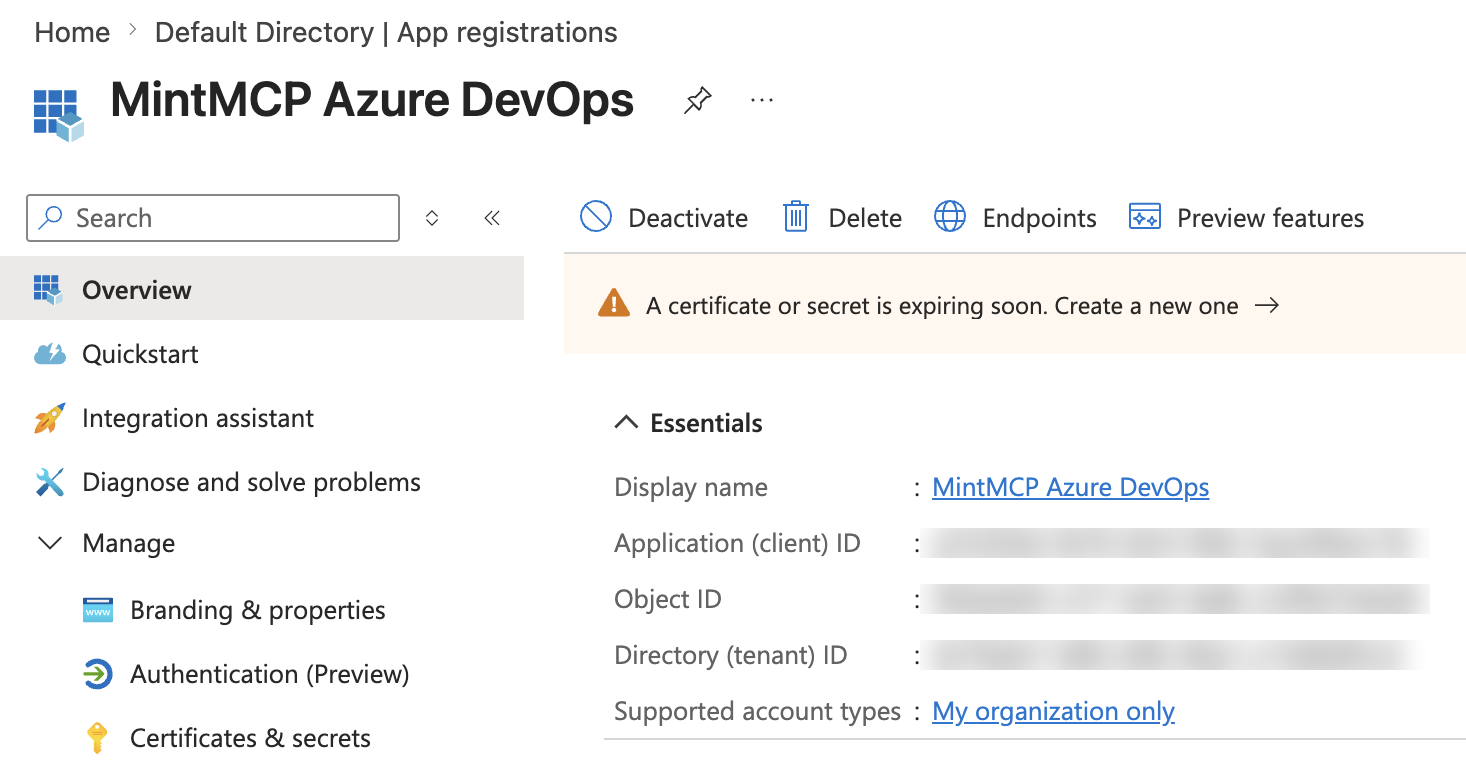
Copy the Application (client) ID and Directory (tenant) ID from the Overview tab. The Object ID is a different value and doesn't work as a client ID.
-
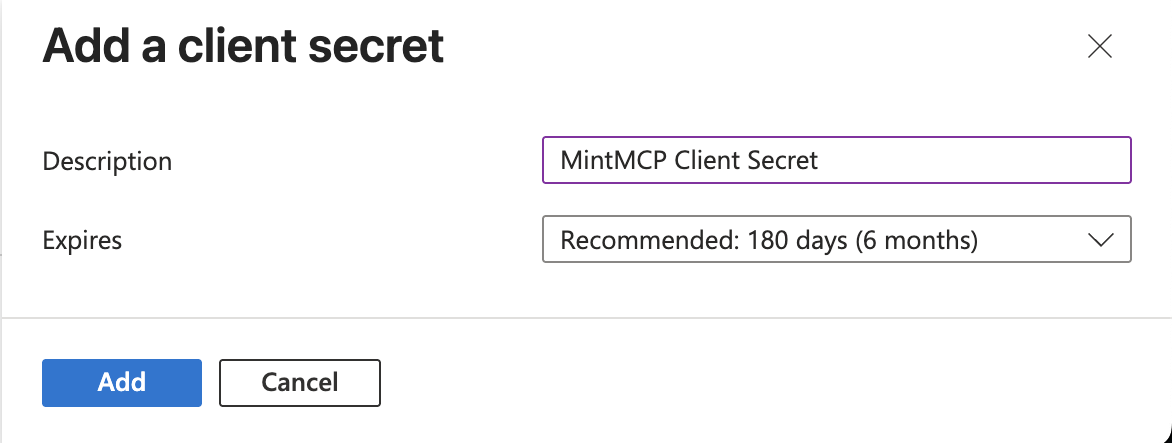
Go to Certificates & secrets > Client secrets > New client secret, enter a description, choose an expiry that matches your credential policy, and click Add.
-
Copy the secret Value immediately. It's shown once, and the Secret ID column next to it isn't the value MintMCP needs.

Record the secret's expiry date and owner. When it expires, every user's connection stops refreshing until an admin creates a new secret and updates it in MintMCP.
Add OneDrive to MintMCP
OneDrive runs as a hosted connector in MintMCP, and the catalog pre-fills the Microsoft endpoints, scopes, and token mapping. Microsoft's endpoints are per tenant, so {tenant-id} in the catalog is a placeholder for your Directory (tenant) ID.
-
Generate the operation reference key the connector needs to start:
openssl rand -base64 32Microsoft copies files in the background, and for a copy that takes longer than about 10 seconds it returns a progress link that anyone holding it can open without signing in. The connector never hands that link to the agent: it encrypts it with this key, together with the destination folder and the time the copy started, and returns only the encrypted reference, which the agent passes back to
get_copy_status. So the link stays out of chats and logs, and the connector only checks progress links it issued itself. A reference only opens with the key that created it, so keep the key the same for the life of the connector and store it with the client secret.If you delete and recreate the connector, set the same key on the new one, and the references the agent already holds keep working. A new key also works, but the agent can then no longer follow copies started before the change and is told to look at the destination folder instead.
-
In MintMCP, go to MCP store > Manage store.
-
Find OneDrive in the catalog and click Install, then Continue. A setup page appears with the connector configuration.
-
Set
OPERATION_REF_KEYto the key from step 1, with Global scope. -
Set Authorization URL to
https://login.microsoftonline.com/<tenant-id>/oauth2/v2.0/authorizeand Token URL tohttps://login.microsoftonline.com/<tenant-id>/oauth2/v2.0/token, replacing<tenant-id>with the Directory (tenant) ID from the app's Overview page. Microsoft rejects the sign-in if the placeholder is left in place. -
Keep the pre-filled Scopes:
openid,email,profile,offline_access,https://graph.microsoft.com/Files.ReadWrite.All -
Enter the Client ID (the Application (client) ID) and the Client Secret (the secret Value) from the app registration.
-
Confirm the Redirect URL shown on the setup page matches the Web redirect URI on the app registration (
https://app.mintmcp.com/oauth/callbackorhttps://eu.mintmcp.com/oauth/callback). Microsoft compares them character by character. -
Save the connector.
Each user signs in with their Microsoft 365 account on first use. With admin consent granted, they see the Microsoft sign-in page and land back in MintMCP without a consent prompt.
Verify the connection
- Open the server in MintMCP and go to the Tools tab to confirm the tools are listed.
- Use the Installation tab to connect an MCP client such as Claude or Cursor to the gateway.
- Run a small read-only prompt, such as
Show my OneDrive storage quotaorList the files in the root of my OneDrive, and compare the result with OneDrive in the browser.
Limit OneDrive to read-only access
Files.ReadWrite.All covers reading and writing, and every tool runs with the user's own permissions on each file. To let users read files but not change or share them, turn off the write tools with tool customization:
create_filecreate_folderupdate_filedelete_filecopy_fileshare_fileremove_file_permission
The read tools (get_drive_info, list_folder, search_files, get_file, get_copy_status, list_file_permissions) stay available.
OneDrive behavior and limits
The connector reaches files through each user's own access, so its answers reflect what that user can see in Microsoft 365.
- Shared files: there's no list of everything shared with a user, because Microsoft retires the Graph endpoints for "shared with me" and "recent" files. Agents find shared files with
search_filesacross the organization, by a sharing link the user pastes, or by the drive and item IDs from an earlier result. Search depends on Microsoft's index and your tenant's search settings, and it also finds SharePoint and Teams files; for browsing sites and libraries, use the SharePoint connector. - Sharing links:
get_fileopens a link only if the user already has access through it; it never accepts an invitation on the user's behalf, so a user without access opens the link once in the browser first.share_fileshares with named people who must sign in, and never creates anonymous links. Sharing with people outside your organization follows your tenant's sharing policy. - Permissions:
list_file_permissionsshows every permission to the item's owner and only the permissions that apply to anyone else. It doesn't show whether a permission comes from a parent folder, and a permission set on a parent folder has to be removed on that folder. - Copies: Microsoft copies in the background. When a copy takes longer than about 10 seconds, the agent gets a reference to check its status; the reference is valid for 24 hours and works for anyone who holds it and can open the destination folder.
- Document reading: the connector reads files up to 10 MB and returns up to 100,000 characters per call, page by page for PDF and Office files, with a way to continue. Scanned pages and images aren't read. When the connector is busy reading other documents it answers that it's busy, and the agent retries shortly. Uploads are limited to 4 MB per file.
- Accounts: users need a license that includes OneDrive. Guests and users without OneDrive get a clear message, and can still reach files in other drives they have access to.
- Protected files: files protected by sensitivity labels, rights management, or conditional access return an access error instead of their content.
Security considerations
- Every tool call runs as the signed-in user through delegated OAuth, so the connector reaches only the files that user can already access in Microsoft 365, and Microsoft 365 audit logs attribute each action to that user.
Files.ReadWrite.Alllets each user read and change those files, so turn off the write tools if your organization only needs reading.- The client secret and the operation reference key are stored in MintMCP and never reach the MCP client. Rotate the secret in Entra and update it in MintMCP before it expires.
share_filenever creates anonymous or password links, and recipients always have to sign in.- Users can revoke their own consent at myapps.microsoft.com, and admins can review or remove the app under Enterprise applications in the Entra admin center.
Troubleshooting
| Symptom | Cause and fix |
|---|---|
Microsoft error about a redirect URI mismatch (AADSTS50011) | The app's Web redirect URI doesn't match MintMCP's callback. Compare it with the callback shown in the install panel, including the region (app versus eu) |
Microsoft error that the app isn't multi-tenant or the endpoint is unsupported (AADSTS50194) | The URLs still use organizations, common, or the {tenant-id} placeholder. Replace them with the Directory (tenant) ID |
| The connector doesn't start, or its tools never load | OPERATION_REF_KEY is missing or isn't 32 bytes in base64. Generate a new one with openssl rand -base64 32 and set it on the connector |
get_copy_status says a reference is no longer valid | The reference is older than 24 hours, or OPERATION_REF_KEY changed after it was issued. Look at the destination folder with list_folder |
Invalid client secret (AADSTS7000215) | The Secret ID was pasted instead of the Value, or the secret expired. Create a new secret and update the connector |
| User sees Approval required instead of the sign-in completing | Admin consent wasn't granted and the tenant blocks user consent. Grant admin consent on the app's API permissions page |
| Tools say the user has no OneDrive it can use | The account has no license that includes OneDrive, isn't allowed a personal site, or is a guest. Assign a license; files in other drives stay reachable meanwhile |
| A tool says the user isn't authenticated | The user's token was revoked or can't be refreshed. Have the user reconnect the connector in MintMCP |
Next steps
- Set up the Microsoft 365 MCP servers: add Outlook, Teams, OneNote, and SharePoint, and bundle them with OneDrive
- Tool customization: control which OneDrive tools are exposed to users