Set up the Egnyte MCP server
Connect Egnyte's remote MCP server so your team can search enterprise files, ask questions about documents, and manage share links from an AI client.
Prerequisites
- A MintMCP admin account
- An Egnyte domain with the AI add-on enabled (contact your Egnyte account manager if you're unsure)
- Egnyte admin access
Allow MintMCP in Egnyte
-
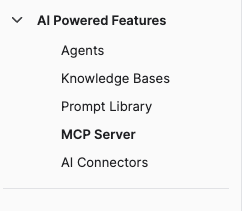
In Egnyte, go to Settings > Configuration, then open AI Powered Features > MCP Server.
-
Turn on Allow external LLM clients to connect to Egnyte via MCP.
-
Next to Allowed apps, click Add. Set Client name to
MintMCP, Description toMintMCP OAuth App, and Redirect URLs tohttps://app.mintmcp.com/oauth/callback.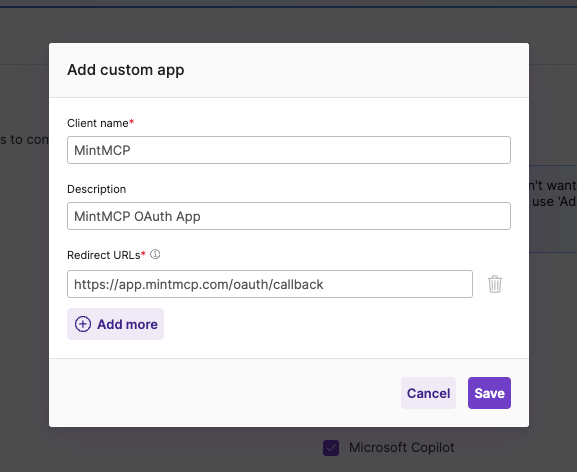
-
Click Save, then confirm MintMCP is checked in the allowed apps list.
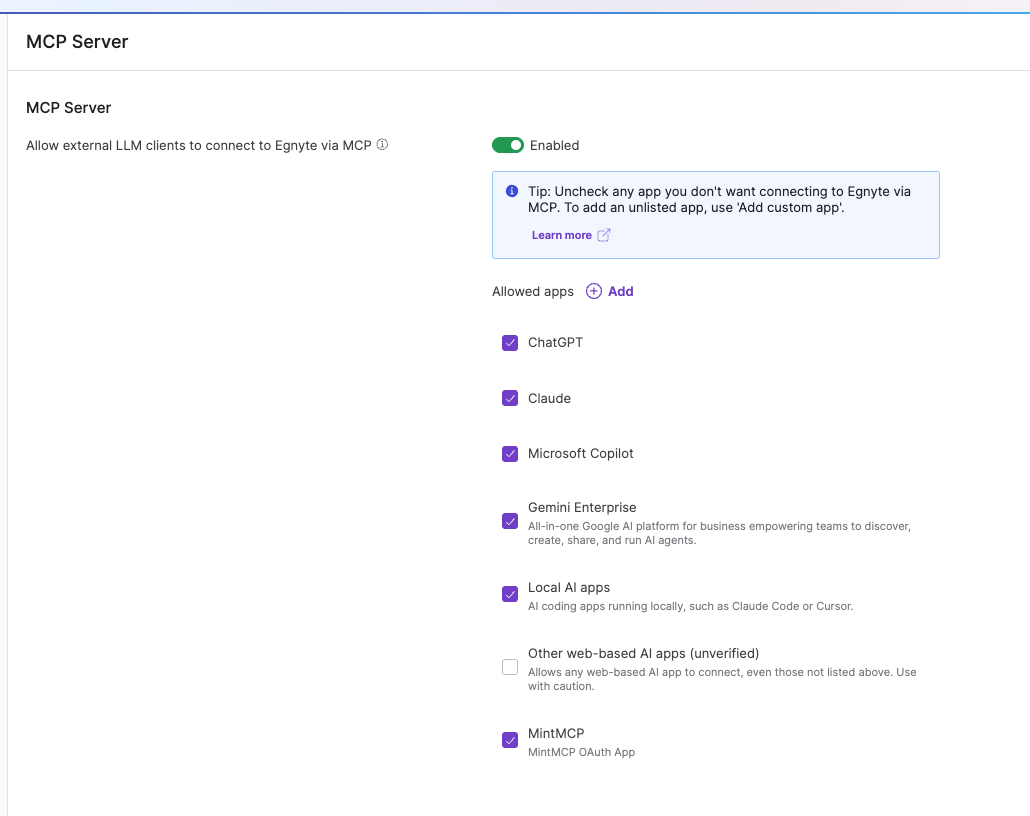
Leave Other web-based AI apps (unverified) unchecked. It lets any web-based MCP client without a registered redirect URI connect, and the named MintMCP entry already covers the gateway.
Uncheck any of the default apps your organization doesn't want connecting directly to Egnyte. Routing them through MintMCP instead gives you one audited entrypoint.
Add the connector
- In MintMCP, go to MCP store > Manage store and open Egnyte.
- Leave Authorization method on OAuth and Connection type on Per-user credentials.
- Click Install. There's no client ID or secret to paste — Egnyte registers the OAuth client dynamically.
Connect as a user
The first time a user connects, Egnyte asks which domain to sign in to, then runs its normal login and consent. After that, every call runs as that user.
What the connector exposes
| Area | What users can do |
|---|---|
| Search and discovery | Search files and content, browse folders by path, list project folders |
| Document intelligence | Ask questions about documents, summarize them, query Knowledge Bases through Egnyte AI |
| Content access | Fetch and download files by ID or path |
| Content management | Upload files, create folders, set metadata, create and list share links, read and write comments |
Security considerations
- Every request runs as the signed-in Egnyte user, so existing folder permissions, roles, and governance policies apply unchanged. Content a user can't reach in Egnyte stays unreachable through MCP.
- The custom app entry pins access to MintMCP's redirect URI, so tokens can only be issued back to the gateway.
- Egnyte audits MCP activity on its side, and MintMCP logs every tool call on yours.
- The connector can write — uploads, folders, metadata, share links, and comments. Use tool customization to expose read-only tools to roles that shouldn't be creating share links.
Next steps
- Tool customization — Control which Egnyte tools are exposed to users
- MCP gateway administration — Manage access and permissions