Set up Drive labels for Google Drive, Docs, and Sheets
Let AI agents read the classification labels on your Google Drive files (for example, sensitivity, department, or retention) through MintMCP's labels-enabled Google Drive, Docs, and Sheets servers. These servers sign users in with an OAuth client your organization owns, so a Google Cloud project admin creates the client and a MintMCP admin installs the servers with it.
The labels-enabled servers read labels only: agents can't apply, change, or remove a label through them.
Prerequisites
- A MintMCP admin account
- A Google Cloud project owned by your Google Workspace organization
- A Google Workspace edition that supports classification labels, with at least one published label. See Get started as a classification labels admin to create and publish labels.
Enable the Google APIs
Enable these APIs in the project that will hold the OAuth client, for each server you plan to install:
| Server | APIs to enable |
|---|---|
| Google Drive (Labels) | Google Drive API, Drive Labels API |
| Google Docs (Labels) | Both of the above, plus Google Docs API |
| Google Sheets (Labels) | Both of the above, plus Google Sheets API |
- Open each API link and select your project.
- On Confirm project, check that the correct project is selected and click Next.
- On Enable API, click Enable.
Without the Drive Labels API, results carry label IDs but no label names, and set labelsError, which the read gate blocks.
Configure the OAuth consent screen
- Go to console.cloud.google.com/auth/branding and select your project.
- If the consent screen isn't configured yet, set the user type to Internal. This limits sign-in to users in your Google Workspace organization and skips Google app verification, which external apps need for the Drive scopes.
- Go to Data Access, click Add or remove scopes, and add the scopes for each server you plan to install. In the tables,
...stands forhttps://www.googleapis.com.
- Google Drive (Labels)
- Google Docs (Labels)
- Google Sheets (Labels)
| Scope | Access granted |
|---|---|
openid | OpenID Connect authentication |
.../auth/userinfo.email | View user email address |
.../auth/userinfo.profile | View basic profile info |
.../auth/drive.readonly | Search and read Drive files |
.../auth/drive.file | View and manage files created or opened with this app |
.../auth/drive.labels.readonly | Read the labels applied to files and their definitions |
| Scope | Access granted |
|---|---|
openid | OpenID Connect authentication |
.../auth/userinfo.email | View user email address |
.../auth/userinfo.profile | View basic profile info |
.../auth/drive.readonly | Search docs and read content |
.../auth/drive.file | View and manage files created or opened with this app |
.../auth/documents | Create and edit documents |
.../auth/drive.labels.readonly | Read the labels applied to documents and their definitions |
| Scope | Access granted |
|---|---|
openid | OpenID Connect authentication |
.../auth/userinfo.email | View user email address |
.../auth/userinfo.profile | View basic profile info |
.../auth/drive.readonly | Search spreadsheets and read content |
.../auth/drive.file | View and manage files created or opened with this app |
.../auth/spreadsheets | Create and edit spreadsheets |
.../auth/drive.labels.readonly | Read the labels applied to spreadsheets and their definitions |
- Click Update, then Save.
Create an OAuth client
One Web application client can serve all three servers, since each server requests its own scopes at sign-in.
-
Go to console.cloud.google.com/auth/clients and select your project.
-
Click Create client.
-
Set Application type to Web application and give it a name (for example,
MintMCP Drive labels).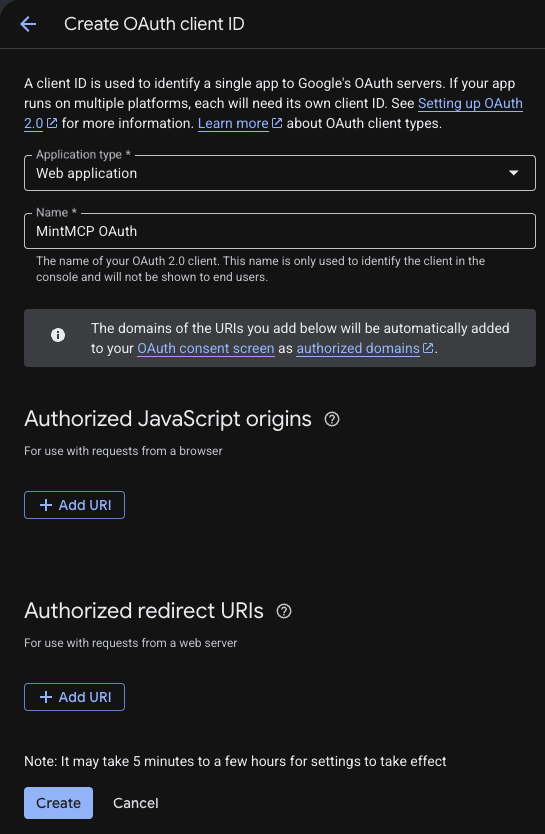
-
Under Authorized redirect URIs, click Add URI and enter the callback for your MintMCP region:
MintMCP region Redirect URI US ( app.mintmcp.com)https://app.mintmcp.com/oauth/callbackEU ( eu.mintmcp.com)https://eu.mintmcp.com/oauth/callbackLeave Authorized JavaScript origins empty. The URI must match the redirect URL MintMCP sends exactly, or sign-in fails with
redirect_uri_mismatch. -
Click Create. Google shows the Client ID and Client secret once, so copy both now: you can't view the secret again after closing the dialog.
Allow the client in Google Workspace
If your organization restricts third-party app access, users can't grant the client access until it's trusted.
- Go to admin.google.com and sign in as a super admin.
- Go to Security → Access and data control → API controls → Manage Third-Party App Access.
- Click Add app → OAuth App Name Or Client ID, search for the Client ID you created, and select it.
- Choose the organizational units that should use the servers and click Continue.
- Set the access level to Trusted, or to Specific Google data with the scopes listed above, and click Configure.
Add the servers to MintMCP
Each labels-enabled server is a separate connector in the MintMCP store. Install the ones your organization needs and enter the same Client ID and Client secret in each.
- In MintMCP, go to MCP store → Manage store.
- Find Google Drive (Labels), Google Docs (Labels), or Google Sheets (Labels) and click to install it.
- Enter the Client ID and Client secret from the OAuth client you created.
- Click Install.
Each user signs in with their own Google account the first time they connect, and Google asks them to approve the server's scopes.
Read labels from agents
The servers attach a file's applied labels to read results. A label read runs as the signed-in user, so agents see the same labels that user sees in Drive.
| Server | Labels in the visible result | Labels in _meta.applied only |
|---|---|---|
| Google Drive (Labels) | get_file_metadata (labels field) | get_file |
| Google Docs (Labels) | None | get_document, get_document_images |
| Google Sheets (Labels) | get_metadata (labels field) | get_sheet_data |
Agents use the visible labels field to answer questions such as "which of these files are confidential?". To block files by label, use the Google Drive labels read gate template. Custom post-phase gateway middleware can also read _meta.applied from ctx.result.
Each applied label looks like this:
{
  "labelId": "37ZlnSPuGlS9eVDQTE1CQJtWNcxkSrUBtw9RNNEbbFcb",
  "revisionId": "7",
  "title": "Data classification",
  "resolved": true,
  "values": [
    {
      "fieldId": "62BB395EC6",
      "valueType": "selection",
      "choiceId": "68E9987F43",
      "displayName": "Confidential",
      "resolved": true
    }
  ]
}
| Field | Description |
|---|---|
labelId, fieldId, choiceId | Stable IDs that don't change when a label or choice is renamed. Custom middleware can match on these instead of names. |
title, displayName | Human-readable names for the label and the selected choice |
resolved | false when the label or choice definition couldn't be read, so only IDs are returned |
values | Field values: selection, text (up to 256 characters), date, and integer |
skippedValueTypes | Value types left out of values. Person fields are always withheld (user). |
labelsError | Set when the label read failed or was incomplete. The tool still returns the file content. |
A file with no labels returns an empty applied list.
Block files by label
Use the Google Drive labels read gate middleware template to stop agents from receiving files that carry a restricted label. It checks every result from the labels-enabled servers, including file content, metadata, documents, and spreadsheets.
-
In MintMCP, go to Guardrails → Middleware and click New middleware.
-
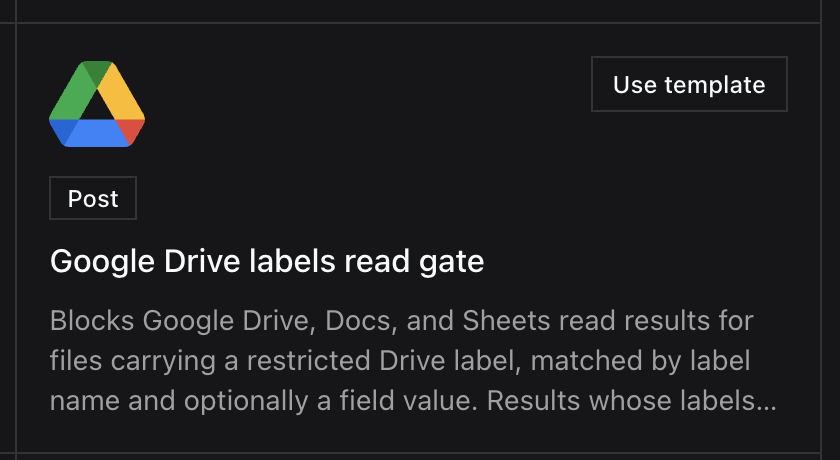
Find Google Drive labels read gate in the templates and click Use template. The template is post-phase and fails closed.
-
Edit
RESTRICTEDto list the labels to block, written as they appear in Google Drive:const RESTRICTED = [
{ label: "Confidential" },
{ label: "Data classification", value: "Restricted" },
];A rule with only
labelblocks any file carrying that label. A rule withvaluealso requires one of the label's fields to hold that value: a selection choice, or a text, date (YYYY-MM-DD), or whole-number value. Matching ignores case and extra spaces. Person fields and text values over 256 characters aren't returned by the servers, so rules can't match them. -
Test it with the built-in harness, using a sample result that carries
_meta.applied. -
Save it, then attach it to the Google Drive (Labels), Google Docs (Labels), and Google Sheets (Labels) connectors and turn on enforcement. Attach it only to these connectors, since other connectors don't return Drive labels.
| Result | Decision |
|---|---|
Carries a label that matches a RESTRICTED rule | Blocked, and the reason names the matched rules |
Has labelsError set | Blocked, since an unread label could be restricted. Set BLOCK_WHEN_LABELS_UNVERIFIED to false to allow these instead. |
| Carries no restricted labels | Allowed |
| Carries no label data (for example, search results) | Allowed |
The gate only enforces on results that carry labels, and the servers return labels only when the user granted the drive.labels.readonly scope. Keep that scope in the consent screen and in any Specific Google data list in the Admin Console, so every user's connection includes it.
Security considerations
- Your organization owns the OAuth client and its secret. Rotate the secret from the client's page in Google Cloud and update it in each connector's OAuth settings in MintMCP.
- Each user authenticates individually, so label reads and file access run under their own identity and follow their Drive permissions.
- Person fields on labels are never returned, which keeps user identities out of agent context.
- Labels are read live on every call, so label changes made in Drive apply to the next read.
Next steps
- Configure Google Workspace for MintMCP Google servers: Set up the standard Google servers that use MintMCP's OAuth apps
- Gateway middleware: Create, test, and attach middleware, including the other starter templates
- Tool customization: Control which tools each server exposes
- Drive Labels API overview: Google's reference for label structure and fields