Set up the Zoom MCP servers
Zoom publishes official MCP servers for each product area: Meetings, Team Chat, Docs, Tasks, Revenue Accelerator, and a Workspace server that covers meetings, docs, and AI-powered cross-Zoom search together. This guide covers creating a single Zoom Marketplace app for OAuth access, then connecting the servers you need through MintMCP.
Prerequisites
- A MintMCP admin account
- A Zoom account on Workplace Pro, Business, or Enterprise with developer or admin access to the Zoom App Marketplace
- For Zoom Revenue Accelerator: an active Revenue Accelerator subscription
Create a Zoom app
-
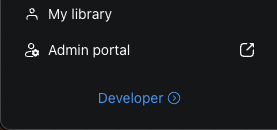
Go to marketplace.zoom.us and open your account menu, then click Developer.
-
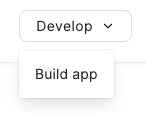
Click Develop > Build app.
-
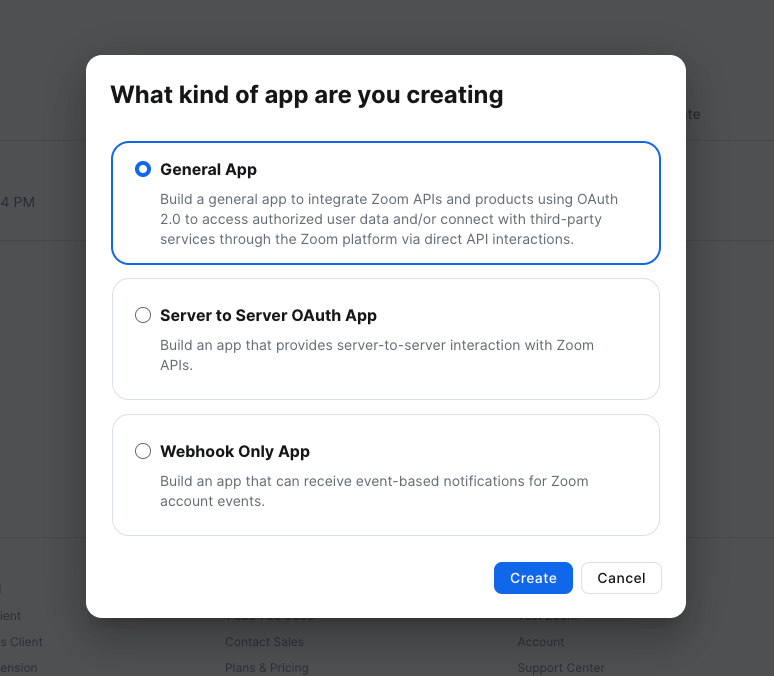
Select General App and click Create.
-
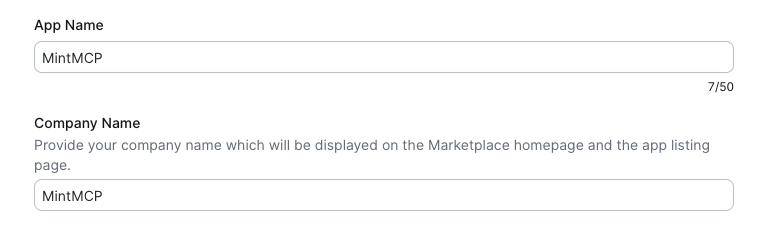
Enter a name — for example, MintMCP.
-
In Basic Information, under Select how the app is managed, select User-managed. This cannot be changed after the app is created.
-
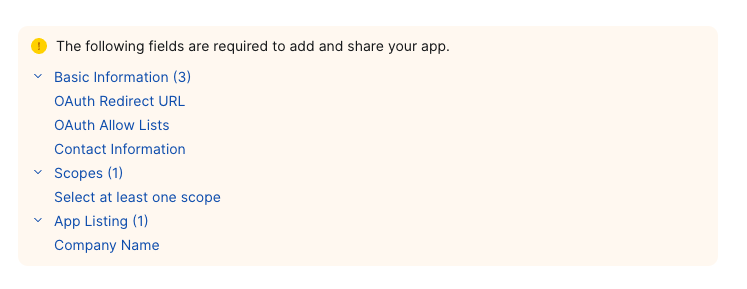
Switch to the Production tab at the top of the app and build the app from there. Zoom lists the fields it still needs.
-
In Basic Information, enter the redirect URL and add the same URL to OAuth Allow Lists:
https://app.mintmcp.com/oauth/callback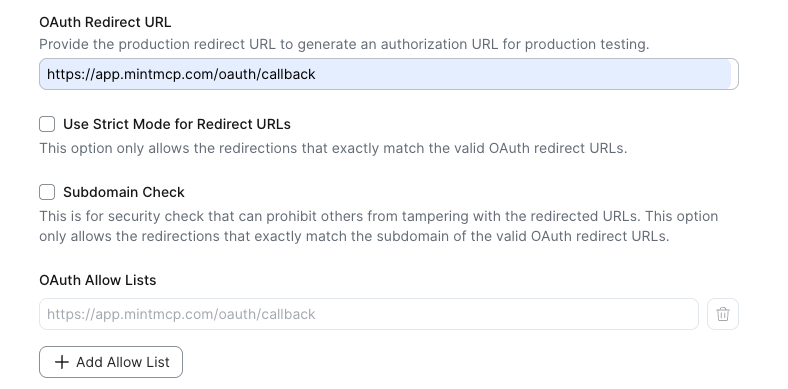
-
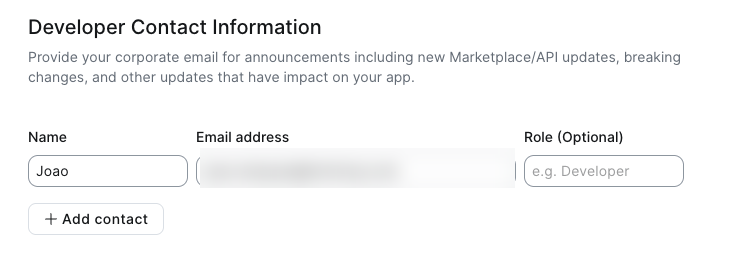
Under Developer Contact Information, enter the name and corporate email of the app owner in your organization.
-
Go to Scopes and click Add scopes. The scope table in each tab below lists what each server needs. You can add all scopes for multiple servers into this one app.
-
In App Listing, enter the Company Name shown on the Marketplace listing.
- Click Save.
Production credentials are what your organization connects with. To test with the Development credentials first, fill the same OAuth Information on the Development tab, since the two tabs keep separate settings and separate credentials. A development app only authorizes your own Zoom account.
Publish the app to your account
Once the required fields are filled, Add your app in the left sidebar shows Beta Test with a Local only badge.
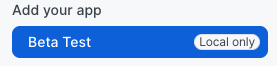
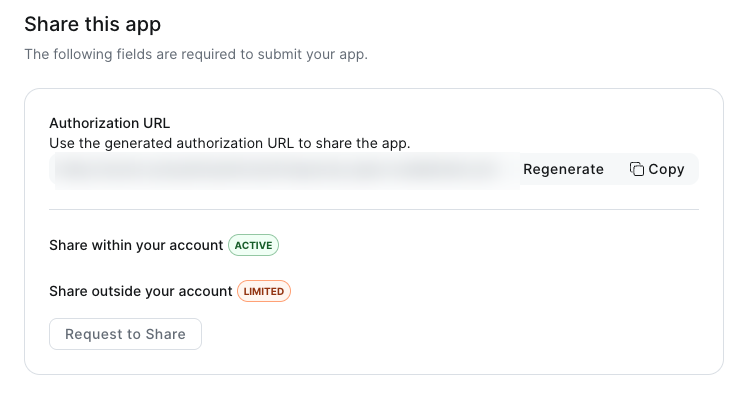
Under Share this app, Share within your account reads ACTIVE, which is what your organization's users need to authorize the connector. Share outside your account stays LIMITED until you request sharing or publish the app.
- Click Users within my account under Add your app.
- Click View My App Details > Add for others.
Copy the client ID and client secret
Keep the Production tab selected.
- Go to App Credentials in the left sidebar.
- Copy the Client ID.
- Copy the Client Secret. You'll need both for each server you install.
Add a connector
Each Zoom server is a separate pre-listed connector in the MintMCP store. Because Zoom requires manual app registration rather than dynamic client registration, paste the Client ID and Client Secret from your Zoom app into OAuth Client Advanced Settings when installing each connector.
- Zoom
- Zoom Meetings
- Zoom Team Chat
- Zoom Docs
- Zoom Tasks
- Zoom Revenue Accelerator
Workspace is the most comprehensive Zoom connector, covering meetings, recordings, Zoom Docs, and AI-powered search across meetings, chat, and docs. It includes everything in the Meetings and Docs servers, so install Workspace when you want all three rather than connecting them separately.
-
Install: in MCP store > Manage store, find Zoom (Remote) and click Install. Set Authorization method to OAuth and Connection type to Per-user credentials. Open OAuth Client Advanced Settings and paste the Client ID and Client Secret.
-
Grants: AI-powered cross-Zoom search and natural-language Q&A; meeting search and asset retrieval; cloud recording access; My Notes access; Zoom Docs and Hub file create and export.
-
Requires: Zoom Workplace Pro, Business, or Enterprise. Smart Recording and Meeting Summary features must be enabled for AI search results to be useful.
-
Scopes to add in your Zoom app:
Scope What it enables agentic_search:read:askAnswer natural-language questions across meetings, chat, Canvas, and contacts, with citations agentic_search:read:searchSearch across Zoom datasources (meetings, chat messages, chat sessions, Canvas, calendar) meeting:read:searchSearch meetings by keyword and date range meeting:read:assetsRetrieve meeting assets: summaries, recordings, whiteboards, docs, agendas cloud_recording:read:list_user_recordingsList cloud recordings cloud_recording:read:contentAccess recording transcripts, summaries, and playback links my_notes:read:contentRead My Notes content and associated meeting transcripts docs:write:importCreate Zoom Docs from Markdown docs:read:exportExport Zoom Doc content as Markdown hub:write:contentCreate Hub files from Markdown or CSV hub:read:contentRetrieve Hub file content
The Meetings server focuses on meeting search, recordings, and assets. Use it instead of Workspace if you need meetings access without Docs or AI search.
-
Install: in MCP store > Manage store, find Zoom Meetings and click Install. Set Authorization method to OAuth and Connection type to Per-user credentials. Open OAuth Client Advanced Settings and paste the Client ID and Client Secret.
-
Grants: Search meetings; retrieve meeting assets; list and access cloud recordings.
-
Requires: Zoom Workplace Pro, Business, or Enterprise. Smart Recording and Meeting Summary features must be enabled for useful search results.
-
Scopes to add in your Zoom app:
Scope What it enables meeting:read:searchSearch meetings meeting:read:assetsRetrieve meeting assets cloud_recording:read:list_user_recordingsList cloud recordings cloud_recording:read:contentAccess recording content
The Team Chat server provides read and write access to Zoom Team Chat channels, messages, contacts, and files.
-
Install: in MCP store > Manage store, find Zoom Team Chat and click Install. Set Authorization method to OAuth and Connection type to Per-user credentials. Open OAuth Client Advanced Settings and paste the Client ID and Client Secret.
-
Grants: Read and send messages; manage channels and members; access contacts and files.
-
Requires: Zoom Workplace Pro, Business, or Enterprise.
-
Scopes to add in your Zoom app:
Scope What it enables team_chat:read:list_user_messagesRead messages team_chat:read:list_user_channelsList channels team_chat:read:channelRead channel details team_chat:read:list_membersList channel members team_chat:read:list_contactsRead contacts team_chat:read:list_user_filesList files team_chat:read:list_user_sessionsRead session history team_chat:write:user_messageSend messages team_chat:update:user_messageEdit messages team_chat:write:user_channelCreate channels team_chat:update:user_channelEdit channels team_chat:update:channel_member_roleManage member roles team_chat:write:membersAdd or remove members team_chat:write:contact_informationManage contact information
The Docs server provides focused access to Zoom Docs and notes: creating documents from Markdown and reading them back. Workspace includes these same capabilities, so install Docs separately only when you don't need meetings or AI search.
-
Install: in MCP store > Manage store, find Zoom Docs and click Install. Set Authorization method to OAuth and Connection type to Per-user credentials. Open OAuth Client Advanced Settings and paste the Client ID and Client Secret.
-
Grants: Create Zoom Docs from Markdown; read and export existing Zoom Docs and notes.
-
Requires: Zoom Workplace Pro, Business, or Enterprise.
-
Scopes to add in your Zoom app:
Scope What it enables docs:write:importCreate Zoom Docs from Markdown docs:read:exportExport Zoom Doc content as Markdown
The Tasks server provides full task management: creating, updating, assigning, and commenting on Zoom Tasks.
-
Install: in MCP store > Manage store, find Zoom Tasks and click Install. Set Authorization method to OAuth and Connection type to Per-user credentials. Open OAuth Client Advanced Settings and paste the Client ID and Client Secret.
-
Grants: Create, read, update, and delete tasks; manage steps, comments, assignees, and collaborators.
-
Requires: Zoom Workplace Pro, Business, or Enterprise.
-
Scopes to add in your Zoom app:
Scope What it enables tasks:read:list_tasksList tasks tasks:read:taskRead task details tasks:write:taskCreate tasks tasks:update:taskUpdate tasks tasks:delete:trash_taskTrash tasks tasks:read:commentsRead comments tasks:write:commentAdd comments tasks:delete:commentDelete comments tasks:read:assigneesRead assignees tasks:write:assigneesAssign tasks tasks:delete:assigneesRemove assignees tasks:read:list_collaboratorsRead collaborators tasks:write:collaboratorsAdd collaborators tasks:delete:collaboratorRemove collaborators
The Revenue Accelerator server provides read access to sales conversations, deal intelligence, scorecards, and coaching data from Zoom Revenue Accelerator.
-
Install: in MCP store > Manage store, find Zoom Revenue Accelerator and click Install. Set Authorization method to OAuth and Connection type to Per-user credentials. Open OAuth Client Advanced Settings and paste the Client ID and Client Secret.
-
Grants: Read sales conversations, scorecards, deal data, team structures, and performance indicators.
-
Requires: Active Zoom Revenue Accelerator subscription and Zoom Workplace Pro, Business, or Enterprise.
-
Scopes to add in your Zoom app:
Scope What it enables zra:read:list_conversationsList ZRA conversations zra:read:conversationsRead conversation details zra:read:conversation_analysisRead conversation analysis zra:read:list_conversation_commentsRead conversation comments zra:read:conversation_scorecardsRead scorecards zra:read:list_dealsList deals zra:read:dealRead deal details zra:read:list_deal_activitiesRead deal activities zra:read:crm_customer_contactRead CRM contacts zra:read:indicatorRead performance indicators zra:read:teamRead team data zra:read:userRead user data
Bundle the connectors into one Zoom MCP
Installed individually, each server is a separate endpoint users have to add one by one. Package them into a single Virtual MCP, a role-based MCP bundle, so your organization connects to one Zoom endpoint that exposes all the product areas you've connected, with access and audit managed centrally.
- Install the connectors you want in the bundle using the tabs above.
- In MintMCP, choose Create a role-based MCP bundle.
- Name the bundle — for example, Zoom.
- Under Select MCPs, check the Zoom connectors you installed.
- Click Create combined MCP.
Users authenticate once against the bundle. Each connector's per-user OAuth still applies, so every call runs as the signed-in user with their own Zoom permissions.
Security considerations
- All six servers use per-user OAuth, so every action is tied to the authenticated user's Zoom identity and limited by their existing Zoom permissions.
- One Zoom Marketplace app backs all six server connections. When you rotate the Client Secret in Zoom Marketplace, update it in each connector's OAuth Client Advanced Settings in MintMCP.
- Add only the scopes the servers you're connecting need. Unused scopes are unnecessary access.
- Revenue Accelerator data includes sales conversations and deal intelligence. Use tool customization to restrict which MintMCP roles can access that connector.
Next steps
- Tool customization — Control which Zoom tools are exposed to users
- MCP gateway administration — Manage access and permissions