Set up the Contentful MCP server
The Contentful MCP server gives AI agents read and write access to entries, assets, content types, and environments across your Contentful spaces. This guide covers installing the Contentful MCP app per space and environment, configuring the tool allow-list, and connecting the server to MintMCP using per-user OAuth.
Prerequisites
- A MintMCP admin account
- A Contentful account with admin access to the spaces you want to expose
- The Contentful MCP app installed in each target space/environment (see Install the Contentful MCP app below)
Install the Contentful MCP app
The remote MCP server requires the Contentful MCP app installed in each Contentful space and environment you want to expose through MintMCP. The app is a permission layer: it defines which tool categories are available, and at what access level, for each environment.
-
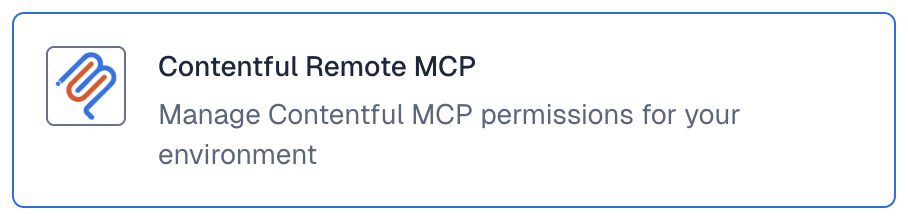
In your Contentful space, open the App Marketplace and locate Contentful MCP.

-
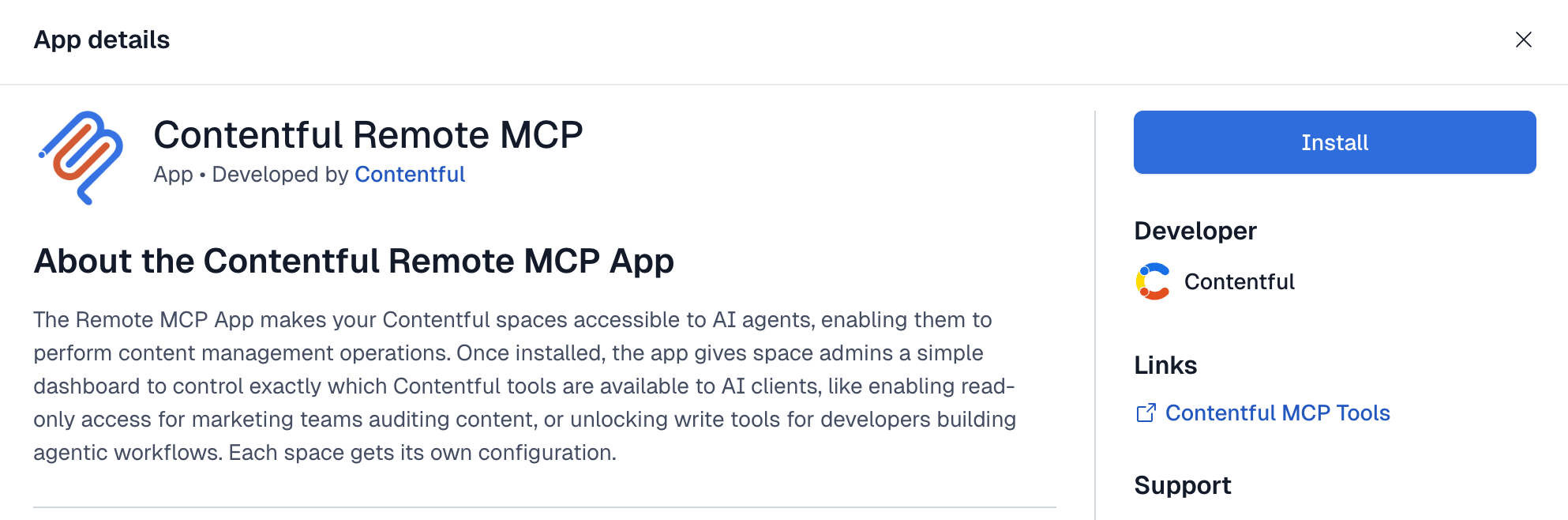
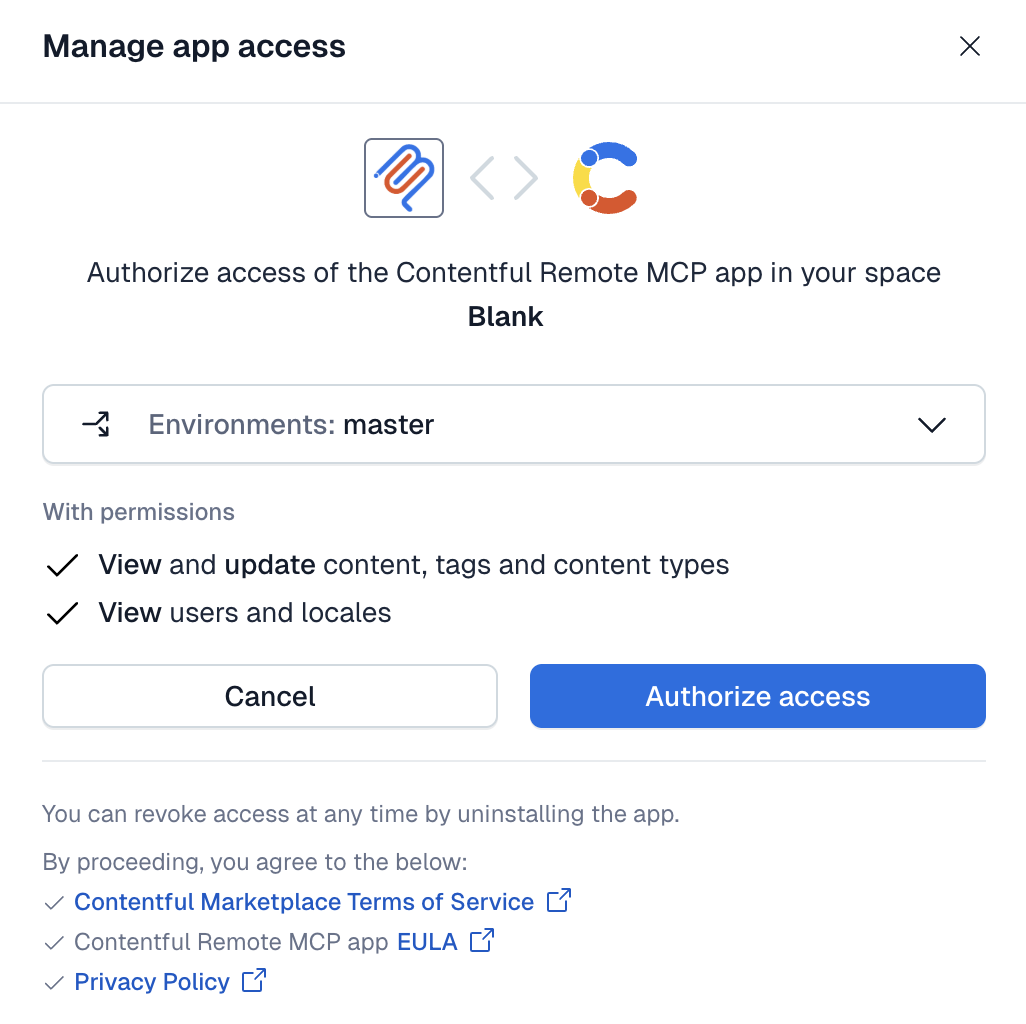
Click Install and complete the installation for this space.
-
Open the app's configuration screen and select the tool categories to enable:
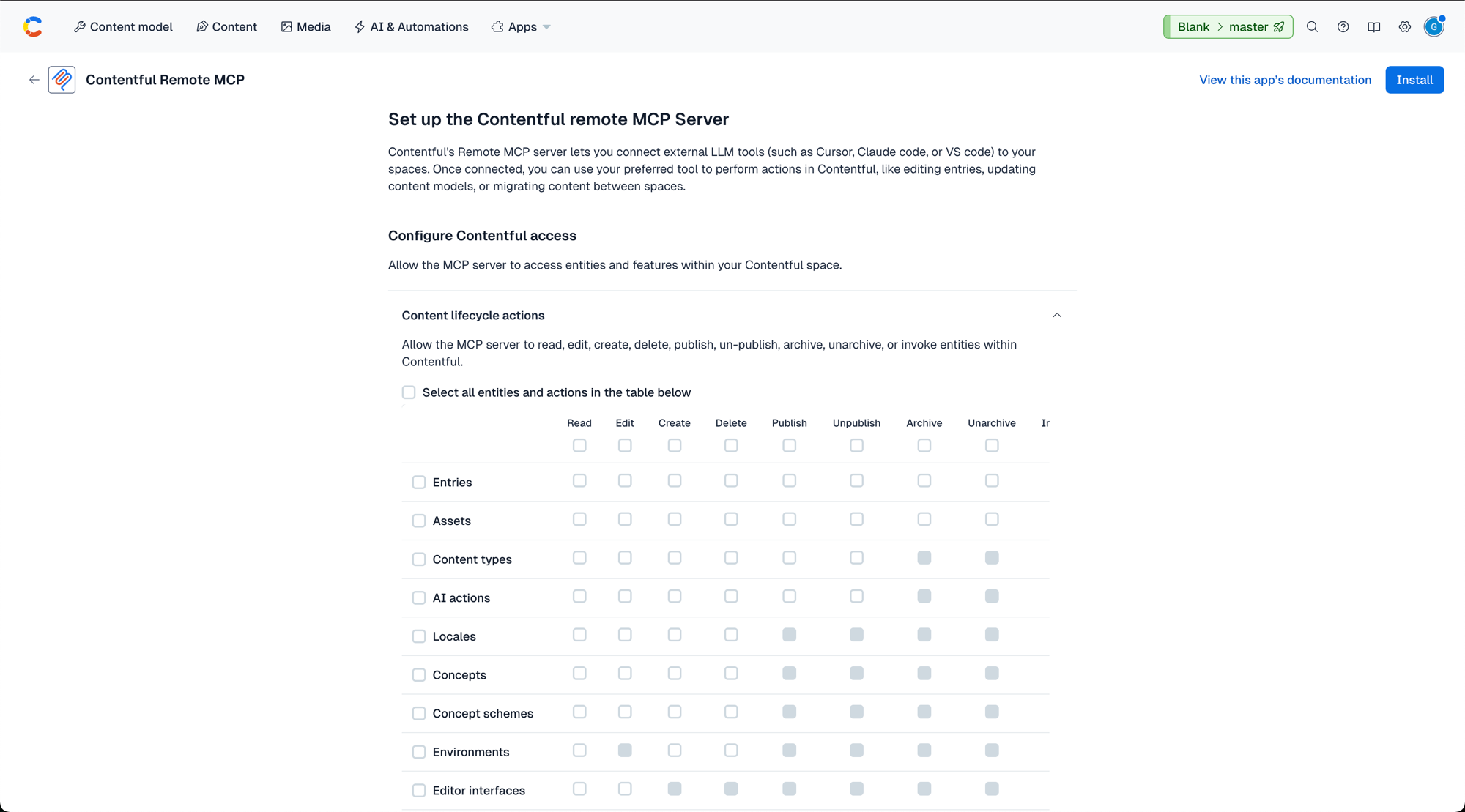
The configuration screen lays out a permissions matrix: each row is a Contentful entity (entries, assets, content types, environments, and more) and each column is an action the MCP server can run against it, such as read, edit, create, delete, publish, or archive.
-
Check the actions you want to allow for each entity. The server needs some actions checked to function, and you can enable any of the others based on what your team wants the server to do.
-
Save the configuration.
Repeat this for every space/environment you want accessible through MintMCP. Only tool categories enabled here are callable by MCP clients; disabled categories are rejected even if a client requests them.
For detailed navigation help in Contentful's admin UI, see Contentful's MCP server documentation.
Add Contentful to MintMCP
Contentful runs two regional MCP endpoints, each listed as a separate recommended server in the MintMCP store. Install the one matching your Contentful region. If your organization operates in both regions, install both as separate connectors.
| Region | Recommended server |
|---|---|
| Global | Contentful |
| EU | Contentful - EU |
- In MintMCP, go to MCP store > Manage store.
- Find Contentful or Contentful - EU in the list of recommended servers.
- Open the entry matching your Contentful region. The endpoint URL, Connection type (Per-user credentials), and Authorization method (OAuth) come pre-filled for the recommended server. Review them and change only if your setup requires it.
- Click Install.
Each user connects to MintMCP once; MintMCP redirects them to Contentful to sign in and select which spaces and environments to include in their session.
Security considerations
- The Contentful MCP app allow-list gates tool categories at the environment level. All users connecting to a given environment share the same allow-list, but each user is still subject to their own underlying Contentful permissions.
- Per-user OAuth ties every action to the individual user's Contentful identity, so Contentful's audit logs reflect who performed each operation.
- Start with read-only allow-list settings for each environment and enable write access only after confirming agent behavior.
- Environment aliases are not supported. Use the underlying environment ID directly (not an alias like
master) when connecting.
Troubleshooting
- Tools return "not allowed": the tool category hasn't been enabled for that space/environment in the Contentful MCP app. Open the app's configuration screen, enable the category, and re-run the connection flow.
- OAuth consent screen doesn't appear or sign-in fails: cached tokens in your browser or MCP client may be blocking the flow. Clear them and restart the connection.
- "Failed to fetch app installation: Forbidden": you're likely connecting to an environment alias instead of the underlying environment ID. Switch to the direct environment ID.
- EU compliance: use the Contentful - EU entry for spaces hosted in Contentful's EU region. The global entry does not satisfy EU data residency requirements.
- Wrong region: connecting to the wrong regional endpoint won't reach your organization's data. If tools return no data, confirm you installed the correct regional entry.
Next steps
- Tool customization: control which Contentful tools are exposed to your users
- MCP gateway administration: manage access and permissions