Set up the Basecamp MCP server
The Basecamp MCP server gives AI agents access to Basecamp 5: projects, to-dos and to-do lists, message boards, comments, Campfire chats, the schedule, docs and files, people, and cross-project search. This guide covers registering a 37signals integration app and installing the connector from the MintMCP store.
Prerequisites
- A MintMCP admin account
- A Basecamp admin account
Register a 37signals integration app
Basecamp doesn't support dynamic client registration, so an admin registers one integration app to get the client ID and secret MintMCP uses to broker each user's sign-in.
-
Go to launchpad.37signals.com/integrations and click Register one now.
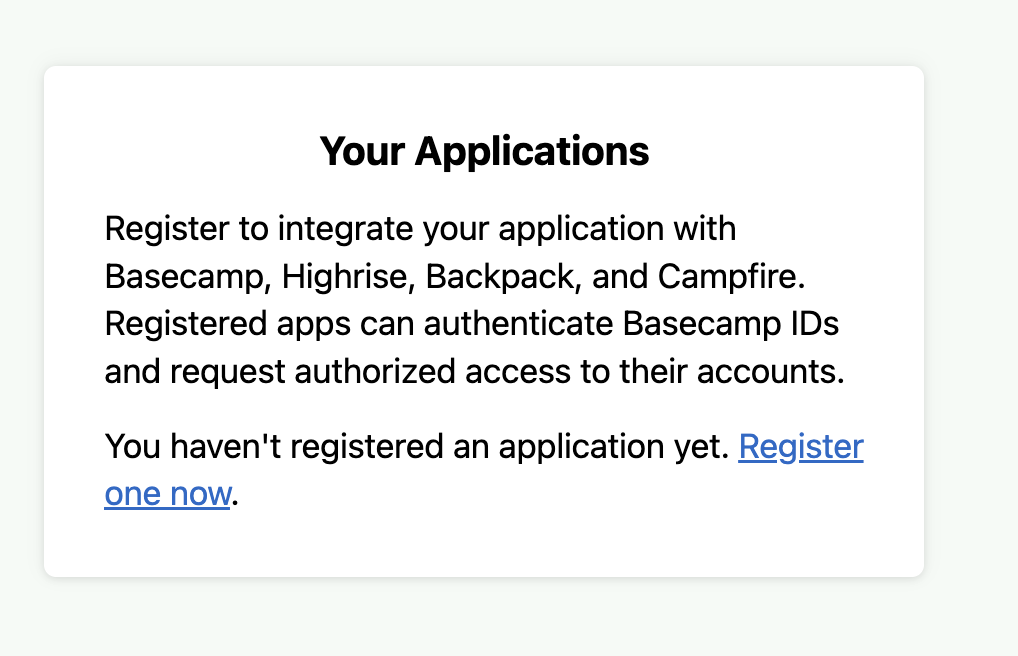
-
Fill in the About section: Name of your application (for example,
MintMCP), Your company's name, and Your website URL. Basecamp shows these to users on the authorization screen.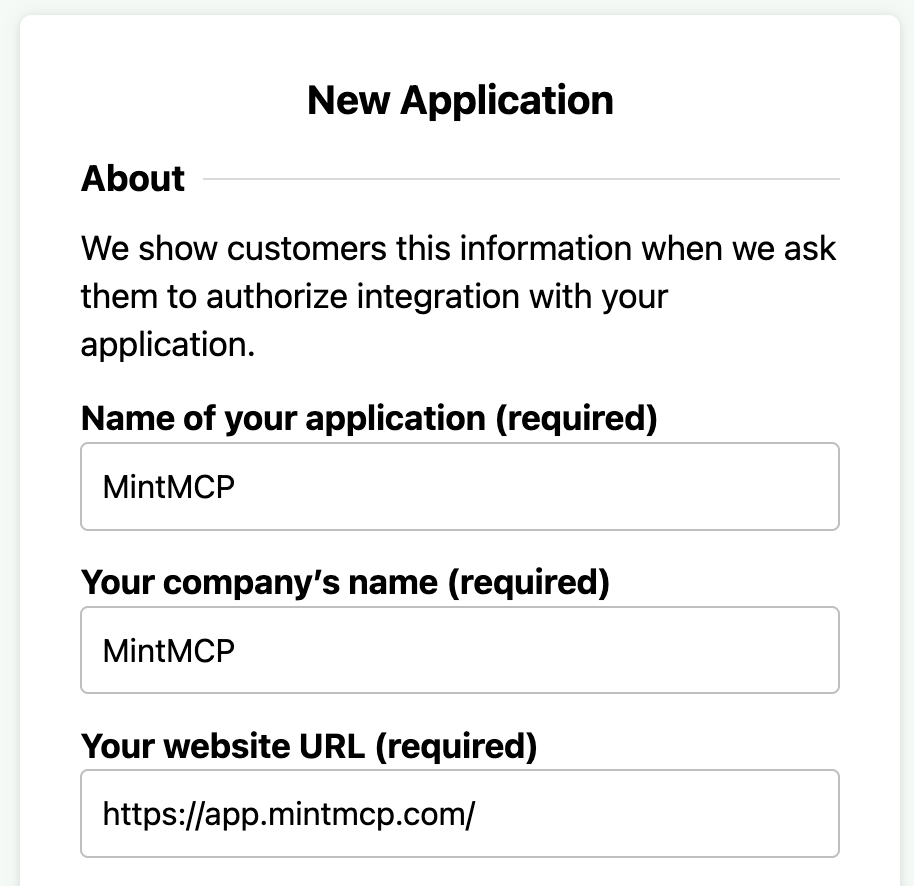
-
Under Products, check Basecamp 5. The connector uses the Basecamp 5 API and ignores the other products.
-
Under OAuth 2, set the Redirect URI to MintMCP's callback:
https://app.mintmcp.com/oauth/callback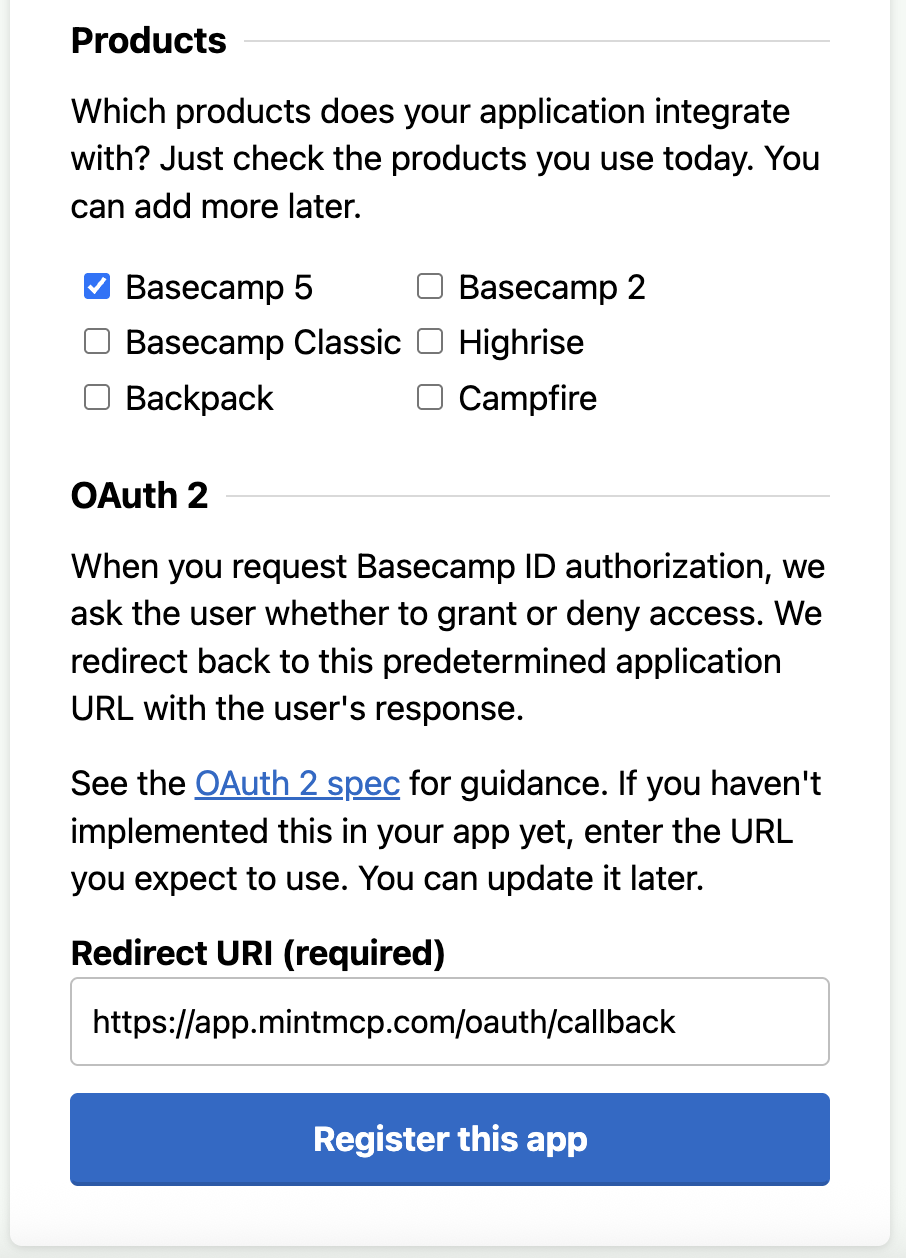
-
Click Register this app.
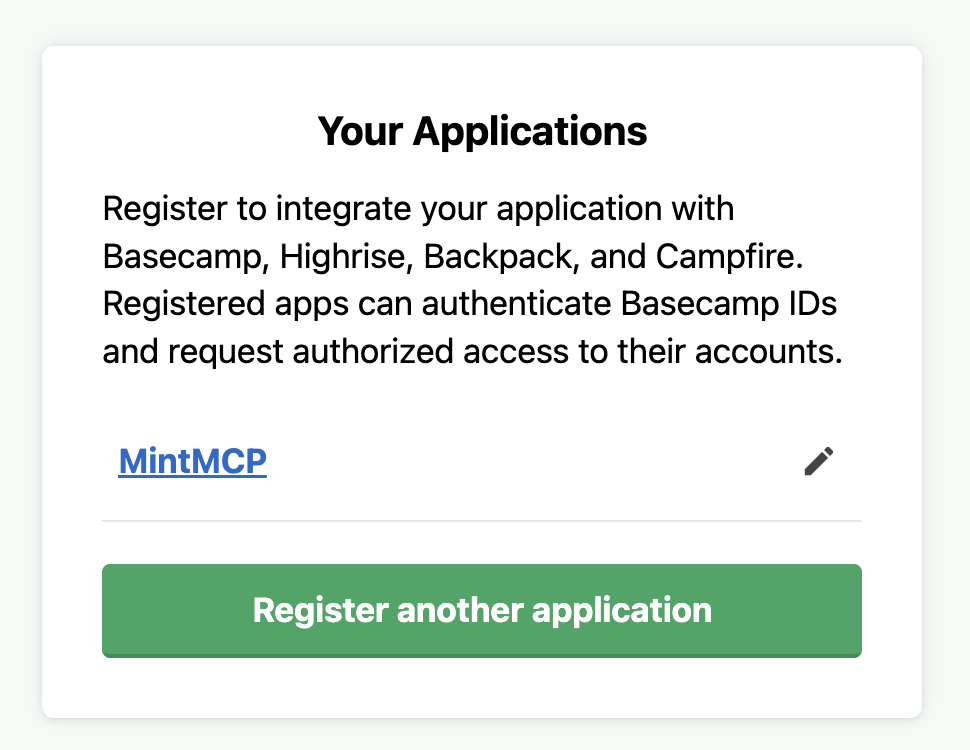
Copy the client ID and secret
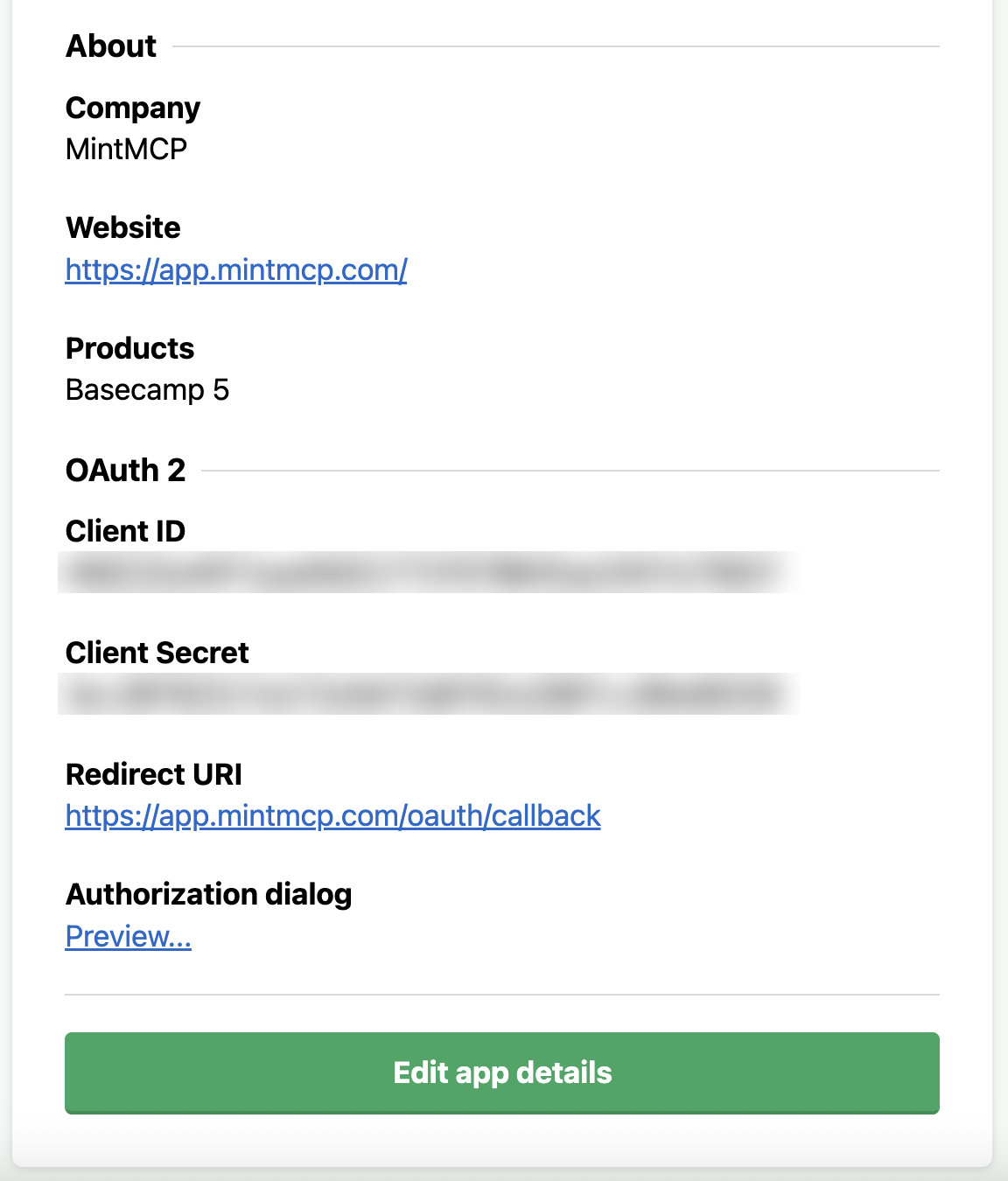
Open the app from Your Applications. The OAuth 2 section shows the Client ID, Client Secret, and the redirect URI you set. Copy both credentials and store the secret somewhere secure. You can return to this page anytime, and Edit app details lets you change the redirect URI or products later.
Add Basecamp to MintMCP
Basecamp is pre-listed as a recommended server in the MintMCP MCP store.
- In MintMCP, go to MCP store → Manage store.
- Find the Basecamp connector, marked Recommended, and click to install it.
- Enter the Client ID and Client Secret from the app you registered.
- Optionally set User-Agent, which identifies this connector to Basecamp and must include an email address or URL, for example
acme-basecamp (it@acme.com). It applies to the whole connector rather than per user. Keep the placeholder value to use MintMCP's default. - Click Install.
The first time a user calls a tool, MintMCP sends them to Basecamp to authorize, then stores and refreshes their token for later calls. Each user sees exactly the projects their own Basecamp account has access to.
Security considerations
- Each user authorizes with their own Basecamp ID, so every tool call runs under that user's own permissions and audit trail in Basecamp.
- The connector holds no tokens: MintMCP stores them and forwards a bearer token per request.
- Keep the client secret out of version control and treat it like a password, since anyone with it can impersonate your integration app.
- Basecamp rate limits by IP address, and the hosted connector is one IP shared by everyone using it, so heavy use by one person can slow down others on the same connector.
Troubleshooting
- Authorization fails with a redirect URI error. The redirect URI on the 37signals app doesn't match MintMCP's callback. Open the app, click Edit app details, and confirm it reads
https://app.mintmcp.com/oauth/callbackexactly. - Requests fail with a 400 about the User-Agent. The User-Agent value must include an email address or URL. Clear the field to fall back to the placeholder default.
Next steps
- Tool customization: control which Basecamp tools are exposed to users
- MCP gateway administration: manage access and permissions