Set up the Xero MCP server
The Xero MCP server gives AI agents access to Xero accounting data, including contacts, invoices, bank transactions, and financial reports. This guide covers creating a Xero app, configuring per-user OAuth or a Custom Connection, and adding the server from the Mintive store.
Prerequisites
- A Mintive admin account
- A Xero account (sign up at xero.com)
Set up Xero
Xero is pre-listed in the Mintive catalog. Pick an authentication method; each path first sets up credentials in the Xero developer portal, then installs and configures the connector in Mintive.
- Per-user OAuth (recommended)
- Custom Connection
Per-user OAuth authenticates each team member with their own Xero identity through a Web app you register on the Xero developer portal.
Create a Xero app
-
Go to developer.xero.com/app/manage and sign in with your Xero account. No separate developer account is needed.
-
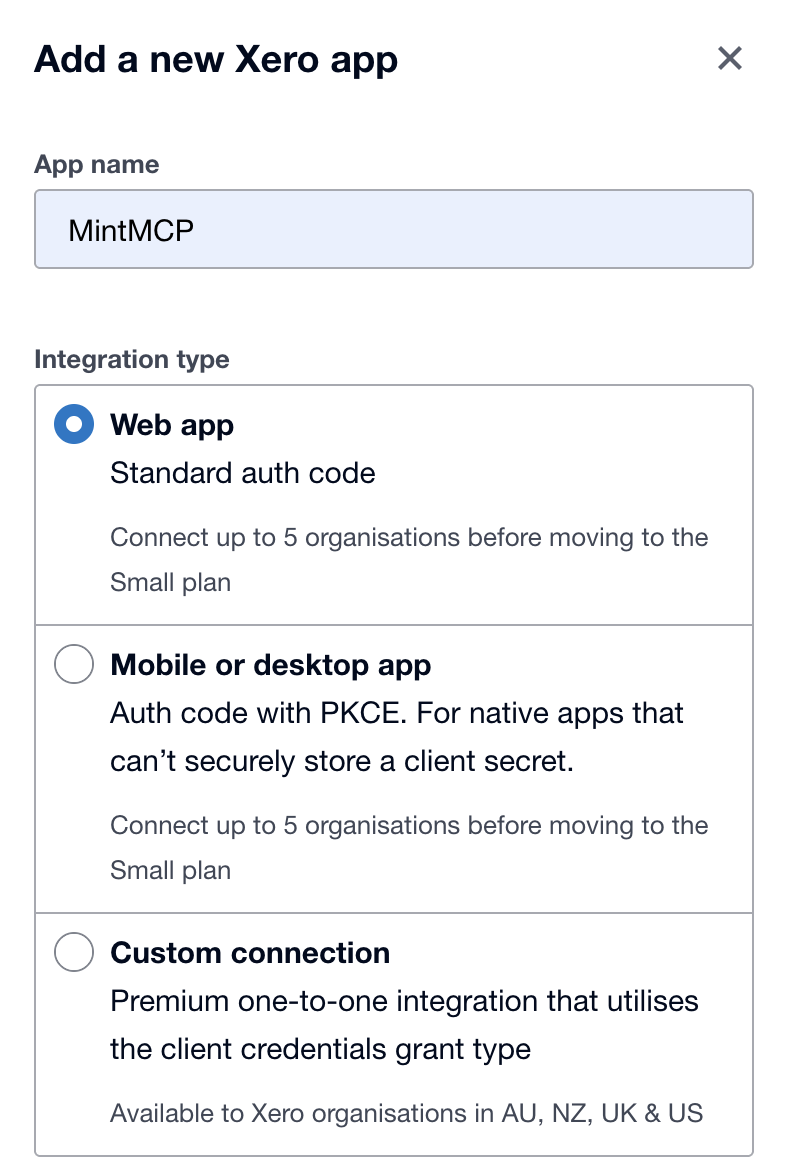
Click New app.
-
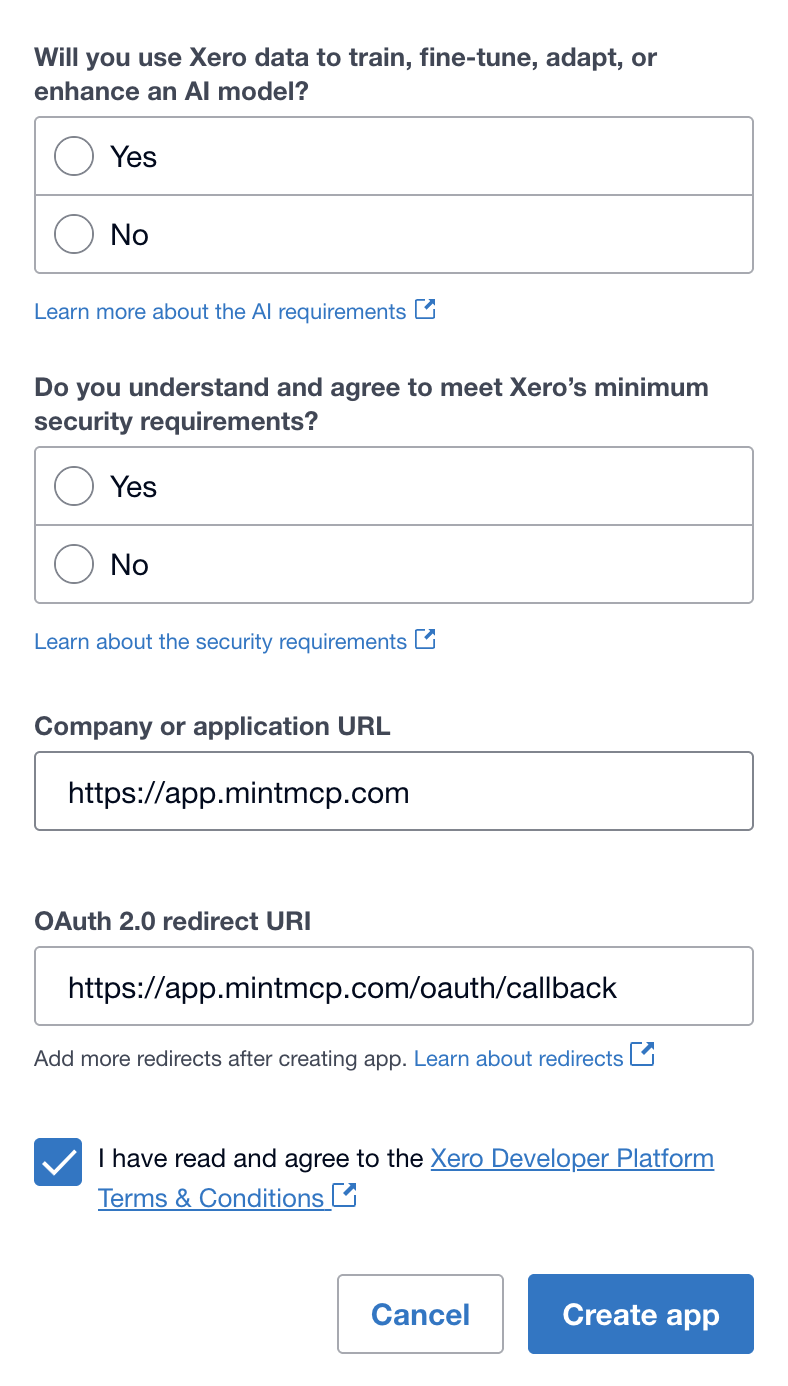
Fill in the form:
Field Value App name MintiveIntegration type Web app Company or application URL https://app.mintmcp.com -
Under Redirect URIs, add the callback for your Mintive region:
Mintive region Redirect URI US ( app.mintmcp.com)https://app.mintmcp.com/oauth/callbackEU ( eu.mintmcp.com)https://eu.mintmcp.com/oauth/callbackThe install panel in Mintive shows the callback for your organization.
-
Click Create app.
-
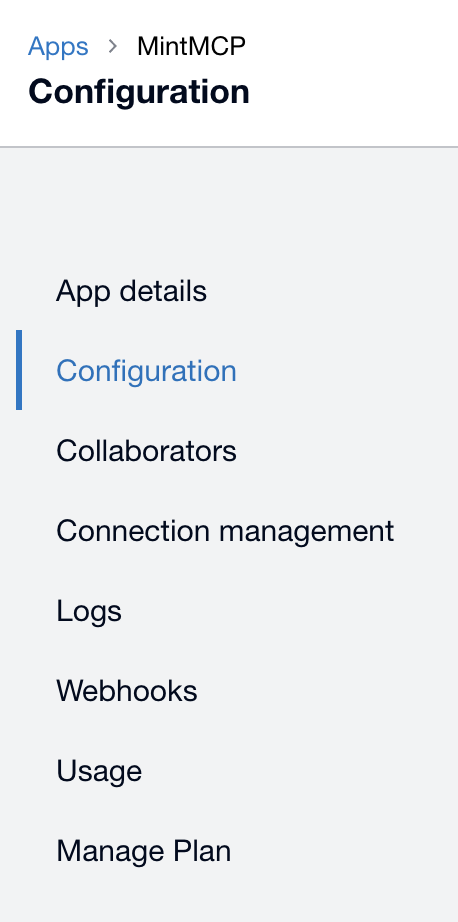
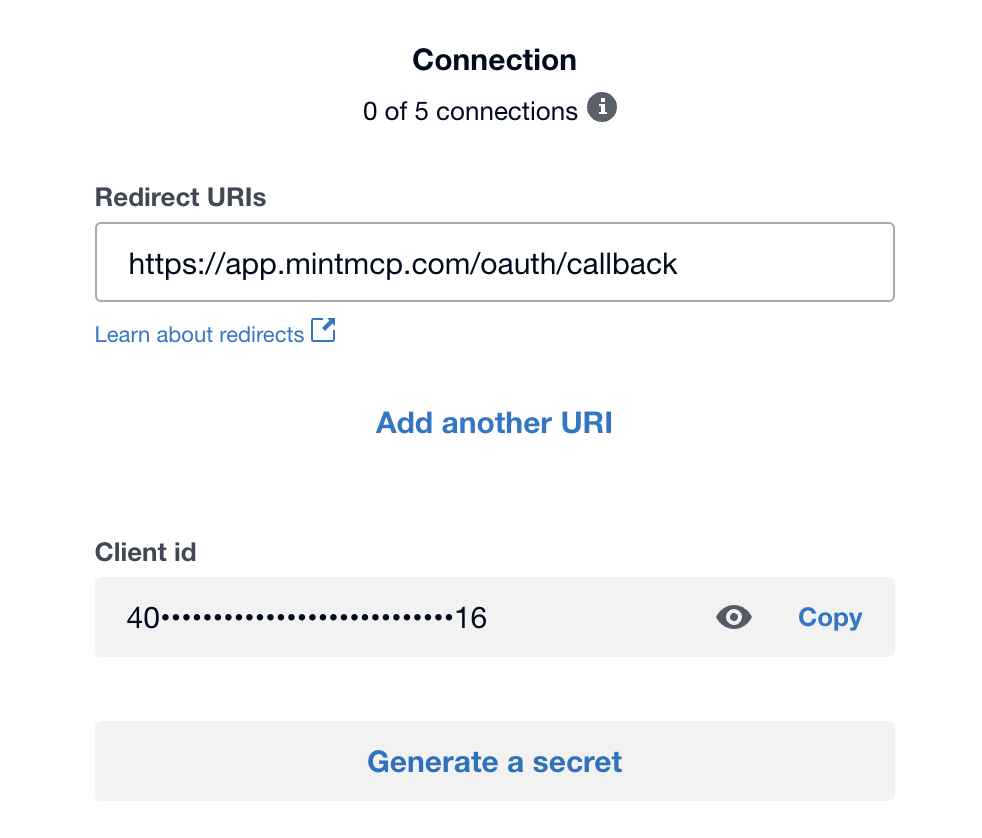
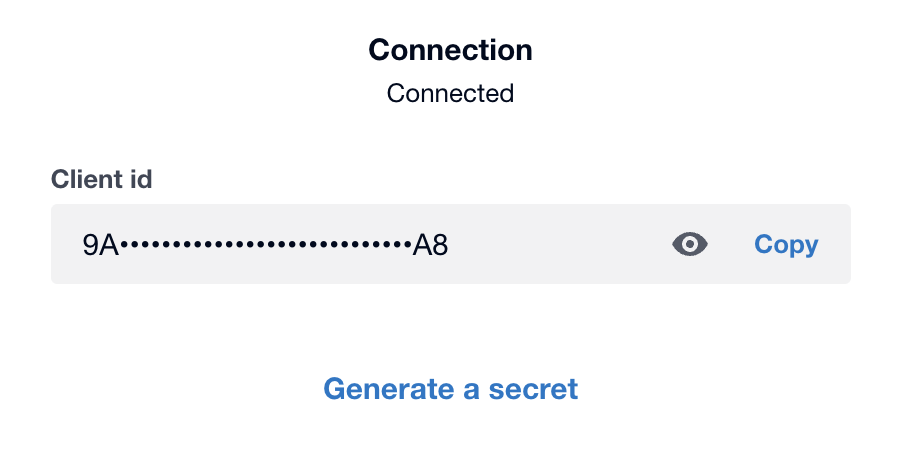
Open the Configuration tab, scroll down to Connection, copy the Client id, then click Generate a secret and copy the Client secret; it is not shown again after you navigate away.
Add Xero to Mintive
-
In Mintive, go to MCP store > Manage store.
-
Find Xero in the catalog and click Install.
-
The Configure Xero dialog opens with Authentication Method set to OAuth and every field pre-filled except your app credentials, so enter those:
Field Value Client ID Client id from your Xero app Client Secret Client secret from your Xero app -
Click Install.
When users first connect to the Xero MCP server through Mintive, they are redirected to Xero to sign in with their own account. The offline_access scope enables automatic token refresh.
To give agents access to payroll data as well, add payroll.employees, payroll.timesheets, or payroll.settings to the Scopes field.
Custom Connections use a machine-to-machine client credentials grant to access data from a single Xero organization without a per-user login flow. They are a paid add-on available for Xero organizations in AU, NZ, UK, and US.
Set up a Custom Connection
-
Go to developer.xero.com/app/manage and sign in with your Xero account.
-
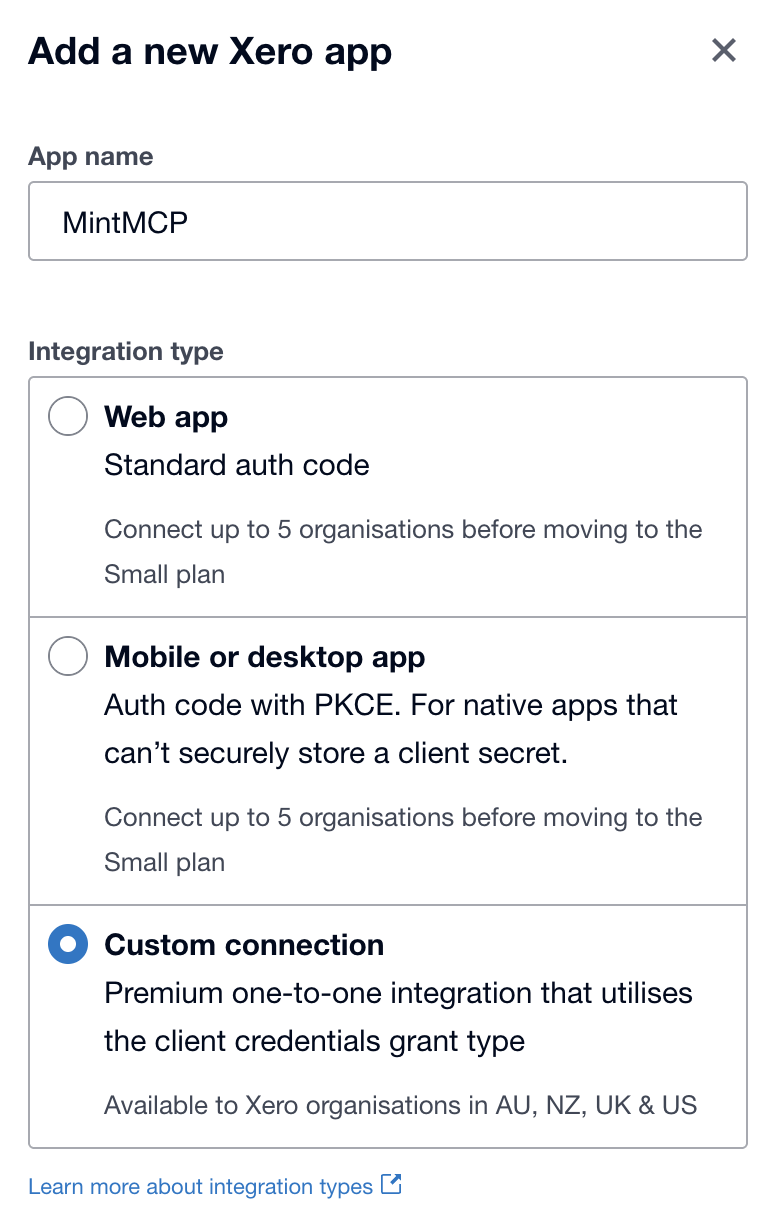
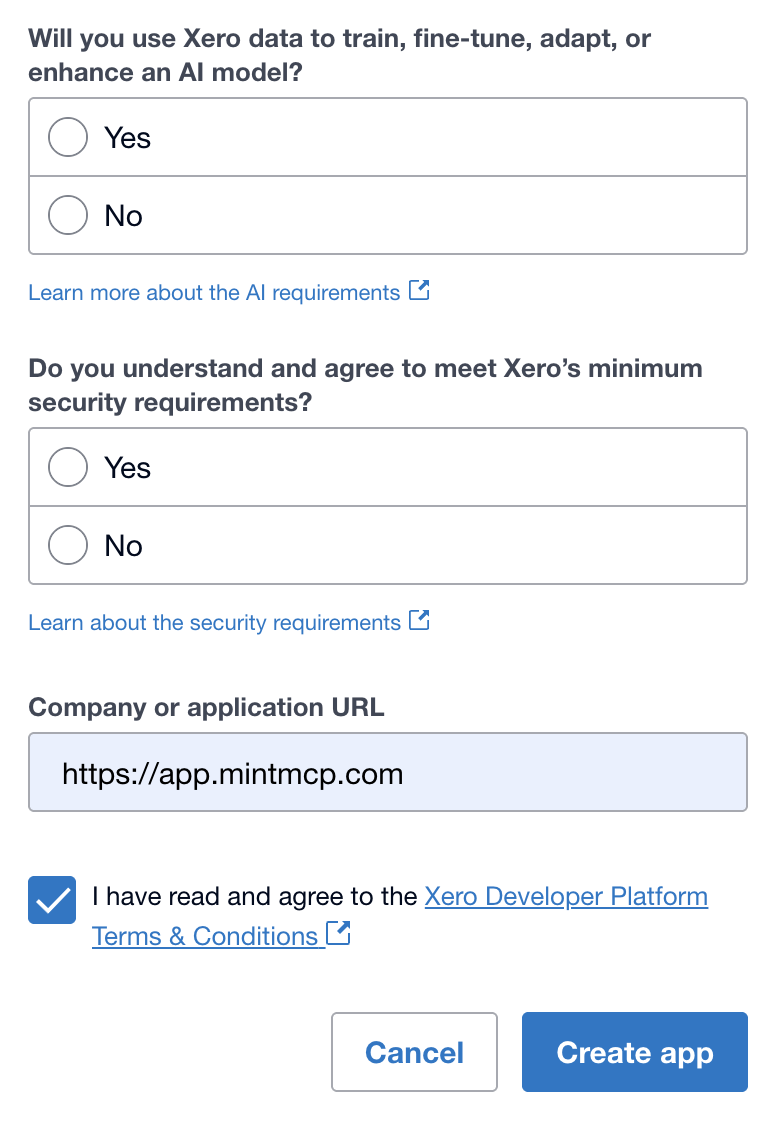
Click New app, select Custom Connection as the integration type, and enter a name (for example,
Mintive).
-
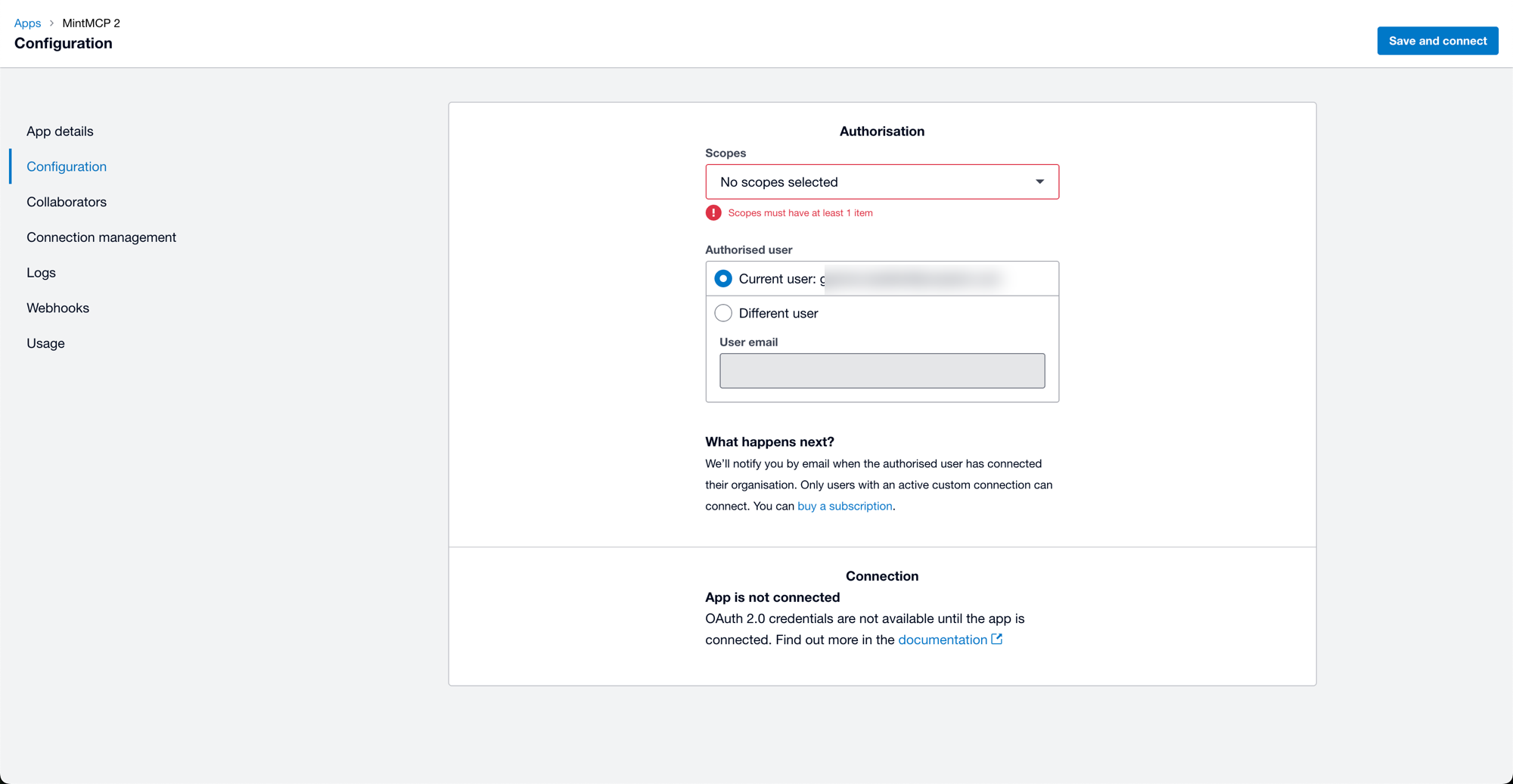
Select the accounting scopes your team needs. A standard read-only accounting set:
Scope What it covers accounting.contactsContacts and suppliers accounting.settingsOrganisation details and chart of accounts accounting.invoicesInvoices, quotes, and purchase orders accounting.banktransactionsBank transactions and transfers accounting.reports.profitandloss.readProfit and loss report Choose the scopes and the Authorised user under Authorisation on the Configuration tab.
-
Click Save and connect and authorize the connection to the Xero organisation you want to connect. Xero emails the authorised user a link to complete the connection; until they do, the app shows App is not connected.
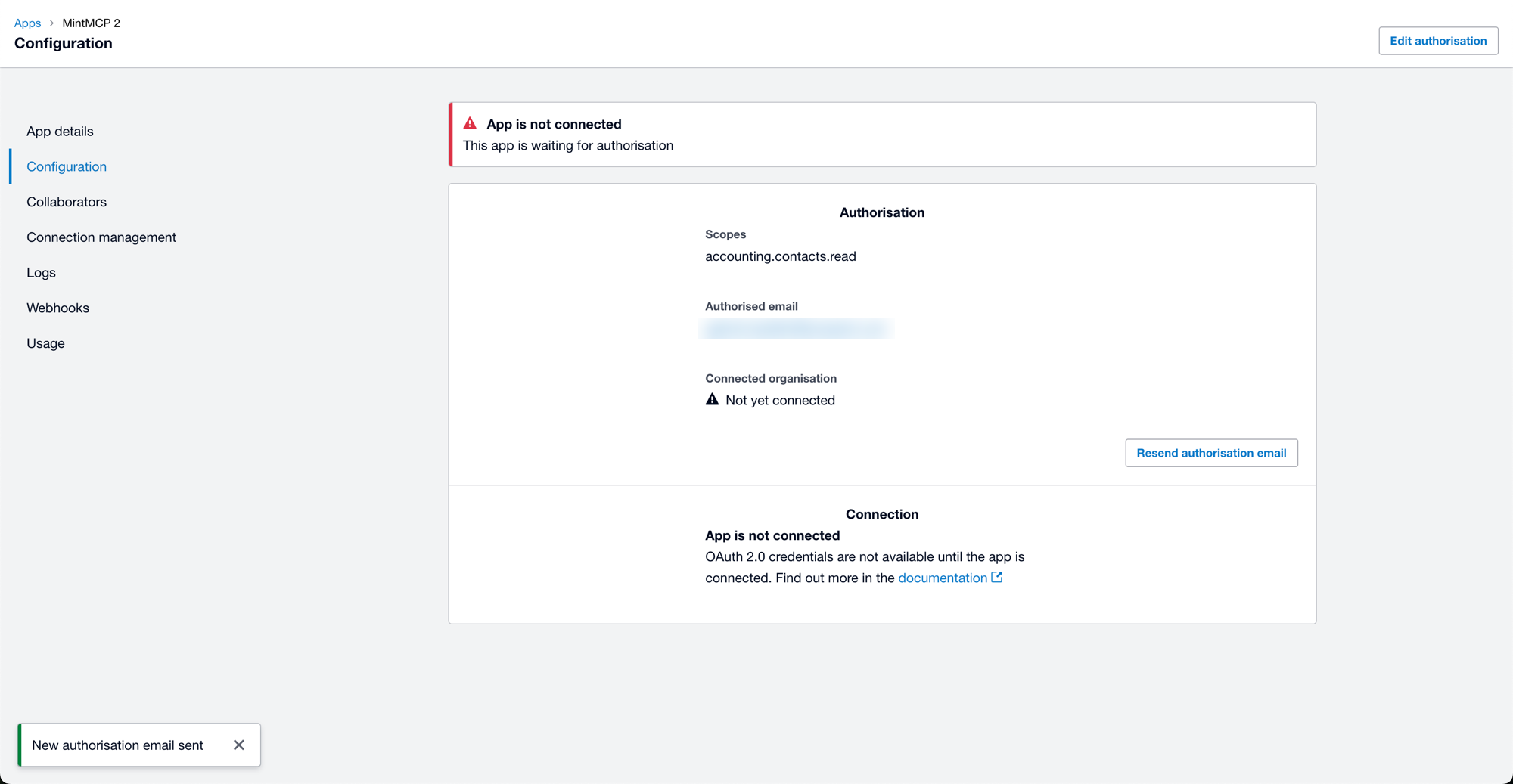
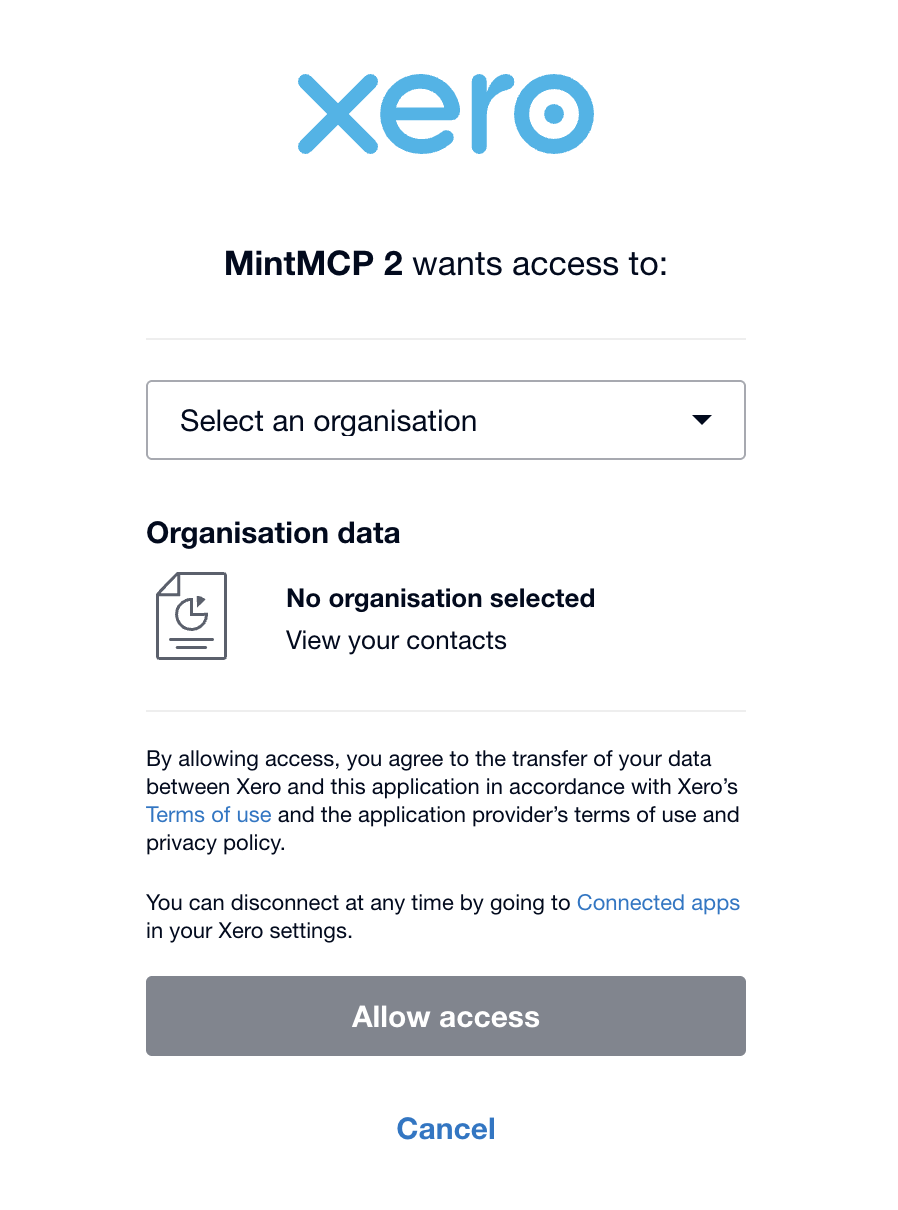
Opening the link from the email brings the authorised user to Xero's consent screen. Select the organisation to connect and click Allow access.
-
Once the app shows Connected, copy the Client id and Client secret from the Configuration tab on the app.
Add Xero to Mintive
- In Mintive, go to MCP store > Manage store.
- Find Xero in the catalog and click Install.
- In the Configure Xero dialog, set the environment variables:
XERO_CLIENT_ID: client id from your Custom ConnectionXERO_CLIENT_SECRET: client secret from your Custom ConnectionXERO_SCOPES(optional): space-separated scope list to override the server's defaults
- Click Install.
Troubleshooting
invalid_scopeon connect: a scope in the list is not valid for your app type. Apps created on or after March 2, 2026 accept only granular scopes. Removeaccounting.transactions,accounting.reports.read, or any other broad scope name.- Blank redirect after Xero sign-in: the callback for your region (
https://app.mintmcp.com/oauth/callbackorhttps://eu.mintmcp.com/oauth/callback) is not in your Xero app's Redirect URIs list, or there is a trailing slash or protocol mismatch. Xero requires an exact match. - Token refresh fails: the
offline_accessscope was omitted from the authorization request. Delete the connection in Mintive, re-authorize withoffline_accessincluded, and reconnect.
Security considerations
- Keep the client secret secure; anyone with it can request tokens against your Xero organization.
- Per-user OAuth ties each API call to an individual Xero identity, giving you a clearer audit trail than a shared Custom Connection.
- Custom Connections grant organization-level access shared by all users on the connector.
- Rotating the client secret in Xero immediately invalidates all active tokens and requires users to re-authorize.
Next steps
- Tool customization: control which Xero tools are exposed to users
- MCP gateway administration: manage access and permissions