Customer-managed encryption
Encrypt the connector credentials Mintive stores for your organization with a KMS key in your own AWS account. Mintive can read those credentials only while your key and IAM role allow it, every use of the key shows up in your CloudTrail, and you can cut off access at any time.
Customer-managed encryption is an Enterprise feature that Mintive turns on per organization. If Customer-managed encryption isn't on the Settings tab of your Enterprise Settings page, contact enterprise@mintive.com. Configuring it requires the Manage secret providers permission.
What it covers
It covers the credentials your users and agents store for remote connectors, hosted connectors, and credential brokers: OAuth tokens, API keys, and environment values. Secrets that admins configure on a connector (OAuth client secrets, connector environment variables) stay under the Mintive platform key.
Only credentials saved after you enable it are encrypted with your key. Existing credentials move under your key the next time they're saved or refreshed, for example when a user reconnects.
How the key hierarchy works
- Your KMS key never leaves AWS KMS. Mintive uses it by assuming an IAM role you create and asking KMS to encrypt or decrypt.
- The organization data key is generated by Mintive when you enable the feature, and it's stored only in wrapped form, encrypted by your KMS key. Mintive unwraps it through KMS when it needs it and keeps the unwrapped copy in memory for at most five minutes.
- Stored credentials are encrypted with the organization data key.
Because no copy of the data key exists outside your KMS key's protection, disabling your key makes every credential under it unreadable within about five minutes, and AWS automatic key rotation needs nothing from Mintive to keep working.
Set up
You need permission to create KMS keys, IAM roles, and edit key policies in your AWS account.
-
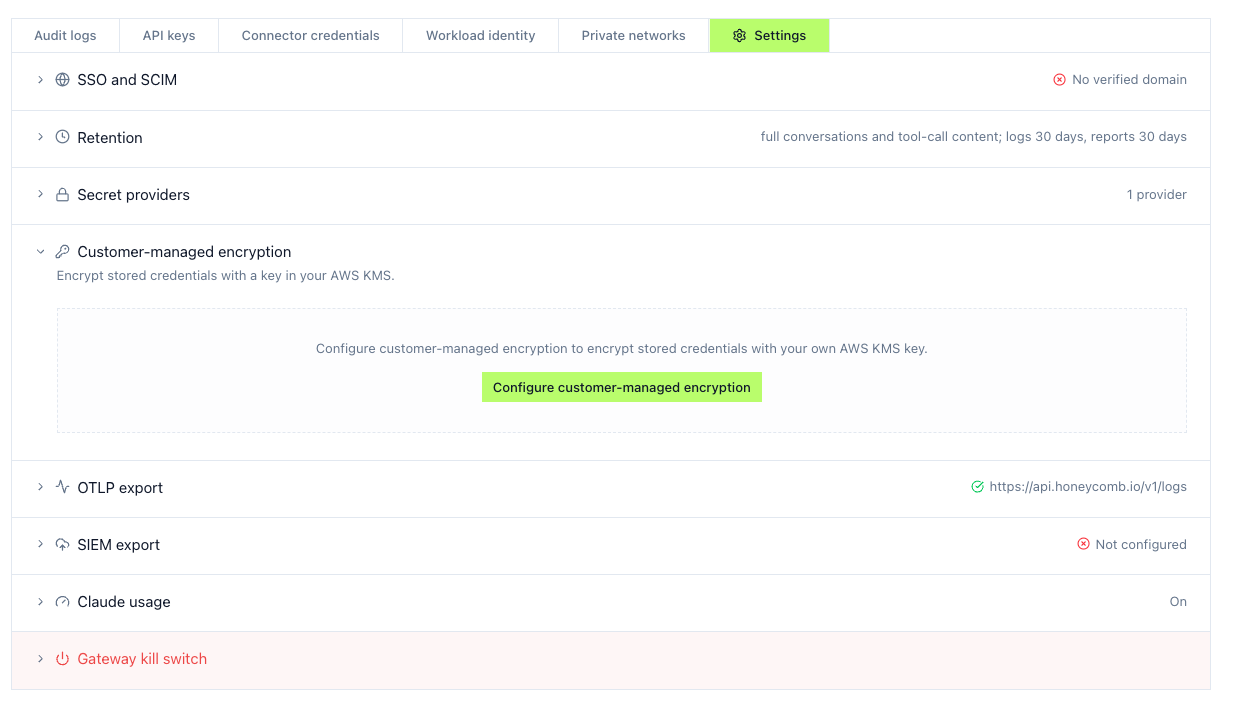
In Mintive, go to Enterprise Settings → Settings → Customer-managed encryption and click Configure customer-managed encryption. The setup panel shows the values below with copy buttons.
-
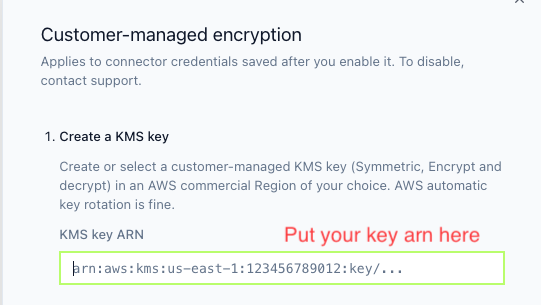
Create a KMS key. Create or pick a customer-managed key (Symmetric, Encrypt and decrypt) in any AWS commercial Region, then paste its ARN into KMS key ARN.
-
Create an IAM role for Mintive. In the same AWS account as the key, open IAM → Roles → Create role → Custom trust policy and paste the trust policy from the panel. It looks like this:
{
  "Version": "2012-10-17",
  "Statement": [
    {
      "Effect": "Allow",
      "Principal": { "AWS": "<MINTIVE_ROLE_ARN>" },
      "Action": "sts:AssumeRole",
      "Condition": { "StringEquals": { "sts:ExternalId": "mintive/<YOUR_ORGANIZATION_ID>" } }
    }
  ]
}
The ExternalId is fixed for your organization and isn't a secret: it stops any other Mintive organization from using your role. Attach no permissions policy, since the next step grants access through the key policy. Create the role and paste its ARN into IAM role ARN.
-
Grant the role access to the key. Once you've pasted the role ARN, the panel fills it into the key policy statement, ready to copy.
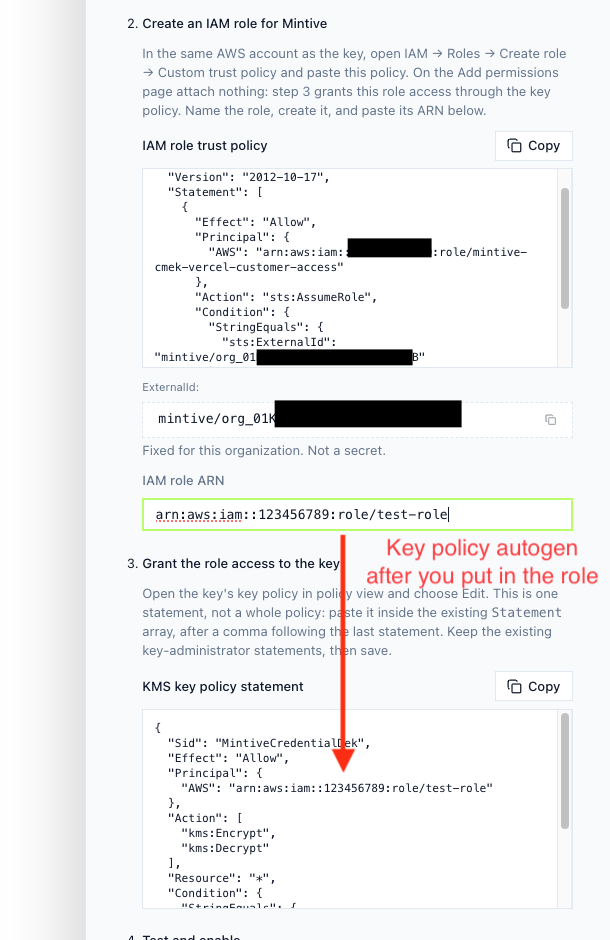
Edit the key policy and add this statement inside the existing
Statementarray, keeping the key administrator statements:{
"Sid": "MintiveCredentialDek",
"Effect": "Allow",
"Principal": { "AWS": "<YOUR_ROLE_ARN>" },
"Action": ["kms:Encrypt", "kms:Decrypt"],
"Resource": "*",
"Condition": {
"StringEquals": {
"kms:EncryptionContext:mintive_org_id": "<YOUR_ORGANIZATION_ID>",
"kms:EncryptionContext:mintive_purpose": "credential-dek"
}
}
}The conditions limit the role to your organization's data key.
-
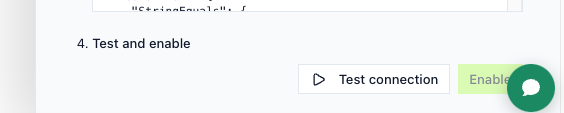
Click Test connection, and once it reports Key accessible, click Enable. Enable stays unavailable until the test passes.
Change your key
Once enabled, the Customer-managed encryption section shows your key and role ARNs, the key status, and a Change key button.
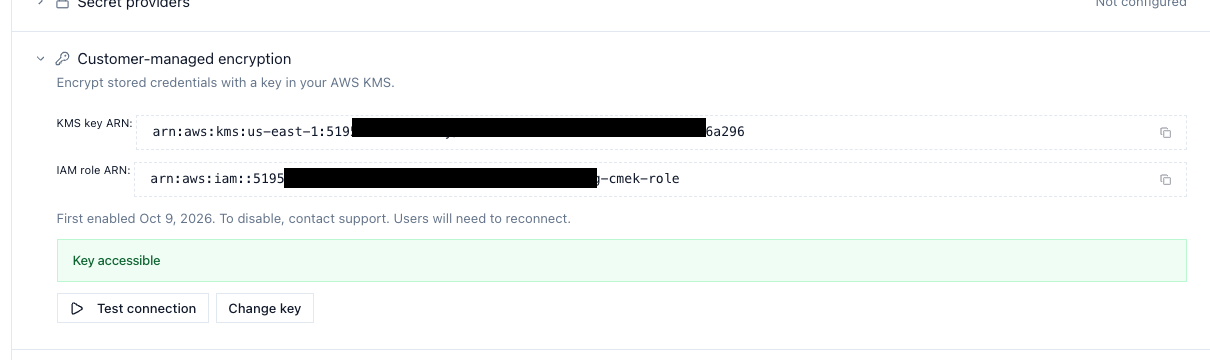
To move to a different KMS key or IAM role, set up the new key (and a new role, if you want one) as in steps 2 to 4. Then click Change key, enter the new ARNs, click Test connection, and click Change key. Your current key and role must keep working until the change completes.
Mintive re-wraps your organization data key under the new KMS key, so stored credentials aren't re-encrypted and users don't need to reconnect. The previous key can still unwrap copies of the data key saved before the change, so revoke it once you no longer need it.
Monitor key use
Mintive calls kms:Encrypt once when it creates your data key and kms:Decrypt when it needs to unwrap it. Since the unwrapped key is reused for up to five minutes, expect a handful of calls per hour, not one per request. Each CloudTrail event has the session name mintive-cmek-<YOUR_ORGANIZATION_ID> and the encryption context mintive_org_id, mintive_data_key_id, and mintive_purpose: credential-dek.
On the Mintive side, the admin audit log records enabling customer-managed encryption, any change to the key or role, and turning it off, under the Customer-Managed Encryption resource type. These events are also included in SIEM export. Test connection runs aren't recorded, since they don't change any settings.
Revoke access
Disable the key or remove the key policy statement, and Mintive loses access within about five minutes (changing the role's trust policy takes up to about 20 minutes, until the current role session expires). Tool calls that need a credential under your key then fail with a "Credential unavailable" error, and new credentials can't be saved. Credentials still under the platform key keep working.
Nothing is deleted, so re-enabling the key or restoring the policy brings everything back within about five minutes without users reconnecting. If you delete the key, the credentials under it are permanently unrecoverable.
Troubleshoot
Test connection and the settings page report one of these errors when the key isn't accessible:
| Error | Check |
|---|---|
access_denied | The key policy statement, including its mintive_org_id and mintive_purpose conditions |
key_disabled | The key is enabled and not pending deletion |
key_not_found | The key ARN and its Region |
misconfigured | The role ARN, and the trust policy's principal and ExternalId |
throttled, unreachable | Usually transient, so try again |
Turn it off
Contact Mintive support to turn off customer-managed encryption. Credentials stored under your key are deleted and users reconnect their connectors, and new credentials go back to the Mintive platform key. You can enable it again later with a new key.
Related
- Secret providers: a separate AWS-trust feature that resolves shared bearer tokens from your own secret store, rather than encrypting what Mintive stores
- Operational controls: the levers for stopping gateway traffic org-wide if something goes wrong
- Export to SIEM: stream Mintive's own audit events alongside the CloudTrail records this key produces