Set up the Outreach MCP server
The Outreach MCP server connects AI agents to your sales engagement platform with tools to read and write prospects, accounts, opportunities, sequences, and tasks. This guide covers creating an Outreach OAuth app and connecting it to MintMCP using the Outreach (Mint hosted) connector.
Prerequisites
- A MintMCP admin account
- An Outreach account with admin access
- Access to the Outreach developer portal
Create an Outreach app
-
Go to developers.outreach.io and sign in with your Outreach credentials.
-
Click My apps in the top navigation.
-
Click Create new app.
-
Enter an App name (for example,
MintMCP) and fill in any other required fields. -
Click Create.
Configure API access
-
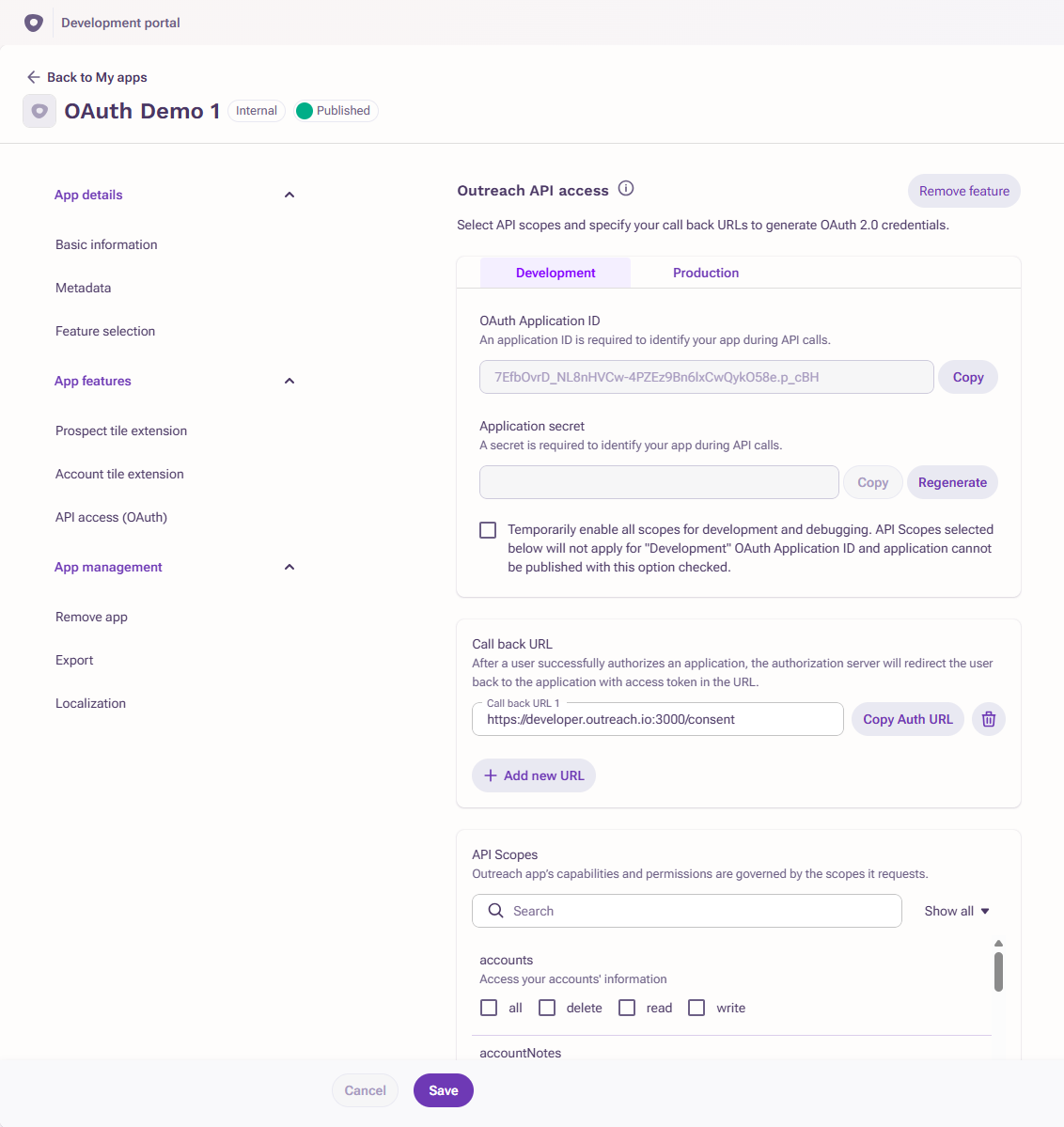
In your new app, open API access (OAuth) under App features.
-
Under Call back URL, add:
https://app.mintmcp.com/oauth/callback -
Under API Scopes, select the scopes your organization needs. The table below maps each scope to the capabilities it enables.
| Capability | Scopes |
|---|---|
| Prospects | prospects.all |
| Accounts | accounts.all |
| Opportunities | opportunities.all |
| Sequences | sequences.all |
| Sequence states | sequenceStates.all |
| Tasks | tasks.all |
| Calls | calls.read |
| Mailings | mailings.read |
| Users | users.read |
| Templates | templates.read |
| Snippets | snippets.read |
| Meeting recordings | kaiaRecordings.read |
- Click Save.
Copy the client ID and secret
Outreach generates two credential sets: development credentials (provisioned immediately, limited to 10 users from your organization) and production credentials (provisioned after app review). For stable organization-wide access, publish the app to get production credentials before deploying to your team.
-
In your app, go to API access (OAuth) and select the Development or Production tab.
-
Copy the OAuth Application ID and Application secret. The secret is shown only once. If you lose it, click Regenerate to create a new one.
Add Outreach to MintMCP
-
In MintMCP, go to MCP store → Manage store.
-
Find the Outreach (Mint hosted) connector and click to configure it.
-
Open OAuth Client Advanced Settings and enter:
Setting Value Client ID OAuth Application ID from your Outreach app Client Secret Application secret from your Outreach app -
Click Save.
The first time a user calls a tool, MintMCP directs them to sign in with Outreach and consent. MintMCP stores and refreshes their token automatically on every subsequent call.
Security considerations
- Keep the Client Secret secure. Anyone with it can impersonate your Outreach app.
- Each user authenticates individually through OAuth, so tool calls run under that user's Outreach identity and are bounded by their existing Outreach permissions and governance settings.
- Development credentials expire tokens periodically for users outside your organization. Publish the app to get production credentials before rolling out to your team.
- Scopes don't grant access on their own. What each user can actually read or write is still bounded by their Outreach role.
Troubleshooting
- OAuth callback fails with
redirect_uri_mismatch: confirm the redirect URI in the Outreach app's API access tab is exactlyhttps://app.mintmcp.com/oauth/callback. - Users see an "unreviewed app" warning: you are using development credentials. Publish the app to get production credentials and remove the warning.
- Access revoked after a week: development credentials require weekly re-authorization for users outside the app owner's organization. Switch to production credentials.
Next steps
- Tool customization: control which Outreach tools are exposed to users
- MCP gateway administration: manage access and permissions