Set up the Google Analytics MCP server
The Google Analytics MCP server queries your GA4 data — account and property summaries, standard and real-time reports, funnels, custom dimensions and metrics, and Google Ads links. Each user signs in with their own Google account, so reports run against the properties they can already see in Analytics. This guide covers enabling the Google APIs, creating an OAuth client, and installing the connector in MintMCP.
Prerequisites
- A MintMCP admin account
- A Google Cloud project with an OAuth consent screen already configured, plus permission to enable APIs and create OAuth credentials
- Access to at least one GA4 property in analytics.google.com
Enable the APIs
- Go to console.cloud.google.com and select or create a project.
- Go to APIs & Services → Library and enable both:
- Google Analytics Data API — standard, real-time, and funnel reports
- Google Analytics Admin API — account and property summaries, property details, custom dimensions and metrics, Google Ads links
Create the OAuth client
The OAuth client gives MintMCP a client ID and secret to broker each user's Google sign-in. The Google Cloud OAuth flow is the same as the Google Ads MCP setup — the screens are identical.
-
Go to console.cloud.google.com/auth/clients and click Create client.
-
Set Application type to Web application and give it a name (for example,
MintMCP OAuth).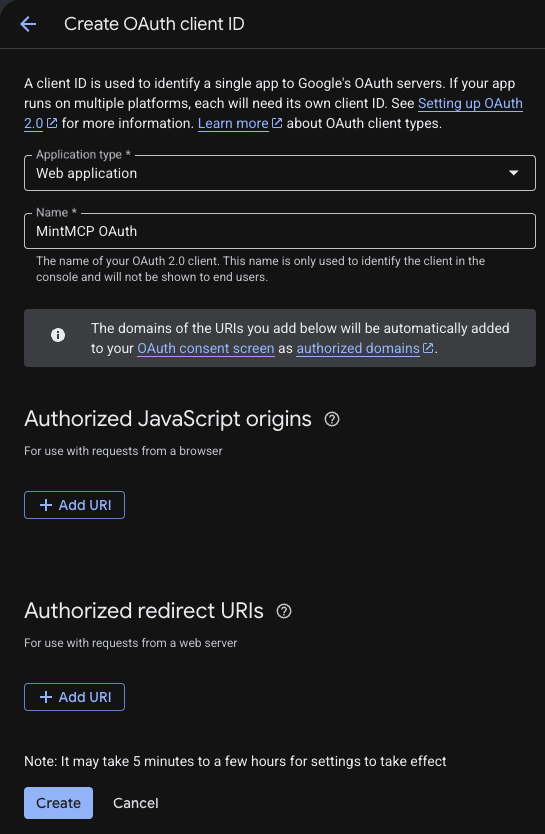
-
Under Authorized redirect URIs, click Add URI and enter MintMCP's callback URL:
https://app.mintmcp.com/oauth/callbackLeave Authorized JavaScript origins empty. This URI must match the Redirect URL in the connector's OAuth settings exactly, or sign-in fails with
redirect_uri_mismatch.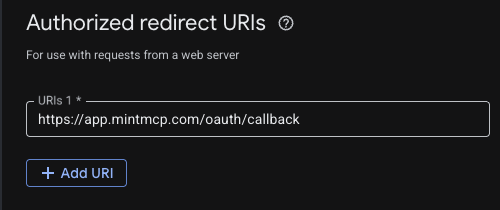
-
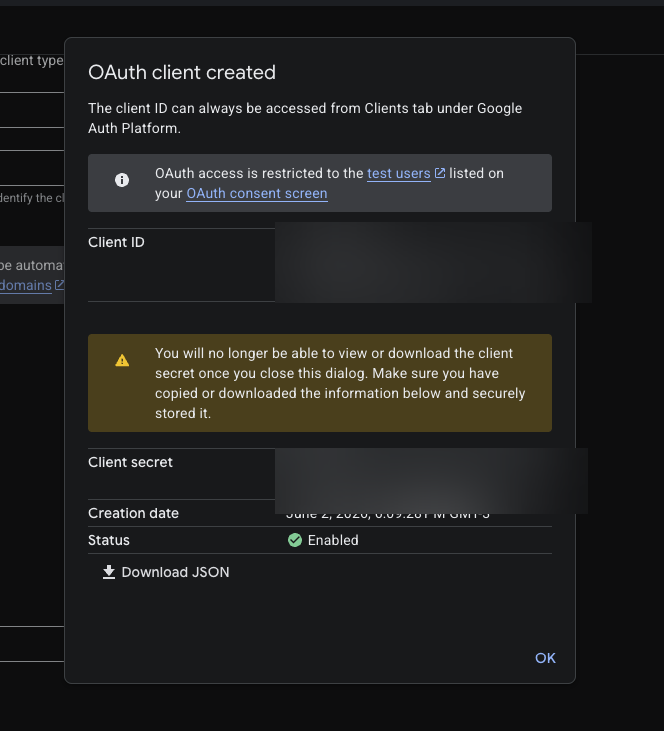
Click Create. Google shows the Client ID and Client secret once — copy both now, because you can't view the secret again after closing the dialog.
Add Google Analytics to MintMCP
-
In MintMCP, go to MCP store → Manage store.
-
Find the Google Analytics connector and click to install it.
-
Open the connector's OAuth settings and enter:
Setting Value Authorization URL https://accounts.google.com/o/oauth2/v2/auth?access_type=offline&prompt=consentToken URL https://oauth2.googleapis.com/tokenScope https://www.googleapis.com/auth/analytics.readonlyClient ID Client ID from the OAuth client you created Client Secret Client Secret from the OAuth client you created access_type=offlineis required so Google issues a refresh token. MintMCP stores it and injects a fresh access token into every request — the server never stores or refreshes tokens itself. -
Confirm the Redirect URL shown in the connector's OAuth settings matches the URI you added to the OAuth client (
https://app.mintmcp.com/oauth/callback). They must be identical. -
Click Install.
Optional write capabilities
The connector is read-only unless an admin opts in, so the write tools don't appear in the tool list until you set the matching environment variable on the connector and broaden the OAuth scope. Each class needs both — with the variable set but the scope missing, the enabled tools return a 403 asking for the scope.
The Scope field is space-separated, so keep analytics.readonly and append the scope for each class you enable.
| Environment variable | Add scope | Enables |
|---|---|---|
GA_WRITE_MODE=edit | https://www.googleapis.com/auth/analytics.edit | Config edits |
GA_ENABLE_USER_MANAGEMENT=true | https://www.googleapis.com/auth/analytics.manage.users | Access bindings |
GA_ENABLE_USER_DELETION=true | https://www.googleapis.com/auth/analytics.user.deletion | Data deletion |
Config edits cover custom dimensions and metrics, key events, data streams, and Google Ads links. Access bindings grant, update, and revoke a user's access to a property, and data deletion submits end-user deletion requests.
Security considerations
- Each user authenticates individually through OAuth, so tool calls run against that user's own Analytics access, bounded by the property permissions Google Analytics already enforces for them.
- The default install is read-only:
analytics.readonlycannot modify properties, and the write tools are absent from the tool list entirely rather than merely blocked. - User management and data-deletion tools act on people and their data, not just configuration — grant those connectors to Analytics administrators only.
- MintMCP holds the refresh token and mints a short-lived access token per request, so no long-lived Google credential is stored in the connector or its container.
- Every tool call is attributed to the individual user in MintMCP's audit log, because no credential is shared between members.
Next steps
- Tool customization — Control which Google Analytics tools are exposed to users
- MCP gateway administration — Manage access and permissions