Set up the Microsoft Sentinel MCP servers
Microsoft's remote Sentinel MCP server groups its tools into collections, each at its own URL. MintMCP lists two of them as separate servers in the recommended catalog:
| Server | What it does |
|---|---|
| Microsoft Sentinel (data exploration) | Finds relevant tables in the Sentinel data lake, runs KQL queries across your workspaces, analyzes user and URL entities, and reasons over Sentinel graphs |
| Microsoft Sentinel (triage) | Lists and inspects incidents and alerts, runs advanced hunting queries, and looks up devices, users, files, IP addresses, indicators, and vulnerabilities in Microsoft Defender |
Both servers use delegated OAuth, so each user signs in with their own Microsoft account and every tool call runs under that user's Sentinel and Defender permissions. This guide covers preparing the tenant in the Microsoft Defender portal, assigning roles to users, registering one Microsoft Entra app that both servers share, and installing the servers from the MintMCP catalog. Microsoft ships the Sentinel MCP server as a prerelease product, so expect the tool collections and their prerequisites to change; Microsoft's tool collection overview is the current reference.
Prerequisites
-
A MintMCP admin account
-
A Microsoft Entra tenant that holds the Sentinel workspace, the Defender onboarding, and the app registration. Use the same tenant throughout: mixing tenants is the most common cause of sign-in and discovery failures
-
A Microsoft Sentinel workspace connected to the Microsoft Defender portal. The triage server also accepts a tenant onboarded to Microsoft Defender XDR or Defender for Endpoint without Sentinel
-
For the data exploration server, the Microsoft Sentinel data lake provisioned in the same tenant
-
Administrators for the setup tasks below. They can be different people:
Task Access needed Connect the Sentinel workspace to Defender Entra Security Administrator plus Azure subscription Owner on the workspace's subscription Provision the data lake Subscription Owner for billing and Entra Security Administrator or Global Administrator for ingestion authorization Register the Entra app Any role that can create app registrations, such as Application Developer Grant admin consent Cloud Application Administrator or higher Assign Entra roles to users Privileged Role Administrator or higher -
Connecting users need the Microsoft Entra Security Reader role (see Assign roles to connecting users)
Prepare Microsoft Sentinel in the Defender portal
The MCP server reads through the Defender portal's unified platform, so the tenant must be onboarded there before any client can list tools. Enabling Sentinel on a Log Analytics workspace alone is not enough.
Connect the Sentinel workspace to Defender
- Sign in to the Microsoft Defender portal with an account in the tenant you chose above. If this is the tenant's first visit, wait for the portal to finish provisioning.
- In the left navigation, expand System and select Settings, then select Microsoft Sentinel and open the SIEM workspaces tab. The page heading reads Workspaces.
- Find your workspace. If it is missing, adjust the subscription filter.
- If the workspace shows as not connected, select it, click Connect workspace, review the changes, and complete the connection. Choose it as the Primary workspace when prompted, or use Set as primary on an already connected workspace.
To create a new workspace instead, click Create Sentinel workspace on the same page. The Connect Microsoft Sentinel to Defender dialog asks for a subscription, resource group, workspace name, and region, and clicking Connect creates the resources and connects the workspace in one step. Check Sentinel's supported regions before choosing a region, because the data lake follows the primary workspace's region.
The workspace row must show both Connected and Primary before you continue. Microsoft's Connect Sentinel to Defender guide covers the permission checks the connection runs.
Provision the data lake (data exploration only)
The data exploration tools query the Sentinel data lake, and the server answers TenantNotFound or Tenant not registered until the lake exists, even after a successful sign-in. The triage server does not use the data lake, so skip this section if you only install triage.
- In the Defender portal, go to System > Settings > Microsoft Sentinel > Data lake.
- If setup is already complete, note the configured subscription and resource group and continue to the next section.
- Click Start setup, choose the subscription and resource group that will carry the lake's billing, review the summary, and click Set up data lake.
- Wait for provisioning to finish. Microsoft states this can take up to 60 minutes, and newly enabled tables take another 90 to 120 minutes to appear in queries.
Onboarding the data lake changes billing meters and ingests asset data, and customer-managed encryption keys are not supported for lake storage, so review Microsoft's data lake onboarding page with the customer before clicking Set up data lake.
If the page shows Data lake setup will be available as soon as regional capacity is sufficient instead of a Start setup button, the tenant's region has no capacity yet. Use the notification form on that page or raise it with Microsoft, and treat any later TenantNotFound error from the data exploration server as this capacity block rather than an OAuth problem.
Assign roles to connecting users
Users authorize MintMCP with their own Microsoft identity, so the app registration grants nothing by itself. Each connecting user needs:
| Server | Role requirement |
|---|---|
| Data exploration | Microsoft Entra Security Reader, Security Operator, or Security Administrator. The graph tools also need read access in Microsoft Security Exposure Management, and the entity analyzer tools need Security Copilot Contributor |
| Triage | Microsoft Entra Security Reader to list and call tools. Each tool then runs with the user's existing Defender permissions, so a user who cannot open an incident in the Defender portal cannot read it through the MCP server either |
Triage users must belong to the tenant's home directory. Microsoft does not support the triage collection for guest accounts or cross-tenant delegated access, and setting the tenant ID in the OAuth URLs does not lift that restriction.
To assign Security Reader:
- In the Azure portal, open Microsoft Entra ID.
- Under Manage, select Roles and administrators, then All roles. Use the tenant-level menu, not the Roles and administrators entry inside an app registration.
- Open Security Reader, select Assignments, and click Add assignments.
- Search for the user or a role-assignable group, select it, and click Add.
- If the tenant manages roles through Privileged Identity Management, activate the assignment before testing.
Security Reader grants read access across the tenant's security data. Where a customer needs narrower access, the Azure Microsoft Sentinel Reader role scoped to a workspace or resource group limits what Sentinel data the user can reach, but it does not replace the Entra Security Reader prerequisite for listing tools. Microsoft's roles reference explains the difference.
Register a Microsoft Entra app
Microsoft Entra does not support dynamic client registration, so an admin registers an app once and MintMCP uses its client ID and secret for the OAuth flow. One app serves both Sentinel servers, because both collections accept the same SentinelPlatform.DelegatedAccess permission.
-
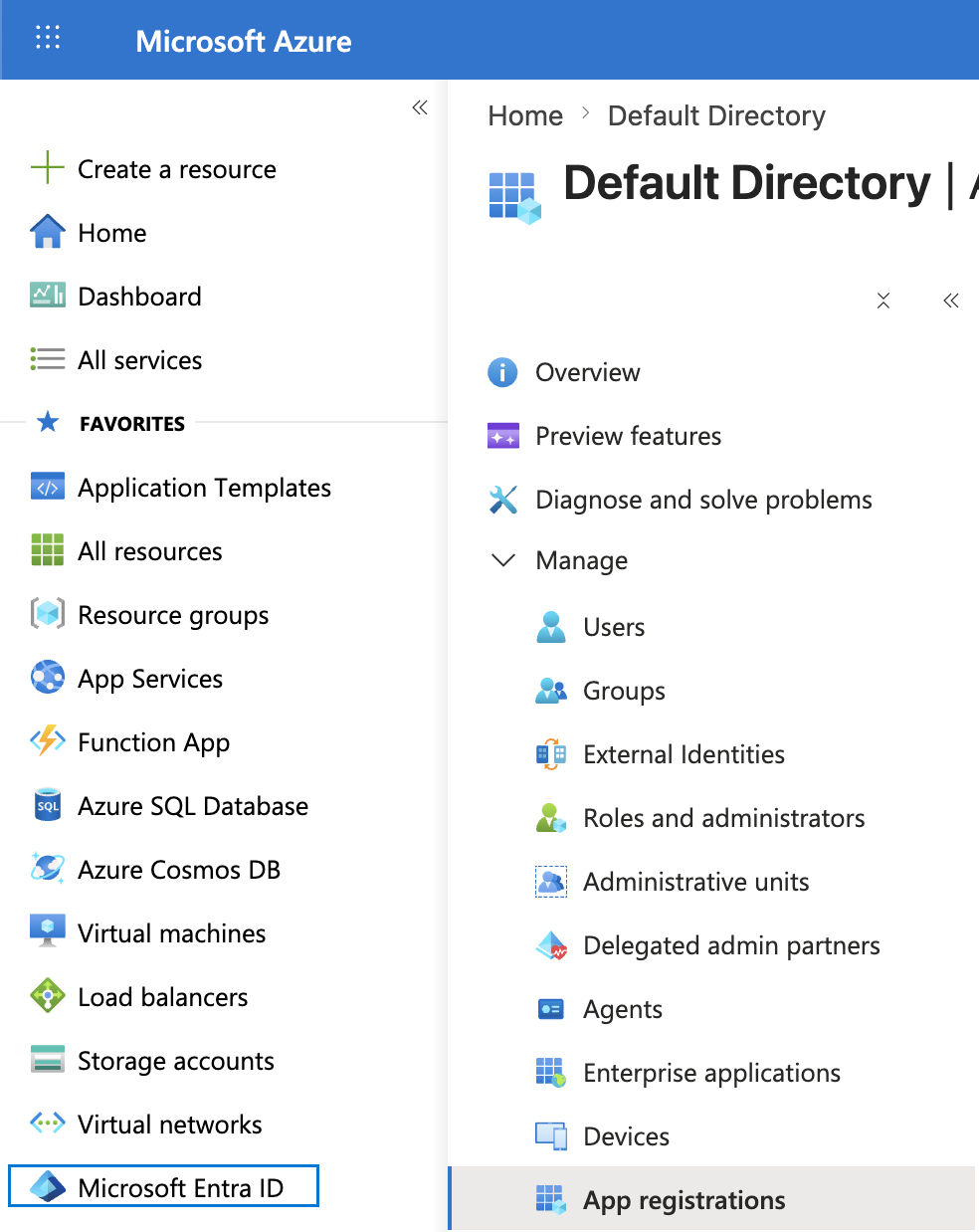
Go to portal.azure.com > Microsoft Entra ID > App registrations. Confirm the directory shown in the account menu is the tenant that holds the Sentinel workspace.
-
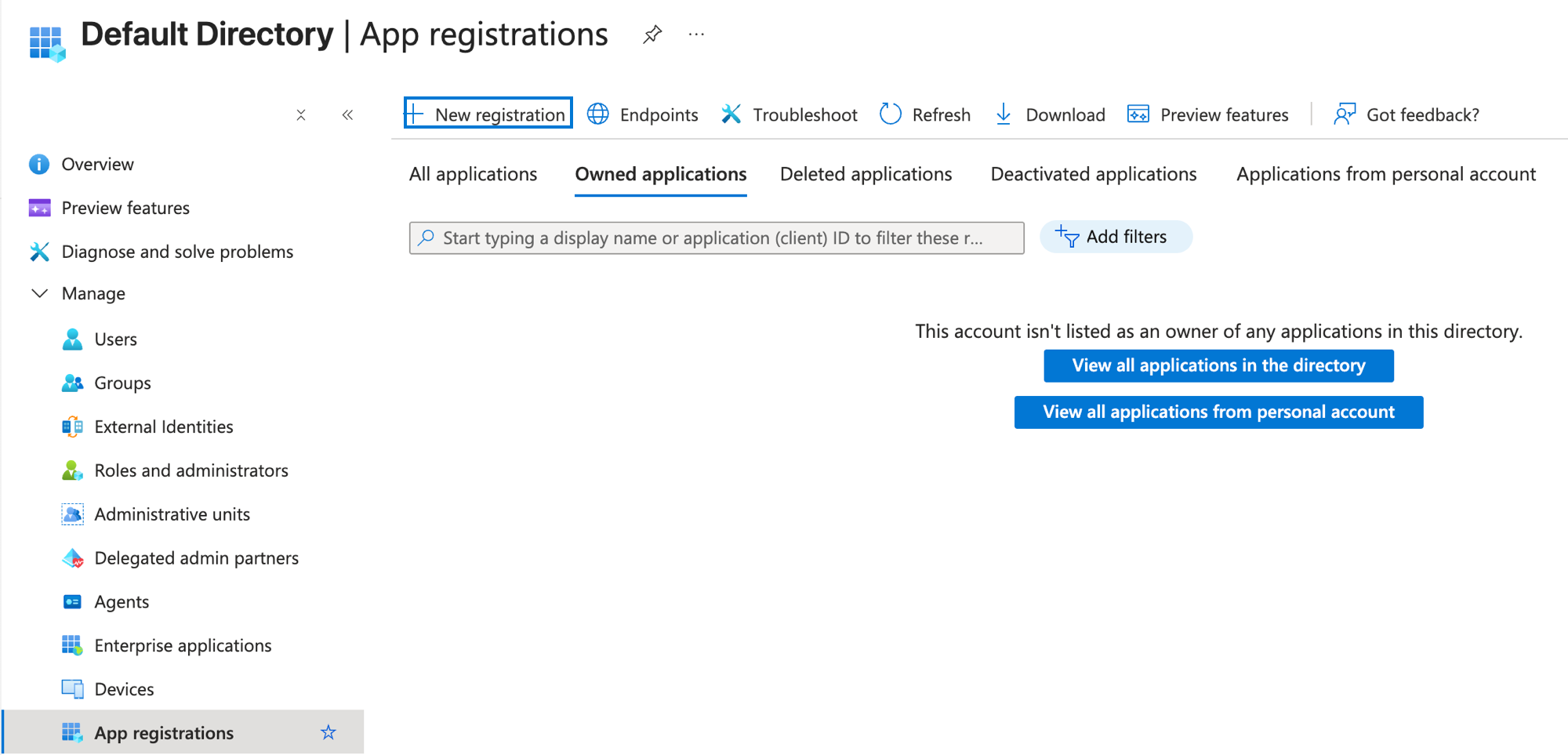
Click New registration.
-
Enter a name, for example MintMCP Microsoft Sentinel.
-
Under Supported account types, keep the single-tenant option. The current form labels it Single tenant only followed by your directory name; older forms call it Accounts in this organizational directory only.
-
Under Redirect URI, select Web and enter the callback for your MintMCP region:
MintMCP region Redirect URI US ( app.mintmcp.com)https://app.mintmcp.com/oauth/callbackEU ( eu.mintmcp.com)https://eu.mintmcp.com/oauth/callbackThe install panel in MintMCP shows the callback for your organization. Microsoft compares the redirect URI character by character, so copy it from there.
-
Click Register.
-
Go to API permissions > Add a permission and open the APIs my organization uses tab.
-
Search for Sentinel Platform Services and select it. Its application ID is
4500ebfb-89b6-4b14-a480-7f749797bfcd, which is also the resource in the OAuth scope you enter later. -
Select Delegated permissions, expand SentinelPlatform if it is collapsed, check SentinelPlatform.DelegatedAccess, and click Add permissions.
-
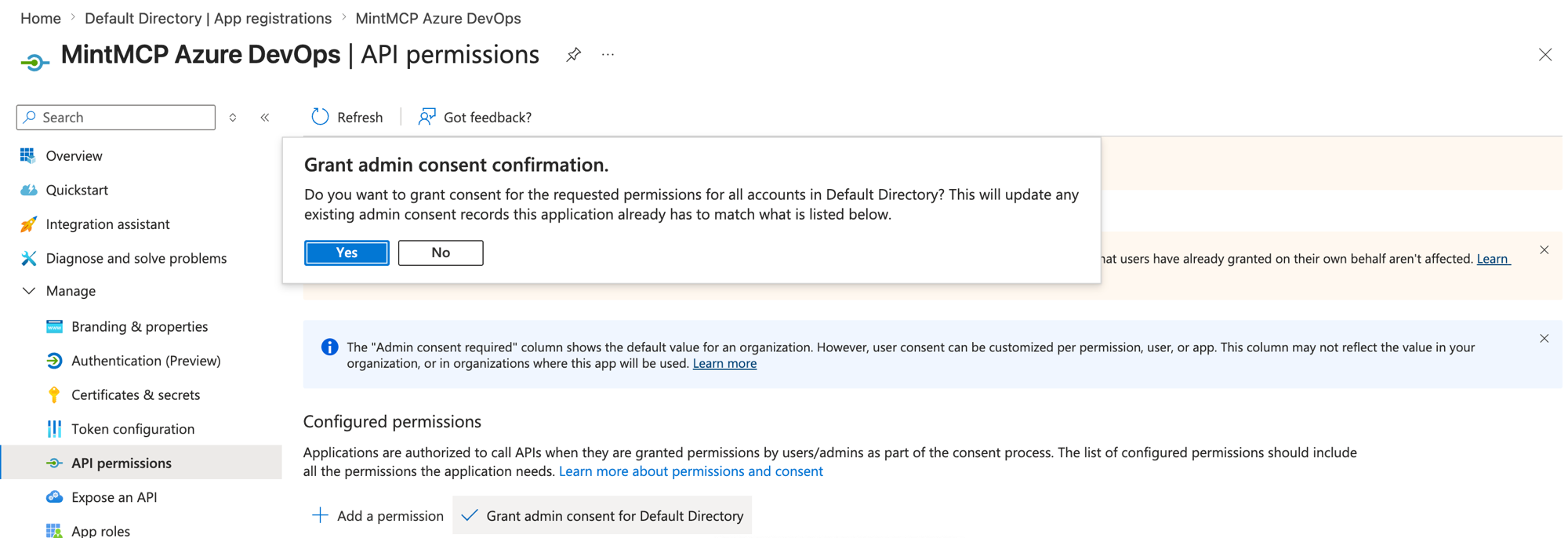
Click Grant admin consent for [your organization] and confirm, so users are not prompted to consent individually and tenants that block user consent still work.
-
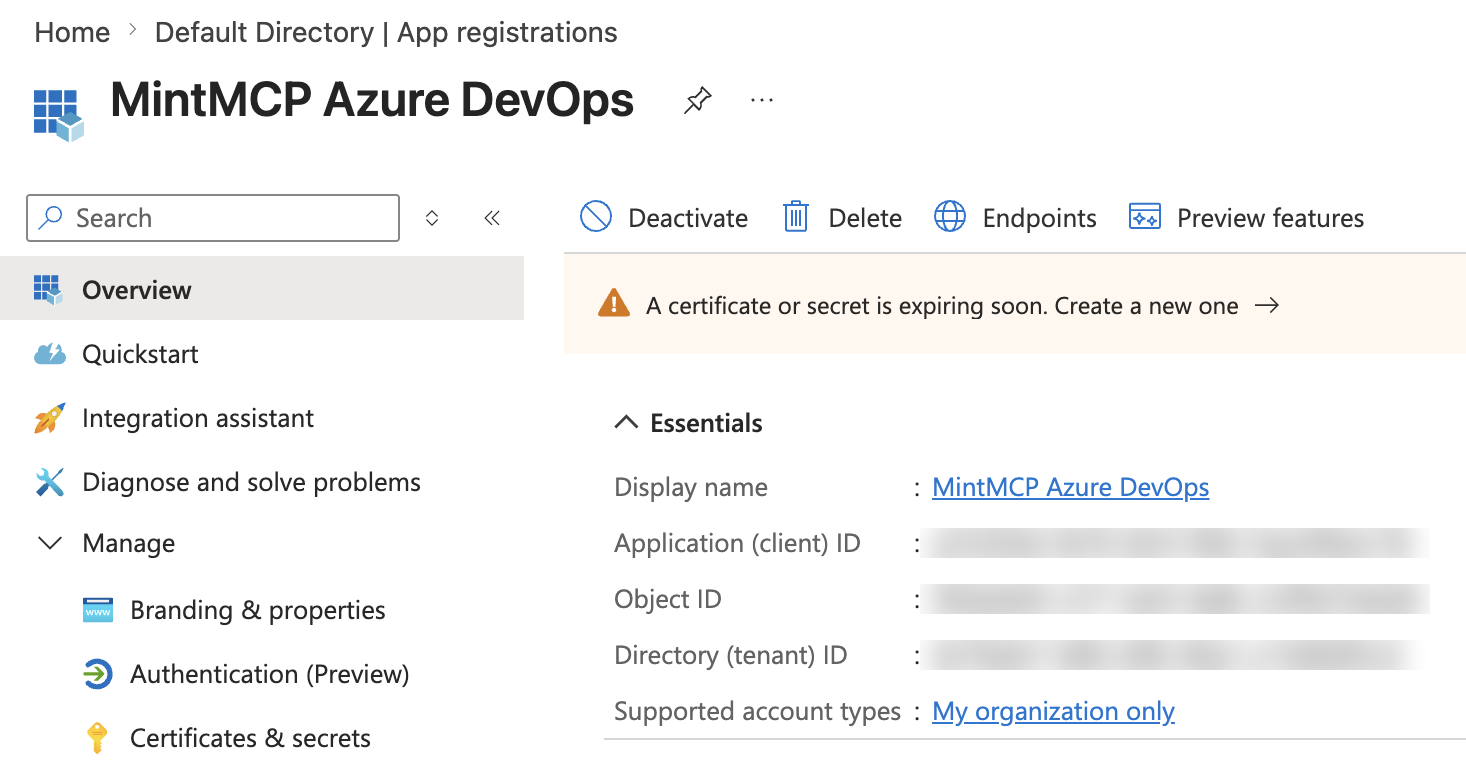
Copy the Application (client) ID and Directory (tenant) ID from the Overview tab. The Object ID is a different value and does not work as a client ID.
-
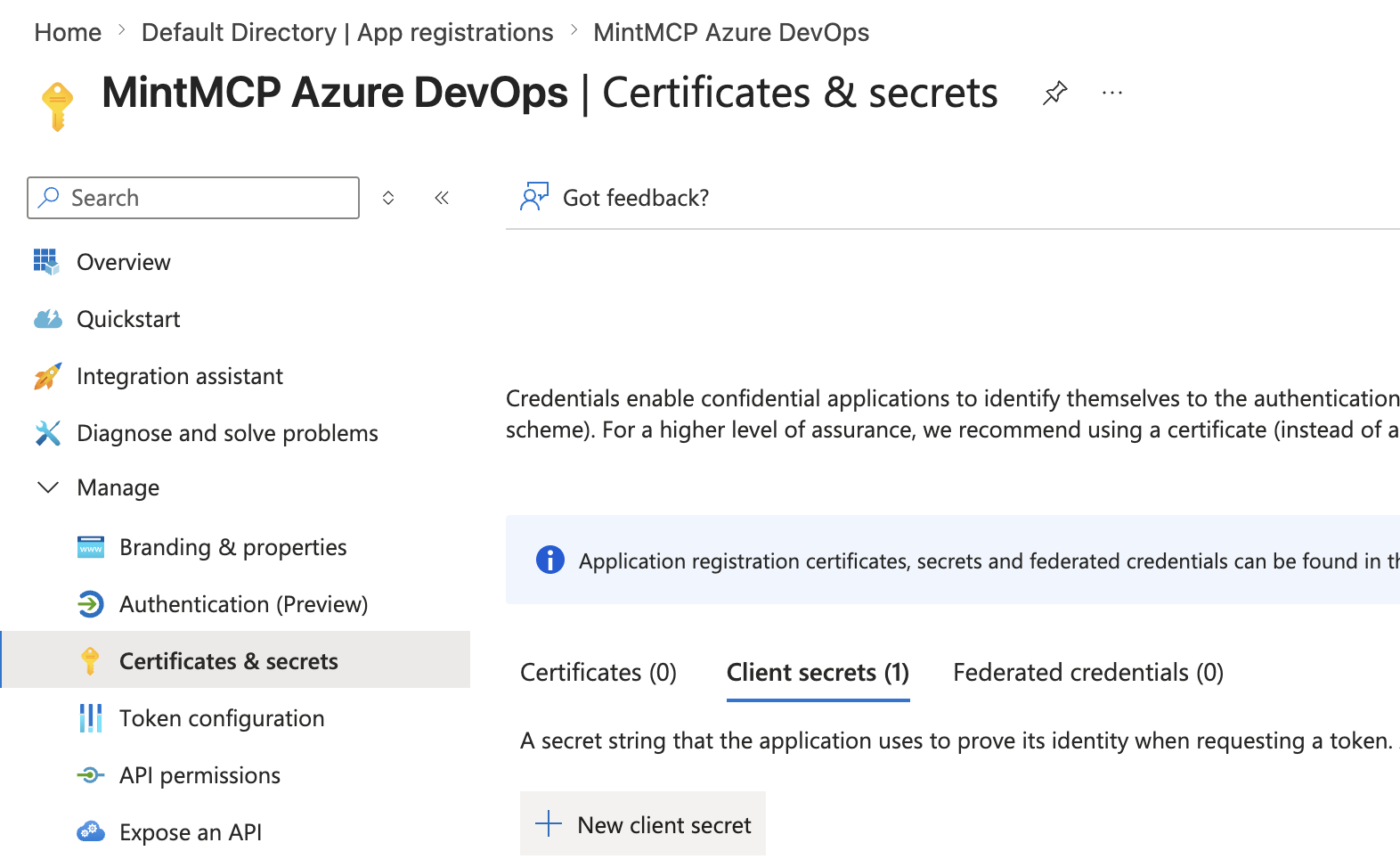
Go to Certificates & secrets > Client secrets > New client secret.
-
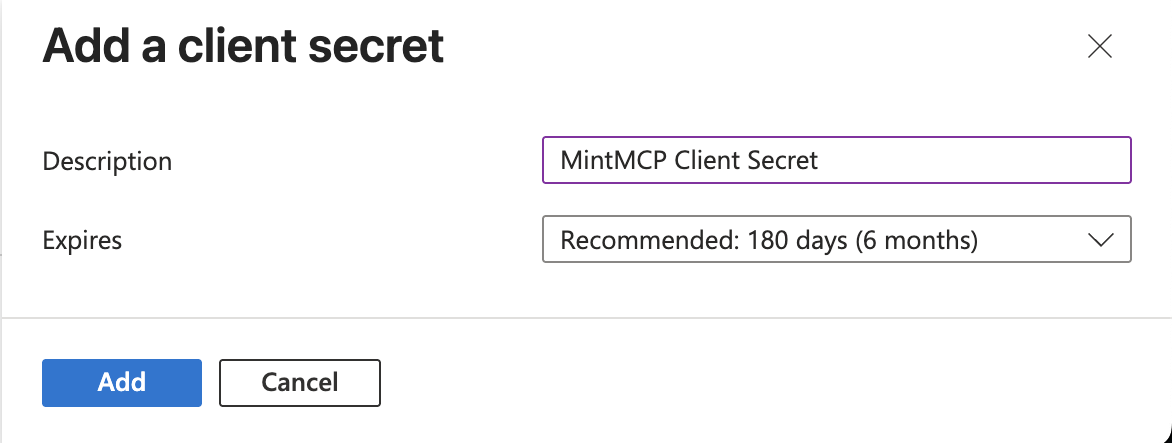
Enter a description, choose an expiry that matches the customer's credential policy, and click Add.
-
Copy the secret Value immediately and store it in the customer's secret manager. It is shown once, and the Secret ID column next to it is not the value MintMCP needs.

Record the secret's expiry date and owner. When it expires, every user's connection stops refreshing until an admin creates a new secret and updates it in MintMCP.
To reuse an existing app registration, open App registrations > All applications (the default Owned applications view hides apps registered by other admins), then add the redirect URI under Authentication and the permission and secret as above.
Add the servers to MintMCP
Both servers are listed in the MintMCP recommended server catalog with the Sentinel OAuth endpoints and scopes pre-filled. Install each one you need; they share the Entra app but keep separate connections and tool lists.
-
In MintMCP, go to MCP store and open the Recommended servers tab.
-
Select Microsoft Sentinel (data exploration) or Microsoft Sentinel (triage) to open the configuration panel. The MCP server URL, the OAuth authorization method, and the Per-user credentials connection type are pre-set from the catalog.
-
Expand OAuth Client Advanced Settings and enter:
Field Value Client ID Application (client) ID from the app registration Client Secret Client secret Value from the app registration Override OAuth endpoints Enabled (pre-checked from the catalog) Authorization URL https://login.microsoftonline.com/<tenant-id>/oauth2/v2.0/authorizeToken URL https://login.microsoftonline.com/<tenant-id>/oauth2/v2.0/tokenScopes 4500ebfb-89b6-4b14-a480-7f749797bfcd/.default,offline_accessToken Endpoint Auth Method client_secret_postReplace
<tenant-id>in both URLs with the Directory (tenant) ID you copied from the app's Overview page. The catalog ships the URLs with a{tenant-id}placeholder, and Microsoft rejects the sign-in if the placeholder is left in place. -
Click Install.
-
Repeat for the second server, entering the same client ID, secret, and tenant ID.
The endpoint override is required. MintMCP cannot use the OAuth metadata the Sentinel server advertises, so without the override the browser lands on sentinel.microsoft.com/authorize and Microsoft returns ResourceNotFound. The advertised authorization server is also the multi-tenant organizations endpoint, which a single-tenant app registration cannot sign in through, so MintMCP must send users to the tenant-specific authorize and token URLs. The first scope requests every Sentinel permission granted to the app (only SentinelPlatform.DelegatedAccess) and offline_access lets MintMCP refresh tokens without asking the user to sign in again.
Each user signs in with their Microsoft account on first use. With admin consent granted, they see the Microsoft sign-in page and land back in MintMCP without a consent prompt.
Verify the connection
A green connection status only proves that OAuth completed. Check tool discovery and one read before handing the connector to users.
-
Open the server in MintMCP and go to the Tools tab. Click Retry Loading Tools if the list is empty; an empty list next to a connected status means the tenant is not onboarded for that collection.
-
Use the Installation tab to connect an MCP client such as Claude or Cursor to the gateway.
-
Run a small read-only prompt and compare the result with the Defender portal:
- Data exploration:
List the Microsoft Sentinel workspaces I can access, thenFor workspace <workspace ID>, return the five most recent records from a populated table and include their timestamps - Triage:
List the five most recent incidents in my tenant with their IDs and titles, thenList the advanced hunting tables available to me without running a query
- Data exploration:
Microsoft recommends naming the workspace in prompts when the user can reach more than one, because the data exploration tools otherwise pick one themselves. If a query returns no rows, confirm the table has data for that time range in the Defender portal's data lake explorer, and set up the missing data connector through Sentinel's Content hub if it does not.
Microsoft documents the triage collection for Visual Studio Code, while the data exploration collection is the one Microsoft documents for custom connectors in ChatGPT and Claude. The MintMCP connection uses the same OAuth configuration for both, so if triage tools fail to load while data exploration works, test the same account in VS Code to separate a tenant or account problem from a client compatibility problem.
Troubleshooting
Work out which stage failed: sign-in, tool discovery, or a tool call.
| Symptom | Cause and fix |
|---|---|
Browser lands on sentinel.microsoft.com/authorize with ResourceNotFound | Override OAuth endpoints is off or the URLs are blank. Enable it and enter the tenant-specific authorize and token URLs |
Microsoft error about a redirect URI mismatch (AADSTS50011) | The app's Web redirect URI does not match MintMCP's callback. Compare it with the callback shown in the install panel, including the region (app versus eu) |
Microsoft error that the app is not multi-tenant or the endpoint is unsupported (AADSTS50194) | The URLs still use organizations, common, or the {tenant-id} placeholder. Replace them with the Directory (tenant) ID |
Invalid client secret (AADSTS7000215) | The Secret ID was pasted instead of the Value, or the secret expired. Create a new secret and update the connector |
| User sees Approval required instead of the sign-in completing | Admin consent was not granted and the tenant blocks user consent. Grant admin consent on the app's API permissions page |
Sign-in succeeds, tools return TenantNotFound or Tenant not registered | Data exploration: the data lake is not provisioned, the workspace is not Connected and Primary, or the user has no access to a lake workspace. Triage: the tenant is not onboarded to the Defender portal. The gateway's fallback attempt also logs an SSE 404 after this error; fix the tenant error first |
HTTP 403 on tool calls | The user lacks Security Reader, or the specific operation needs a Defender permission the user does not hold |
| Tools load but a triage call fails for a guest user | The triage collection only works in the user's home tenant. Use an account that belongs to the tenant |
| Queries return no rows | The table is empty for that time range, the workspace ID is wrong, or the user cannot read that table. Check the same query in the Defender portal |
| Entity analyzer or graph tools fail while queries work | These tools need extra roles (Security Copilot Contributor, Exposure Management read access) and, for graphs, the data lake onboarded to the Defender portal |
When escalating to Microsoft, capture the UTC time, tenant ID, workspace name and region, the full error text, any correlation or request ID in the error, and which stage failed. Microsoft's troubleshooting page covers the tenant registration and workspace attachment checks behind consistent 404s.
Security considerations
- Each user authenticates with their own Microsoft account, so every tool call is bounded by that user's Sentinel and Defender roles and attributed to them in MintMCP's audit log.
- The client ID and secret identify the app; they grant no data access on their own. Access always requires a signed-in user who holds Security Reader or higher.
SentinelPlatform.DelegatedAccessis a delegated permission, so the app can never act without a user, and revoking a user's roles or Entra account cuts off their MCP access immediately.- Security Reader reads across the whole tenant's security data. Review who receives it, and use tool customization to hide tools a role should not use, such as the hunting query tool for users who should only read incidents.
- The client secret expires on the date chosen at creation. Rotate it by creating a new secret, updating the connector in MintMCP, verifying a sign-in, and then deleting the old secret in Entra.
- Query results pass through the gateway to the user's client and can contain sensitive security data, so apply the same access reviews as for the Defender portal itself.
Next steps
- Tool customization: control which Sentinel tools are exposed to users
- Set up the CrowdStrike Falcon MCP server: add endpoint security data alongside Sentinel
- MCP gateway administration: manage access and permissions across your MCP store