Set up the Google Workspace Admin MCP server
The Google Workspace Admin MCP server gives AI agents access to your Google Workspace directory (managing users, groups, and organizational units) plus audit and usage reports, through the Google Admin SDK API. This guide covers setting an internal OAuth consent screen, creating an OAuth client in Google Cloud, and connecting the server to MintMCP.
Prerequisites
- A MintMCP admin account
- A Google Workspace organization, and a Google account with a Workspace admin role for the connecting user, since Directory and Reports API calls return a 403 without one
- A Google Cloud project owned by your Workspace organization, with permission to enable APIs and create OAuth credentials
Enable the Admin SDK API
- Go to console.cloud.google.com and select or create a project owned by your Workspace organization.
- Go to APIs & Services → Library, search for Admin SDK API, and click Enable. This single API covers both the Directory API (users, groups, organizational units, roles) and the Reports API (audit and usage logs) the connector uses.
Set the OAuth consent screen to Internal
The Directory and Reports scopes below are Google restricted scopes. An externally published app needs a CASA security assessment to use them; an Internal user type skips it and limits sign-in to your Workspace organization, which grants the scopes through its own consent instead of Google's review.
- Go to console.cloud.google.com/auth/audience for your project.
- Set User type to Internal.
Create the OAuth client
The OAuth client gives MintMCP a Client ID and secret to broker each admin's Google sign-in. Create one Web application client and point its redirect URI at MintMCP's callback.
-
Go to console.cloud.google.com/auth/clients and click Create client.
-
Set Application type to Web application and give it a name (for example,
MintMCP Google Workspace Admin). The name only identifies the client in the console.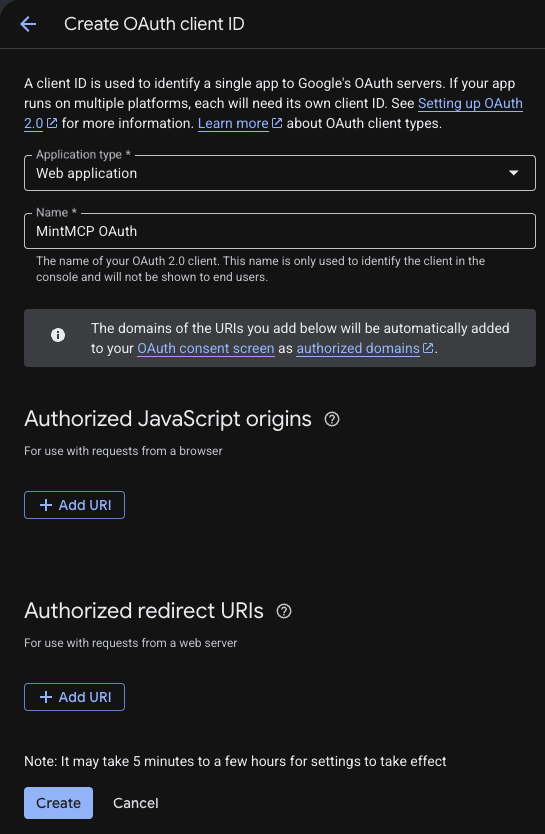
-
Under Authorized redirect URIs, click Add URI and enter MintMCP's callback URL:
https://app.mintmcp.com/oauth/callback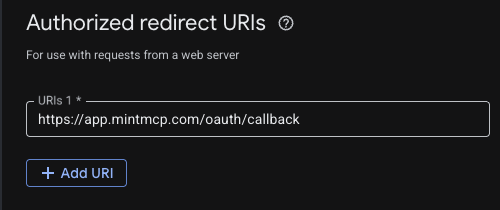
-
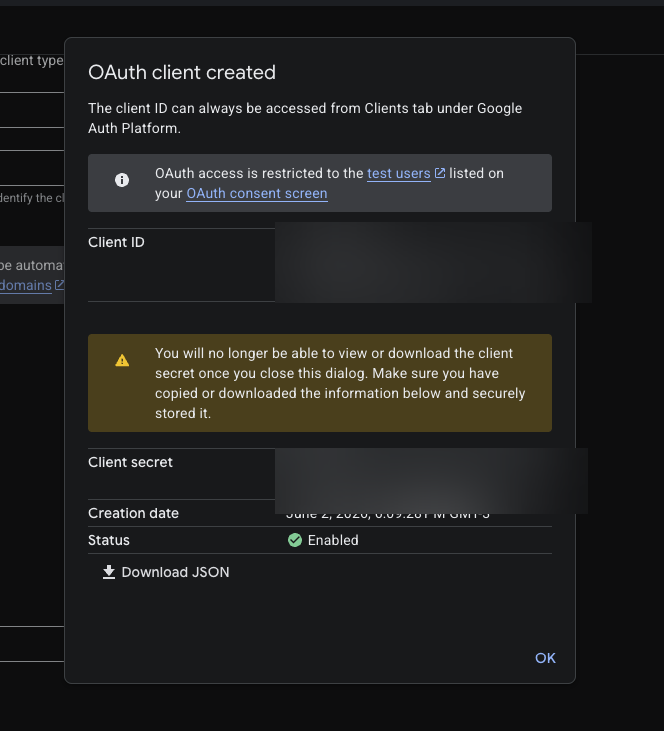
Click Create. Google shows the Client ID and Client secret once. Copy both now, because you can't view the secret again after closing the dialog.
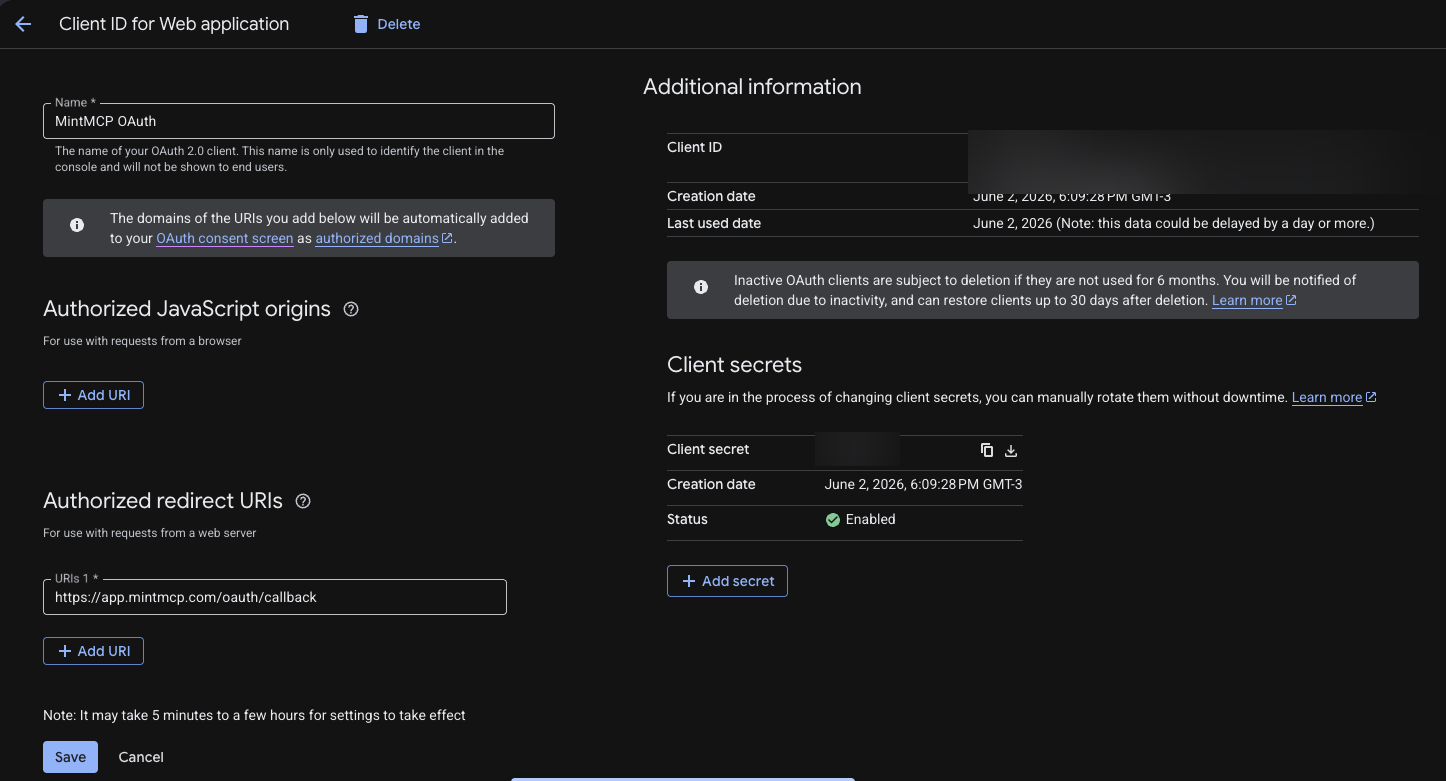
Reopen the client anytime from the Clients list to edit its redirect URIs or rotate the secret.
Add Google Workspace Admin to MintMCP
-
In MintMCP, go to MCP store → Manage store.
-
Find the Google Workspace Admin connector, marked Recommended, and click to install it.
-
Open the connector's OAuth settings. The Authorization URL, Token URL, and Scopes come pre-filled: confirm they match, then fill in the Client ID and Client Secret:
Setting Value Authorization URL https://accounts.google.com/o/oauth2/v2/auth?access_type=offline&prompt=consentToken URL https://oauth2.googleapis.com/tokenScopes openid, https://www.googleapis.com/auth/userinfo.email, https://www.googleapis.com/auth/userinfo.profile, https://www.googleapis.com/auth/admin.directory.user, https://www.googleapis.com/auth/admin.directory.group, https://www.googleapis.com/auth/admin.directory.group.member, https://www.googleapis.com/auth/admin.directory.orgunit, https://www.googleapis.com/auth/admin.directory.rolemanagement.readonly, https://www.googleapis.com/auth/admin.reports.audit.readonly, https://www.googleapis.com/auth/admin.reports.usage.readonlyClient ID Client ID from the OAuth client you created Client Secret Client Secret from the OAuth client you created The connector has no developer token and no realm or domain field to fill in: it always queries
my_customer, the alias Google's Directory and Reports APIs resolve to the signed-in admin's own Workspace organization. -
Confirm the Redirect URL shown in the connector's OAuth settings matches the URI you added to the OAuth client (
https://app.mintmcp.com/oauth/callback). They must be identical, or sign-in fails withredirect_uri_mismatch. -
Click Save.
The first time a user calls a tool, MintMCP directs them to sign in with Google and consent to the scopes above. MintMCP stores and refreshes their token automatically on every subsequent call.
Scope reference
| Capability | Scope |
|---|---|
| Sign-in and account identification | openid, .../userinfo.email, .../userinfo.profile |
| Manage users | .../admin.directory.user |
| Manage groups and group membership | .../admin.directory.group, .../admin.directory.group.member |
| Manage organizational units | .../admin.directory.orgunit |
| View admin roles (read-only) | .../admin.directory.rolemanagement.readonly |
| View audit logs | .../admin.reports.audit.readonly |
| View usage reports | .../admin.reports.usage.readonly |
All scopes above use the https://www.googleapis.com/auth/ prefix.
Security considerations
- Directory and Reports API calls run against the signed-in Google account's own Workspace privileges, so the connecting user must hold an admin role or calls return a 403.
- The
admin.directory.*scopes grant read and write access to users, groups, and organizational units. Anyone who can call these tools can create, modify, or suspend accounts and change group membership. - The
admin.reports.*scopes are read-only and expose audit and usage logs, which can contain sensitive activity data. - The OAuth client's Internal user type restricts sign-in to accounts in your Workspace organization and skips Google's restricted-scope verification review.
- Keep the client secret secure: anyone with it can impersonate the app and request access to your directory.
Troubleshooting
- Sign-in fails with
redirect_uri_mismatch. The redirect URI on the Google Cloud OAuth client doesn't match the connector's Redirect URL. Open the OAuth client, confirm Authorized redirect URIs containshttps://app.mintmcp.com/oauth/callbackexactly, and save. Changes can take a few minutes to take effect. - Sign-in fails or the account can't complete consent. The Google account isn't a member of the Workspace organization that owns the Cloud project, since an Internal OAuth client only accepts sign-in from accounts in the same organization.
- Tool calls return a 403 with reason
insufficientPermissions. The signed-in Google account doesn't hold a Workspace admin role (Directory and Reports calls require one, with error text like "requires the 'admin' role"). Grant an admin role (or a custom role with the relevant Directory/Reports privileges) in the Admin console, then have the user reconnect.
Next steps
- Tool customization: control which Google Workspace Admin tools are exposed to users
- MCP gateway administration: manage access and permissions