Connecting Google Calendar to AI systems at enterprise scale requires more than basic API integration. The Model Context Protocol provides a standardized approach for AI agents to interact with calendar data, manage events, and automate scheduling workflows—but deploying these connections securely across teams demands proper infrastructure. This guide shows DevOps engineers and IT administrators how to implement Google Calendar MCP integrations that meet enterprise security requirements while enabling AI-powered calendar automation across your organization.
Key takeaways
- MCP standardizes how AI agents interact with Google Calendar APIs, replacing fragmented custom integrations with a unified protocol for calendar management
- Google Calendar MCP servers provide access to events, calendars, attendees, and scheduling features through natural language interactions with AI agents
- Enterprise deployments require centralized authentication, comprehensive audit trails, and access controls that local MCP servers cannot provide
- MintMCP's gateway architecture enables one-click deployment of Google Calendar MCP servers with automatic OAuth protection and enterprise monitoring
- MCP's authentication flexibility creates security risks that enterprises must address through OAuth 2.0, service accounts, or SSO integration
- Hosted connectors eliminate infrastructure management while maintaining complete audit trails for compliance requirements
- Google Calendar MCP integration reduces manual scheduling tasks while providing AI agents with real-time access to calendar data and scheduling capabilities
What is MCP and why Google calendar MCP matters
The Model Context Protocol is an open standard that enables AI-powered tools to interact securely with data sources and APIs through standardized interfaces. For enterprise teams managing calendars across organizations, this means AI agents can schedule meetings, manage events, analyze availability, and automate calendar workflows without requiring custom API integrations for each AI tool.
Traditional Google Calendar integrations create a maintenance burden. Each AI tool, automation platform, or custom application requires its own authentication setup, API wrapper, and error handling. When you need to connect Claude, ChatGPT, Cursor, and internal automation tools to Google Calendar, you're maintaining four separate integrations with different security models and no centralized visibility.
MCP acts as a universal translator between AI applications and Google Calendar. MCP servers expose calendar functionality as standardized tools that AI clients can discover and invoke without prior knowledge of the Google Calendar API structure. This standardization dramatically reduces integration complexity while improving security through consistent authentication patterns.
Google calendar MCP server capabilities
Google Calendar MCP servers transform calendar management by giving AI agents the ability to interact with calendar data through natural language, automating tasks that traditionally required manual intervention or custom scripting. These servers expose Google Calendar's robust API through MCP's standardized tool interface.
The server provides these core capabilities:
Event Management
- Create, update, and delete calendar events programmatically
- Manage recurring events with complex patterns
- Handle event reminders and notifications
- Set event visibility and privacy settings
- Manage event attachments and descriptions
Calendar Operations
- List and manage multiple calendars
- Share calendars with specific permissions
- Create and modify calendar settings
- Import and export calendar data
- Manage calendar access control lists
Scheduling Intelligence
- Find available meeting times across attendees
- Handle timezone conversions automatically
- Manage meeting rooms and resources
- Detect and resolve scheduling conflicts
- Optimize meeting schedules based on preferences
Attendee Management
- Add and remove attendees from events
- Track attendee responses and availability
- Send meeting invitations and updates
- Manage attendee permissions
- Handle external attendee communications
Why enterprise teams need managed MCP infrastructure
MCP's flexibility becomes a liability at enterprise scale. The protocol supports various authentication methods but doesn't enforce them, leading to security gaps when deployed locally. Enterprise calendar management involves sensitive scheduling data, executive calendars, and confidential meeting information that requires proper governance.
Running Google Calendar MCP servers locally on developer machines introduces critical risks:
- Credential Distribution: Service account keys or OAuth tokens scattered across developer laptops create multiple attack vectors
- No Audit Trail: Zero visibility into which calendars AI agents access, what events they create, or which schedules they modify
- Access Control Gaps: No centralized mechanism to revoke access or enforce calendar-specific permissions
- Compliance Violations: Inability to demonstrate GDPR, SOC2, or HIPAA compliance without comprehensive audit logging
Enterprise teams require infrastructure that provides authentication enforcement, authorization controls, audit logging, and compliance capabilities—features that local MCP servers cannot deliver without significant custom development.
MintMCP gateway architecture for Google calendar
MintMCP's enterprise gateway solves the deployment challenge by running Google Calendar MCP servers in managed infrastructure with enterprise-grade security controls. Rather than distributing MCP servers across individual machines, administrators configure calendar connectors once and provide governed access through Virtual MCP servers.
How the gateway works for calendar integration
The gateway operates as a secure proxy layer between AI agents and Google Calendar APIs:
- Connector Registration: Administrators add Google Calendar MCP servers as connectors through the MintMCP console
- Virtual Server Creation: Connectors are bundled into Virtual MCP servers with tailored tool collections for different teams
- OAuth Authentication: Team members authenticate with Google through MintMCP's OAuth flow, granting calendar permissions
- Request Routing: AI agents send calendar requests to Virtual MCP endpoints, which route through the secure gateway
- Comprehensive Logging: Every calendar interaction flows through MintMCP, creating detailed audit trails
This architecture delivers critical benefits for calendar management:
- Single Configuration Point: Register Google Calendar connectors once and share across all Virtual MCP servers
- Centralized Authentication: OAuth tokens are managed securely at the gateway level, not distributed across machines
- Complete Visibility: Monitor which users access calendars, what events they create, and track all scheduling changes
- Enterprise Security: SOC2 Type II certified infrastructure with encryption, access controls, and compliance logging
Deployment options for Google calendar MCP
MintMCP supports three approaches to deploying Google Calendar MCP connectors, each suited to different organizational requirements:
Remote MCP Connectors
Connect to Google's hosted MCP server endpoints when available. This provides the simplest deployment with automatic updates and Google-managed infrastructure. Use remote connectors when you want minimal operational overhead and can rely on Google's service availability.
Hosted MCP Connectors
Supply the STDIO configuration for open-source Google Calendar MCP servers and let MintMCP handle the infrastructure. This approach gives you control over server versions and configurations while MintMCP manages scaling, monitoring, and lifecycle management. Hosted connectors work well when you need specific feature sets or custom configurations.
Custom MCP Connectors
Build your own Google Calendar MCP server with organization-specific functionality. Package custom calendar logic, integrate with internal scheduling systems, or add proprietary features. Deploy your custom connector on MintMCP's managed runtime for complete control while maintaining enterprise security.
All deployment patterns enforce consistent authentication, authorization, and logging policies through the gateway architecture.
Step-by-Step: Deploying Google calendar MCP with MintMCP
This section walks through deploying Google Calendar MCP integration for your organization using the hosted connector approach, which balances deployment simplicity with configuration flexibility.
Prerequisites
Before starting the deployment, ensure you have:
- MintMCP account with administrator privileges
- Google Workspace or Google Cloud account with admin access
- Understanding of which teams need calendar access
- Clear requirements for calendar permissions and data access
- Google Calendar API enabled in your Google Cloud Console
Setting up Google calendar API access
Your Google Calendar MCP connector requires proper API credentials to access calendar data. Google Calendar API enforces rate limits to ensure fair usage, with different quotas for various authentication methods.
Creating a Google Cloud Project
- Navigate to the Google Cloud Console
- Create a new project or select an existing one
- Enable the Google Calendar API from the API Library
- Note your project number for later configuration
Setting Up OAuth 2.0 Credentials
For production deployments, OAuth 2.0 provides the most secure authentication:
- Go to APIs & Services → Credentials in Google Cloud Console
- Click "Create Credentials" and select "OAuth client ID"
- Choose "Web application" as the application type
- Configure authorized redirect URIs:
- Add MintMCP's OAuth callback URL (provided in the console)
- Include any additional redirect URLs for your environment
- Save the Client ID and Client Secret securely
Configuring API Scopes
Think of scopes as permissions you request from users to use within your app and allow your app to access private data from their Google Account. Configure these essential scopes:
https://www.googleapis.com/auth/calendar- Full calendar accesshttps://www.googleapis.com/auth/calendar.events- Event managementhttps://www.googleapis.com/auth/calendar.readonly- Read-only accesshttps://www.googleapis.com/auth/calendar.settings.readonly- Settings access
For enterprise deployments using service accounts with domain-wide delegation:
- Create a service account in your Google Cloud project
- Enable domain-wide delegation for the service account
- Grant necessary scopes in Google Workspace Admin Console
- Download the service account key JSON file
Configuring the hosted Google calendar MCP connector
Navigate to the MintMCP console and configure your connector:
- Add Connector
- Go to MCP Connectors section
- Click "Add Connector"
- Select "Hosted Server" option
Configure Server Settings
For a standard OAuth-based deployment:
{
  "mcpServers": {
    "google-calendar": {
      "command": "npx",
      "args": [
        "-y",
        "@modelcontextprotocol/server-google-calendar"
      ],
      "env": {
        "GOOGLE_CLIENT_ID": "<your-client-id>",
        "GOOGLE_CLIENT_SECRET": "<your-client-secret>",
        "GOOGLE_REDIRECT_URI": "https://app.mintmcp.com/oauth/callback",
        "CALENDAR_SCOPES": "calendar,events,settings"
      }
    }
  }
}
- Set Environment Variable Scopes
GOOGLE_CLIENT_ID/SECRET: Set to "Global" for organization-wide OAuth appCALENDAR_SCOPES: Set to "Global" with appropriate scope configurationIMPERSONATE_USER: Set to "Per-User" if using service accounts with delegation
- Deploy and Verify
- Click "Save" to deploy the connector
- MintMCP launches the server in managed infrastructure
- Monitor deployment logs for successful initialization
- Verify available tools match expected calendar operations
Creating virtual MCP servers for team access
With the Google Calendar connector deployed, create Virtual MCP servers that provide controlled access to different teams:
Executive Team Virtual Server
Create a Virtual MCP server for executive assistants managing leadership calendars:
- Navigate to Virtual MCP Servers
- Click "Create Virtual Server"
- Name it "Google Calendar - Executive Access"
- Add your Google Calendar connector
- Enable all calendar tools for full management capabilities
- Configure tool customization if needed
- Assign to executive support team members
Development Team Virtual Server
Create a restricted Virtual MCP server for developers:
- Create new Virtual Server named "Google Calendar - Dev Team"
- Add the same Google Calendar connector
- Enable limited tools: view events, check availability
- Remove tools for creating or modifying executive calendars
- Assign to development team members
HR Team Virtual Server
Create a specialized Virtual MCP server for HR scheduling:
- Create Virtual Server named "Google Calendar - HR Scheduling"
- Add Google Calendar connector
- Enable interview scheduling and room booking tools
- Configure access to recruitment calendars only
- Assign to HR team members
This pattern implements role-based access control at the tool level, ensuring teams only access appropriate calendar functionality.
Connecting AI agents to calendar virtual MCP servers
Once Virtual MCP servers are configured, team members connect their AI agents using the published endpoints:
Claude Desktop Configuration
Configure Claude Desktop to use the Google Calendar Virtual MCP server:
- In Claude Desktop, go to Settings → Connectors
- Click "Add custom connector"
- Paste your Virtual MCP server URL from MintMCP
- Complete OAuth authentication when prompted
- Calendar tools appear in Claude's available capabilities
ChatGPT Custom Actions
Set up the Virtual MCP server as a Custom GPT action:
- Generate OpenAPI specification from Virtual MCP endpoint
- Create new Custom GPT with calendar management focus
- Add the OpenAPI spec as a custom action
- Configure OAuth 2.0 authentication
- Test calendar operations through natural language
Cursor IDE Integration
Configure Cursor to access calendar data through MCP:
- Open Cursor settings
- Navigate to MCP configuration
- Add remote MCP server with Virtual MCP URL
- Authenticate through MintMCP OAuth flow
- Use calendar tools in AI-assisted development
Implementing enterprise security controls
Google Calendar data contains sensitive scheduling information, meeting details, and organizational patterns that require comprehensive security controls. MCP's flexibility in authentication creates vulnerabilities that enterprises must address systematically.
Authentication strategy: From development to production
Ensure that your application handles authentication securely, utilizing OAuth 2.0 for authorization. Enterprise calendar deployments should follow a phased authentication approach:
Phase 1: Development with API Keys
Initial proof-of-concept deployments can use API keys for rapid testing:
- Configure service account keys with minimum required scopes
- Set 90-day rotation policies for all keys
- Store keys in MintMCP's encrypted environment variables
- Plan OAuth migration before moving to production
Phase 2: OAuth 2.0 for Production
Production deployments require OAuth 2.0 for per-user authentication:
- Create Google OAuth application for your organization
- Configure MintMCP OAuth integration
- Users authenticate individually on first access
- Tokens refresh automatically without user intervention
- Audit trails show which user performed each calendar action
Phase 3: Enterprise SSO Integration
Large organizations with centralized identity management need SAML/SSO:
- Integrate MintMCP with Okta, Azure AD, or other providers
- Users authenticate once with corporate credentials
- MintMCP handles Google OAuth flows transparently
- Access revocation happens at identity provider level
- Complete compliance with enterprise identity policies
MintMCP's authentication architecture supports all three phases, enabling gradual migration as deployments mature.
Implementing Calendar-Specific governance
Calendar access requires granular controls to prevent unauthorized schedule modifications or data exposure. MintMCP provides multiple governance layers:
Tool Curation at Virtual Server Level
Different teams need different calendar capabilities:
- Executive Support: Full calendar management across organization
- Project Managers: Team calendar access with event creation
- Developers: Read-only access to check availability
- External Contractors: No access to internal calendars
Configure Virtual MCP servers with appropriate tool subsets for each role.
Calendar Scope Restrictions
Limit which calendars each Virtual MCP server can access:
{
  "calendar_restrictions": {
    "allowed_calendars": [
      "team-standup@company.com",
      "dev-meetings@company.com"
    ],
    "blocked_calendars": [
      "executive-team@company.com",
      "board-meetings@company.com"
    ],
    "visibility_level": "free_busy_only"
  }
}
Real-Time Security Rules
MintMCP's LLM proxy rules enable blocking dangerous calendar operations:
- Prevent deletion of recurring meeting series
- Block modifications to executive calendars
- Require approval for all-day event creation
- Flag unusual scheduling patterns for review
Create rules through the MintMCP console that apply consistently across all calendar interactions.
Privacy and data handling
Calendar data contains personally identifiable information (PII) that requires careful handling:
Data Minimization
Configure connectors to retrieve only necessary calendar fields:
- Exclude private event descriptions for availability checks
- Mask attendee email addresses in logs
- Limit historical data retrieval to required timeframes
- Remove location data for virtual meetings
Audit Log Sanitization
MintMCP's audit and observability features support privacy-preserving logging:
- Automatic PII detection and masking
- Configurable retention policies for different data types
- GDPR-compliant data deletion workflows
- Encrypted storage for sensitive calendar details
Integrating Google calendar MCP with business workflows
Google Calendar MCP integration enables powerful automation across business processes, from automated meeting scheduling to intelligent resource allocation.
Automated meeting scheduling
AI agents with calendar access can handle complex scheduling scenarios:
Intelligent Meeting Coordination
Configure AI agents to:
- Find optimal meeting times across multiple attendees
- Consider timezone differences automatically
- Respect working hours and lunch breaks
- Avoid scheduling during existing meetings
- Balance meeting load across days
Implementation Example
Create a meeting scheduler Virtual MCP server:
- Configure Google Calendar connector with full event access
- Add custom logic for meeting preferences
- Enable tools for availability checking and event creation
- Connect to AI agent for natural language scheduling
Users can request: "Schedule a 1-hour meeting with the product team next week, avoiding Monday mornings and Friday afternoons."
Resource and room management
Calendar MCP enables intelligent resource allocation:
Meeting Room Optimization
AI agents can:
- Find available meeting rooms based on capacity needs
- Book required equipment (projectors, whiteboards)
- Handle room conflicts and suggest alternatives
- Optimize room usage to reduce waste
- Generate usage reports for facilities planning
Resource Booking Workflow
- User requests meeting with specific requirements
- AI agent queries available rooms through Calendar MCP
- Agent checks equipment calendars for availability
- Books room and equipment atomically
- Sends confirmations with location details
Interview and recruitment scheduling
HR teams benefit from automated interview coordination:
Candidate Scheduling Automation
Configure calendar agents to:
- Coordinate interviewer availability across teams
- Schedule multiple interview rounds
- Handle candidate time preferences
- Book interview rooms automatically
- Send calendar invitations with video links
Implementation Pattern
Create dedicated HR scheduling Virtual MCP server:
{
  "hr_scheduler_config": {
    "interview_calendars": [
      "interview-room-1@company.com",
      "interview-room-2@company.com"
    ],
    "default_duration": 60,
    "buffer_time": 15,
    "scheduling_hours": {
      "start": "09:00",
      "end": "17:00",
      "timezone": "America/New_York"
    }
  }
}
Executive calendar management
Executive assistants use calendar MCP for sophisticated schedule management:
Daily Schedule Optimization
AI agents help executives by:
- Blocking focus time for important work
- Scheduling breaks between back-to-back meetings
- Managing travel time between locations
- Coordinating with multiple executive calendars
- Preparing daily briefs with meeting context
Priority-Based Scheduling
Implement priority rules through Virtual MCP configuration:
- High-priority meetings override existing slots
- Automatic rescheduling of lower-priority items
- Protection of critical recurring meetings
- Buffer time for meeting preparation
- Integration with task management systems
Monitoring and observability for calendar MCP
Comprehensive monitoring ensures your Google Calendar MCP integration operates reliably while maintaining security and compliance.
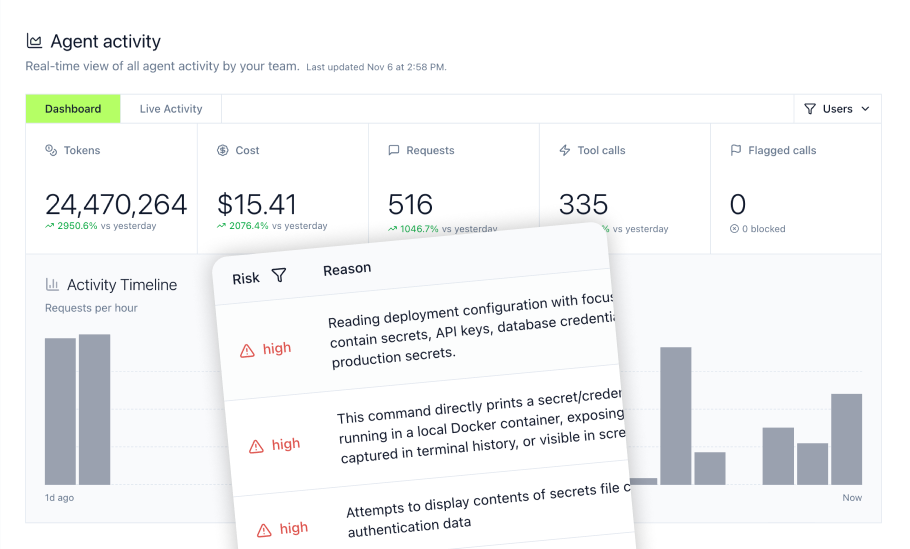
Activity monitoring and audit trails
The MintMCP activity log captures every calendar interaction:
- User who initiated each calendar request
- Timestamp and duration of operations
- Calendar tools called with parameters
- Events created, modified, or deleted
- Success or failure status
- Virtual MCP server used
This detailed logging enables:
- Security incident investigation
- Compliance audit responses
- Usage pattern analysis
- Performance optimization
- Anomaly detection
Key metrics for calendar operations
Monitor these metrics for healthy calendar MCP operations:
Performance Metrics
- Average response time for calendar queries
- Event creation success rate
- API rate limit utilization
- Authentication token refresh frequency
- Concurrent calendar operations
Usage Patterns
- Most frequently accessed calendars
- Peak scheduling times
- Average events created per user
- Meeting duration trends
- Resource utilization rates
Security Indicators
- Failed authentication attempts
- Unauthorized calendar access attempts
- Unusual scheduling patterns
- After-hours calendar modifications
- Cross-timezone scheduling anomalies
Alerting for calendar operations
Configure proactive monitoring through MintMCP's alerting system:
Operational Alerts
- Google Calendar API rate limit approaching
- Authentication token expiration warnings
- Connector failures or timeouts
- Elevated error rates
- Performance degradation
Security Alerts
- Multiple failed authentication attempts
- Access to restricted calendars
- Mass event deletions
- Unusual scheduling patterns
- Executive calendar modifications
Compliance Alerts
- Calendar access outside business hours
- Data retention policy violations
- Missing audit log entries
- Configuration changes to security policies
Set up Slack notification actions for immediate alerting on critical calendar events.
Troubleshooting common calendar MCP issues
Authentication and permission problems
Issue: OAuth Token Refresh Failures
Symptoms: Intermittent authentication failures, calendar access stops working
Solutions:
- Verify OAuth app configuration in Google Cloud Console
- Check refresh token hasn't been revoked
- Ensure MintMCP has correct client secret
- Migrate to service account for more stable authentication
- Monitor token expiration through audit logs
Issue: Insufficient Calendar Permissions
Symptoms: Can view calendars but cannot create events, missing calendar data
Solutions:
- Review OAuth scopes match required operations
- Verify user has appropriate Google Workspace permissions
- Check calendar sharing settings in Google Calendar
- Ensure service account has domain-wide delegation if applicable
- Test permissions with Google Calendar API directly
Calendar data access issues
Issue: Missing or Incomplete Calendar Events
Symptoms: Some events don't appear, recurring events show incorrectly
Solutions:
- Check date range parameters in queries
- Verify timezone handling in configuration
- Review event visibility settings
- Ensure proper handling of all-day events
- Test with different calendar view parameters
Issue: Rate Limiting from Google Calendar API
The Calendar API has a default limit of 1,000,000 queries per day
Symptoms: 403 or 429 errors, operations fail during peak times
Solutions:
- Implement caching for frequently accessed calendar data
- Batch calendar operations where possible
- Use incremental sync for event updates
- Distribute load across multiple service accounts if needed
- Monitor rate limit usage through Google Cloud Console
Performance and reliability
Issue: Slow Calendar Query Response Times
Symptoms: Timeouts, delayed event creation, poor user experience
Solutions:
- Optimize query parameters to retrieve only necessary data
- Implement pagination for large calendar datasets
- Cache calendar metadata and free/busy information
- Use webhook notifications for real-time updates
- Review network latency between MintMCP and Google APIs
Issue: Connector Deployment Failures
Symptoms: Connector won't start, tools not available
Solutions:
- Verify Docker image or npm package availability
- Check environment variables are correctly formatted
- Review connector logs for specific error messages
- Test configuration locally before deploying
- Ensure all required dependencies are specified
Why MintMCP provides superior Google calendar MCP integration
While Google Calendar API provides the foundation for calendar integration, MintMCP delivers the enterprise infrastructure required for secure, compliant production deployments at scale.
Instant deployment with enterprise controls
Unlike manual MCP server installations, MintMCP provides one-click deployment of Google Calendar connectors with automatic security controls. Teams deploy calendar integrations in minutes instead of weeks, without managing infrastructure, authentication flows, or monitoring systems.
Unified calendar governance across AI tools
MintMCP's Virtual MCP architecture enables centralized calendar access management across all AI platforms. Monitor calendar interactions from Claude, ChatGPT, Cursor, and custom agents through a single interface with complete visibility into scheduling operations.
Pre-Built compliance infrastructure
Enterprise calendar management requires comprehensive compliance controls. MintMCP provides SOC2 Type II certification out of the box, with audit trails meeting GDPR, HIPAA, and other regulatory requirements. The platform includes SAML and OIDC authentication for seamless integration with existing identity providers.
Real-Time calendar security
Protect sensitive calendar data through MintMCP's LLM proxy layer. Create security rules that prevent unauthorized calendar access, block dangerous operations, and flag suspicious scheduling patterns before they execute. Apply policies consistently across all Virtual MCP servers without modifying individual configurations.
For organizations serious about AI-powered calendar automation, MintMCP transforms Google Calendar MCP from experimental technology into production-ready infrastructure with enterprise security, compliance, and governance built in.
Frequently asked questions
What's the difference between accessing Google calendar directly through its API versus through MCP with MintMCP?
Direct Google Calendar API access requires custom integration code for each AI tool or application, resulting in multiple authentication flows, inconsistent error handling, and no centralized monitoring. When you connect through MCP with MintMCP, you get a standardized interface that works across all AI platforms while gaining MintMCP's governance layer. This includes centralized OAuth authentication, fine-grained access controls, comprehensive audit trails, and consistent security policies. The MCP approach also enables natural language interaction with calendar data, eliminating the need for complex API code.
How does MintMCP handle Google workspace domain restrictions for calendar access?
MintMCP supports multiple authentication patterns for Google Workspace domains. For organizations using domain-wide delegation, configure service accounts with appropriate scopes in the Google Admin Console, then provide credentials to MintMCP at the connector level. For user-specific access, MintMCP's OAuth flow respects Google Workspace policies, requesting permissions based on organizational settings. Administrators can further restrict calendar access through Virtual MCP configurations, ensuring users only access calendars appropriate for their role. The platform also supports restricted OAuth apps that limit access to specific organizational units within Google Workspace.
Can AI agents using MintMCP modify recurring events and handle complex scheduling rules?
Yes, AI agents can handle sophisticated calendar operations through MintMCP's Google Calendar connector. This includes creating and modifying recurring events with complex patterns, handling exceptions to recurring series, managing timezone conversions across attendees, and respecting working hours and availability preferences. The key is proper Virtual MCP configuration with appropriate tools enabled. For safety, implement LLM proxy rules that require confirmation for modifications to recurring meeting series or changes affecting multiple attendees. This balance enables powerful automation while preventing accidental disruption of established meeting patterns.
What happens to calendar data during transit and storage in MintMCP?
MintMCP implements multiple layers of security for calendar data protection. During transit, all communication uses TLS 1.3 encryption between AI agents, MintMCP gateway, and Google Calendar APIs. Calendar data is not persistently stored in MintMCP—the platform acts as a secure proxy, processing requests in memory and maintaining only anonymized audit logs. Sensitive information like meeting descriptions and attendee lists can be configured for automatic masking in logs. The audit and observability system records operations performed but implements data minimization principles, retaining only what's necessary for security and compliance requirements.
How do we handle different calendar permissions for contractors versus full-time employees?
MintMCP's Virtual MCP server architecture excels at role-based calendar access. Create separate Virtual MCP servers for different user groups: contractors might get a server with read-only access to shared team calendars and ability to check availability, while full-time employees receive broader permissions including event creation and modification. Configure each Virtual MCP server with appropriate tool customization, removing sensitive operations for restricted users. At the connector level, you can use different Google service accounts or OAuth apps with varying permission scopes. This layered approach ensures contractors can participate in scheduling workflows without accessing sensitive organizational calendars or executive schedules.